AI Agent Reports
How your chatbots and voicebots handled each conversation
AI Agent reports
The AI Agents reports tell you how your chatbots and voicebots behaved: how many conversations they handled, what they consumed, and what happened in each one.
There are three of them, picked from the dropdown in the header:
- Chatbot
- How many interactions each chatbot had, day by day.
- Voicebot
- The same for voicebots, plus how many minutes they used.
- Voicebot History
- Call by call: who called, how long it lasted, and how it ended.
The toolbar, the filters and the download work as they do across the rest of the reports. All three open on today's data, and you widen the period from there.
The date filter here has four options, not five: Today, Yesterday, Last 7 days and Range. The year option is not among them.
Chatbot and Voicebot
These two are summaries and read the same way: one row per bot per day, with the interaction count. If a bot had no activity on a day, that day does not show up.
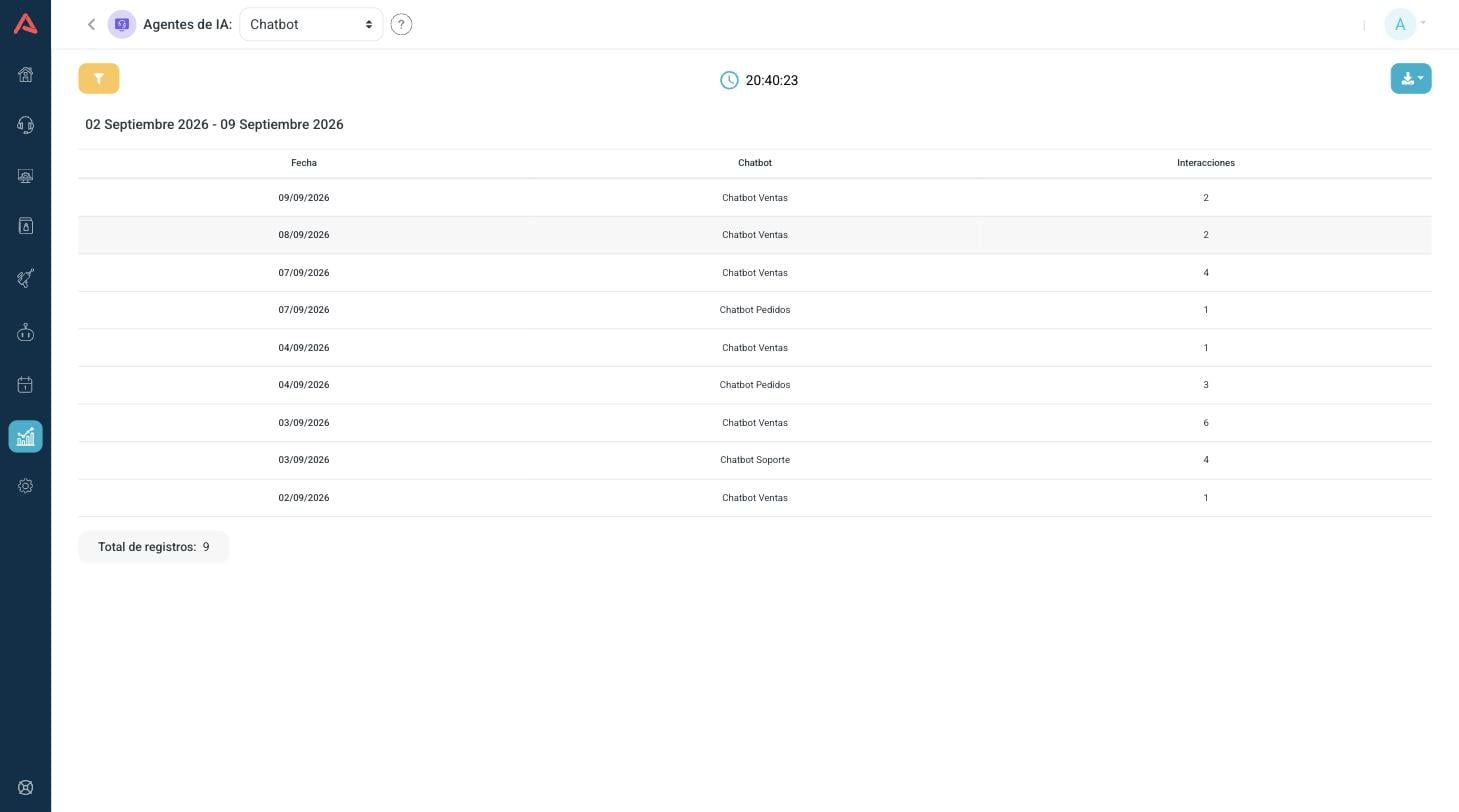
The Voicebot one carries those same three fields and adds Usage (min), the minutes that voicebot burned that day.
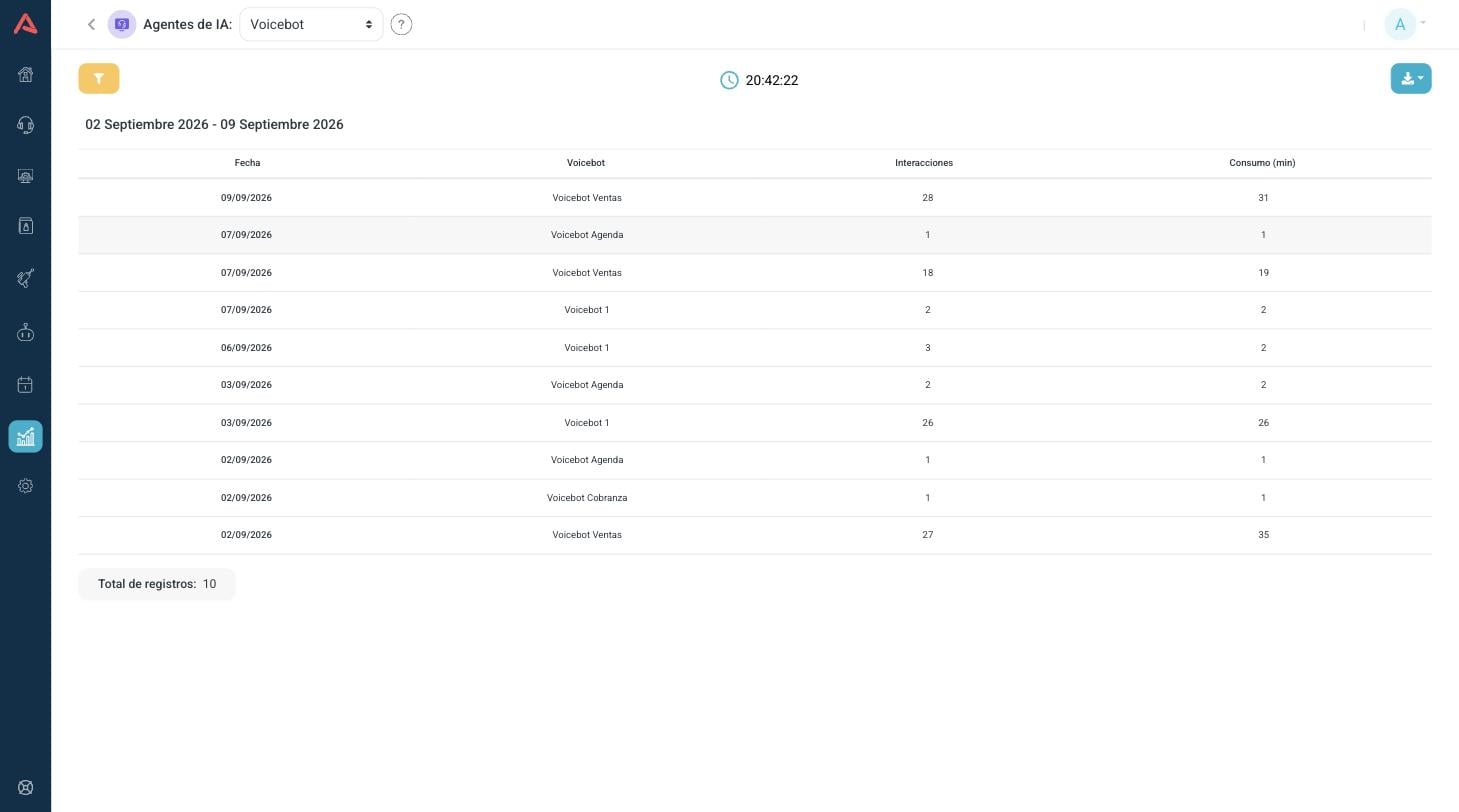
Filters on these two are minimal, the date and the bot, because there is not much else to filter in a summary.
A voicebot's Usage (min) is meant to be read next to the interaction count, not instead of it. Lots of minutes with few interactions means long conversations, and a long conversation with a bot is rarely good news: it is usually someone failing to make themselves understood.
Voicebot History
This is the detailed report. One row per call, and it is where you actually understand what is happening on voice.
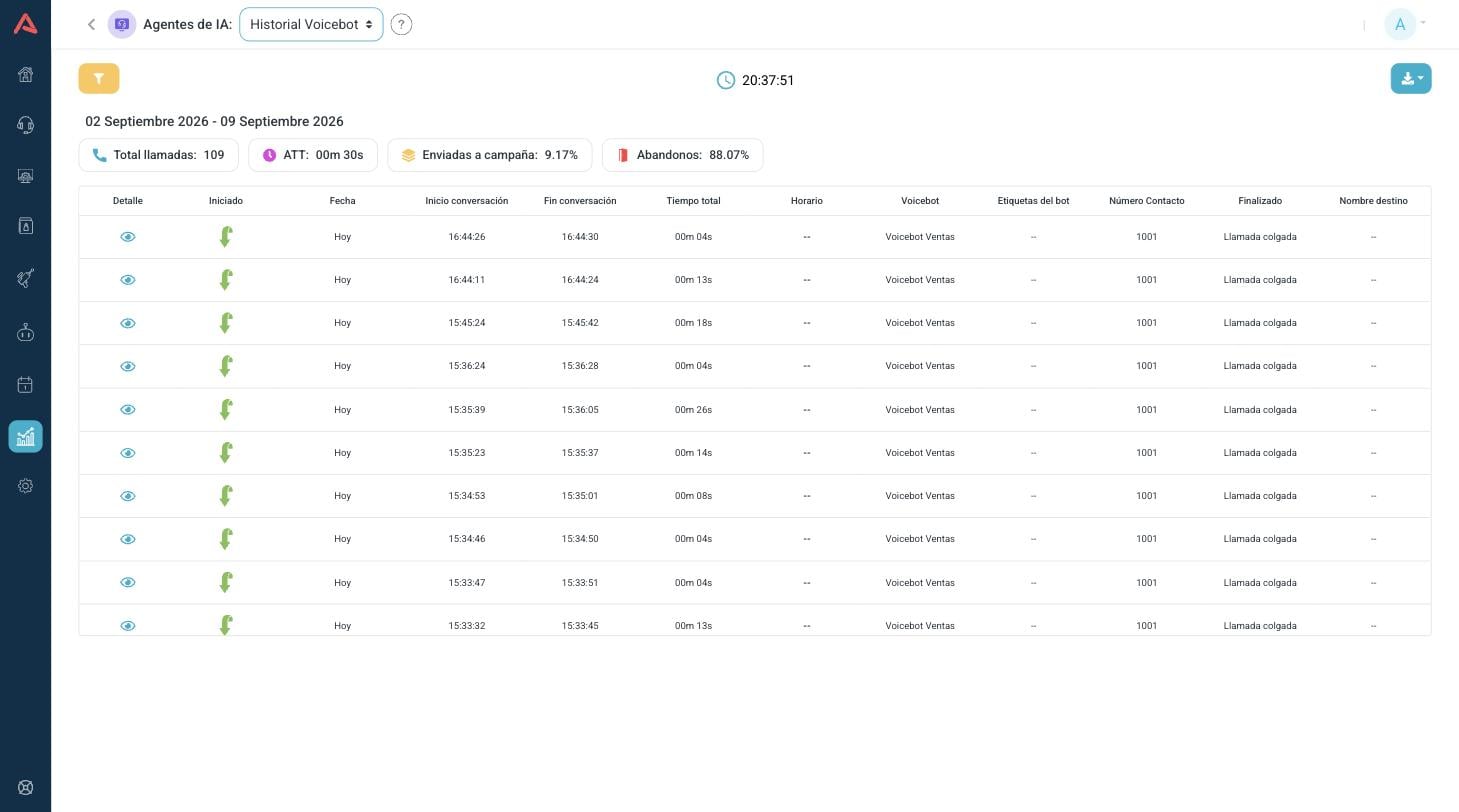
The four numbers on top
Above the table sit four totals that sum up the period:
- Total calls
- How many the voicebot handled.
- ATT
- How long a conversation with the bot lasted on average.
- Sent to campaign
- What share ended up going to a human.
- Abandons
- What share dropped without getting anywhere.
The ratio between the last two is the indicator that matters: how many the bot resolved on its own. If nearly all of them go to a campaign, the bot is working as a receptionist rather than an agent.
The columns
| Column | Description |
|---|---|
| Detail | Opens the full conversation |
| Initiated | How the call started: Incoming, Outgoing or Transfer, shown as an icon |
| Date | The day of the call |
| Start conversation | The time it began |
| End conversation | The time it ended |
| Total time | How long it lasted |
| Schedule | Whether it landed in Business hours or Off hours |
| Voicebot | Which of your voicebots took it |
| Bot tags | The marks the bot itself left during the conversation |
| Contact phone | The number of whoever called |
| End action | How it ended |
| Destination name | Where the call went, when it went somewhere |
The downloaded file also carries the Schedule result, which is not shown on screen.
A column full of dashes is not an error. Destination name only has a value when the call went somewhere, and Bot tags only when the flow tags anything. A dash means that did not apply to that call.
How the call ended
The End action column is the most informative one in the report, and its values are worth knowing:
- Call hang up
- The conversation closed right there, passed to nobody.
- Inactivity
- The person stopped answering and the bot closed.
- Transfer
- The call was transferred.
- Goto queue
- It went to an inbound campaign, meaning to a human agent.
- GotoIVR
- It went back to a voice menu.
- Goto extension
- It went to a specific extension.
- Goto conference
- It entered a conference room.
- Goto voicemail
- It ended in a mailbox.
- Voicebot limit
- The conversation ran out of turns before it was resolved.
When the ending was a handoff, the Destination name column says which campaign, IVR or extension.
Voicebot limit is worth going through one by one. It is not that the person left, nor that the bot resolved anything: it is that the conversation hit its turn cap. Every one of those is a call left half done, and they usually point at a spot in the flow where the bot and the person go round in circles.
The filters
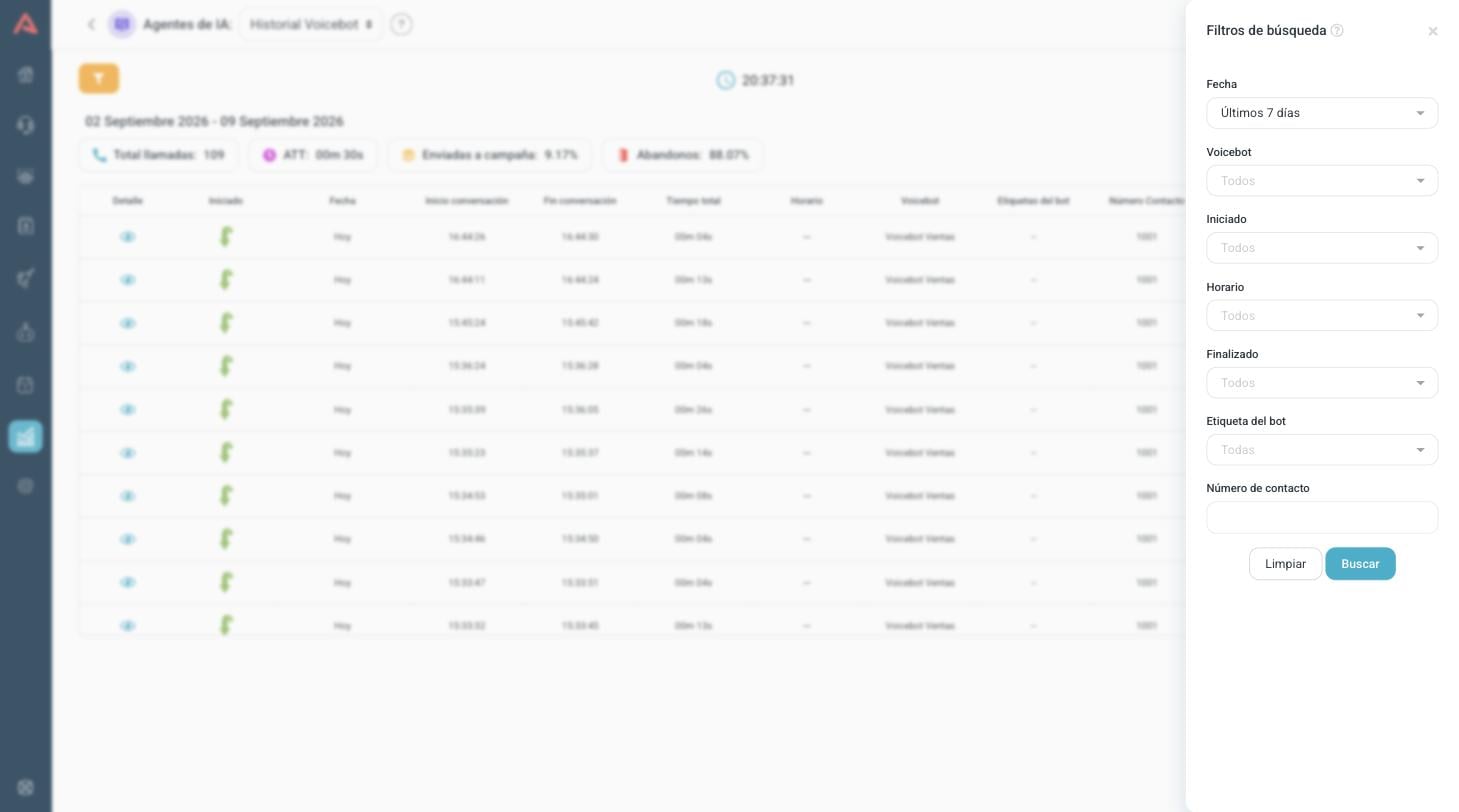
On top of the date, it filters by Voicebot, Initiated, Schedule, End action, Bot tag and Contact phone.
The Bot tag one is worth learning: if your voicebot marks conversations as things unfold, this filter lets you isolate exactly those. How those tags get set is covered in Voicebot.
One call in detail
The Detail button opens the full conversation, with what was said on both sides in order and the time of each turn.
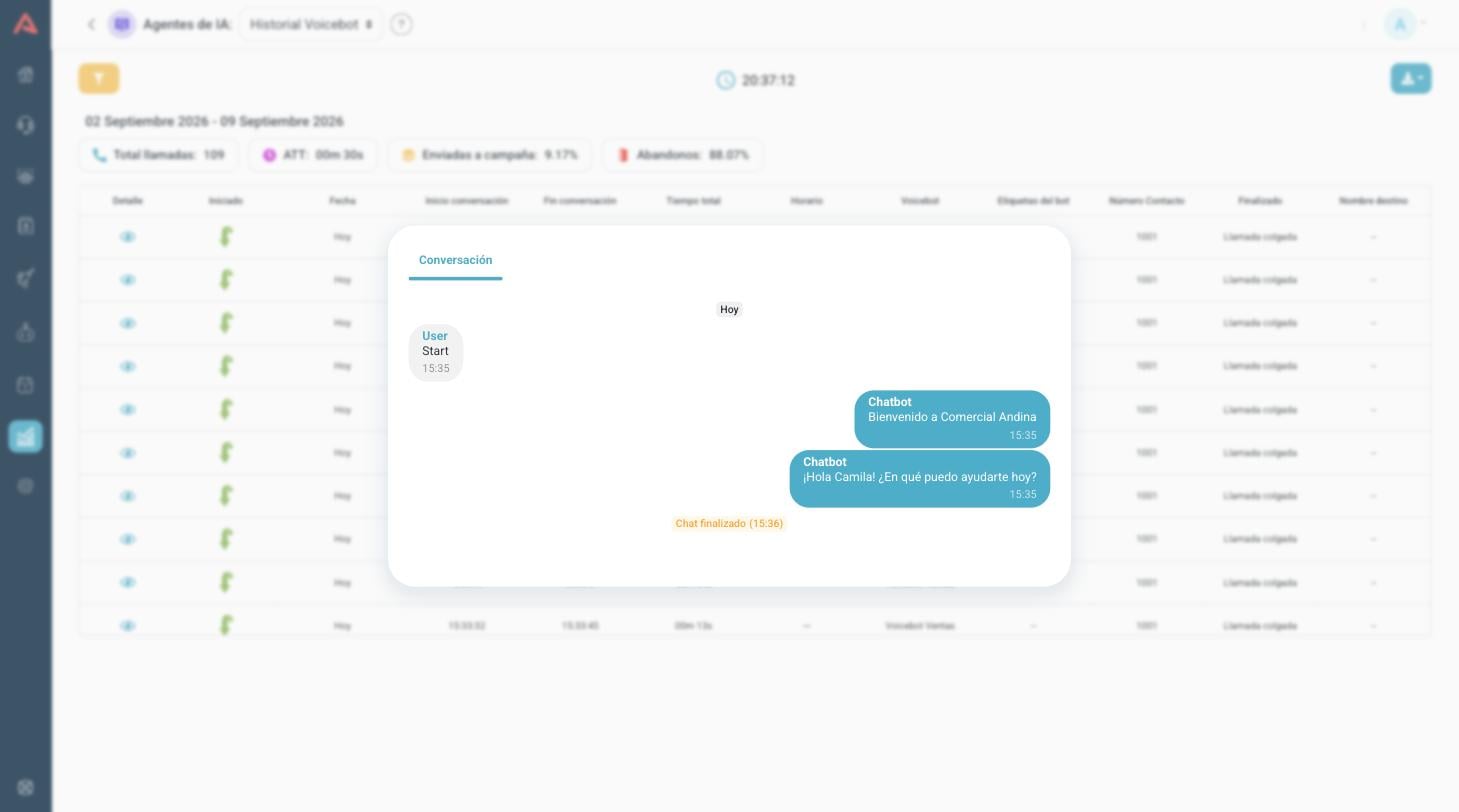
If the call was tied to a CRM contact, a tab with their details shows up as well.
This is where the real audit happens. An abandon in the table is a figure; in the detail you see the question the bot could not answer.