Extensions
Creating and configuring telephone extensions
A look at the module
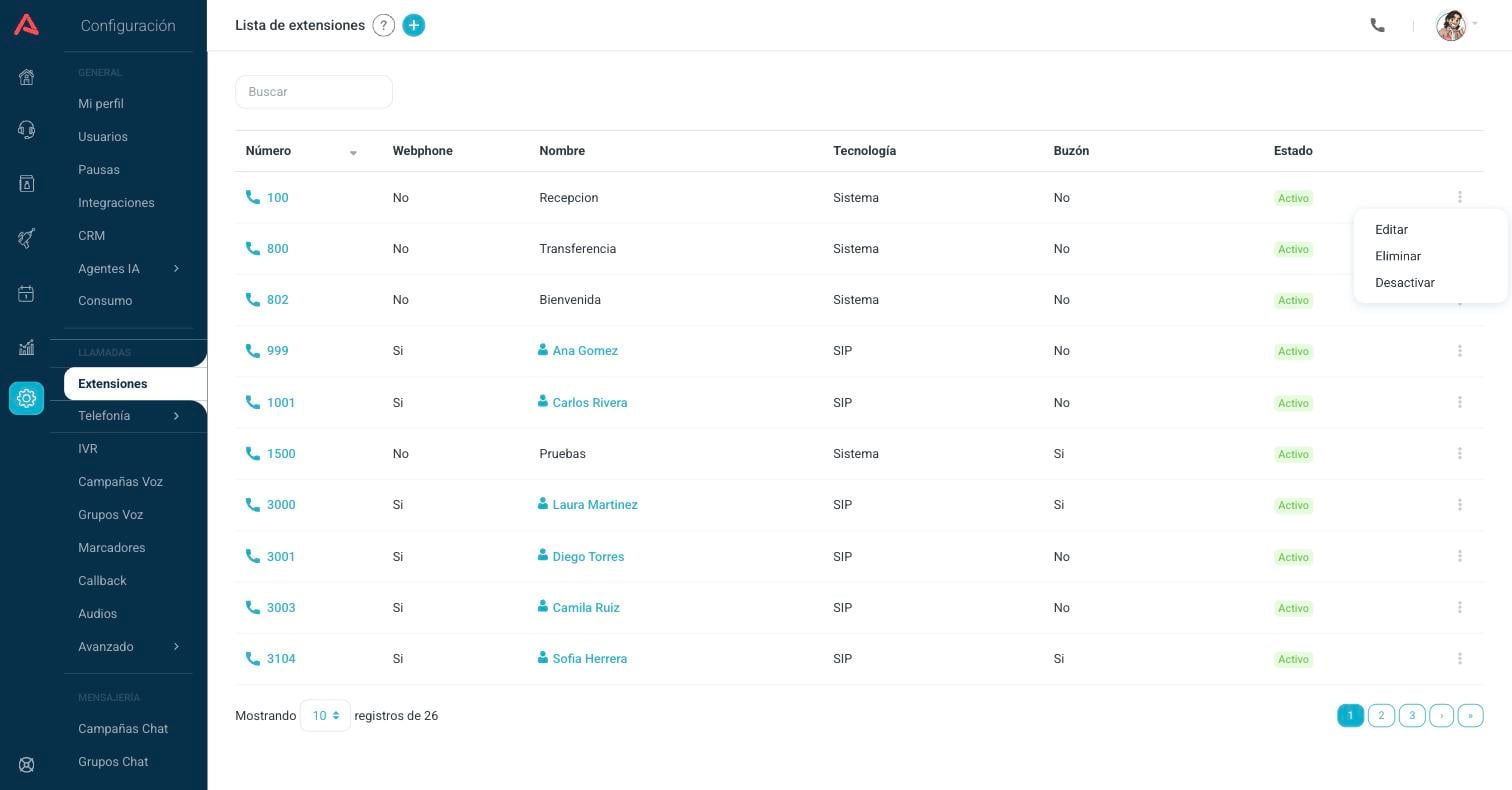
The Extensions module is where you manage the telephone extensions of your operation. You will find it in Setup > Calls > Extensions. From here you can create SIP extensions for your users, system extensions for special functions, and set up the voicemail and the dial plan of each one.
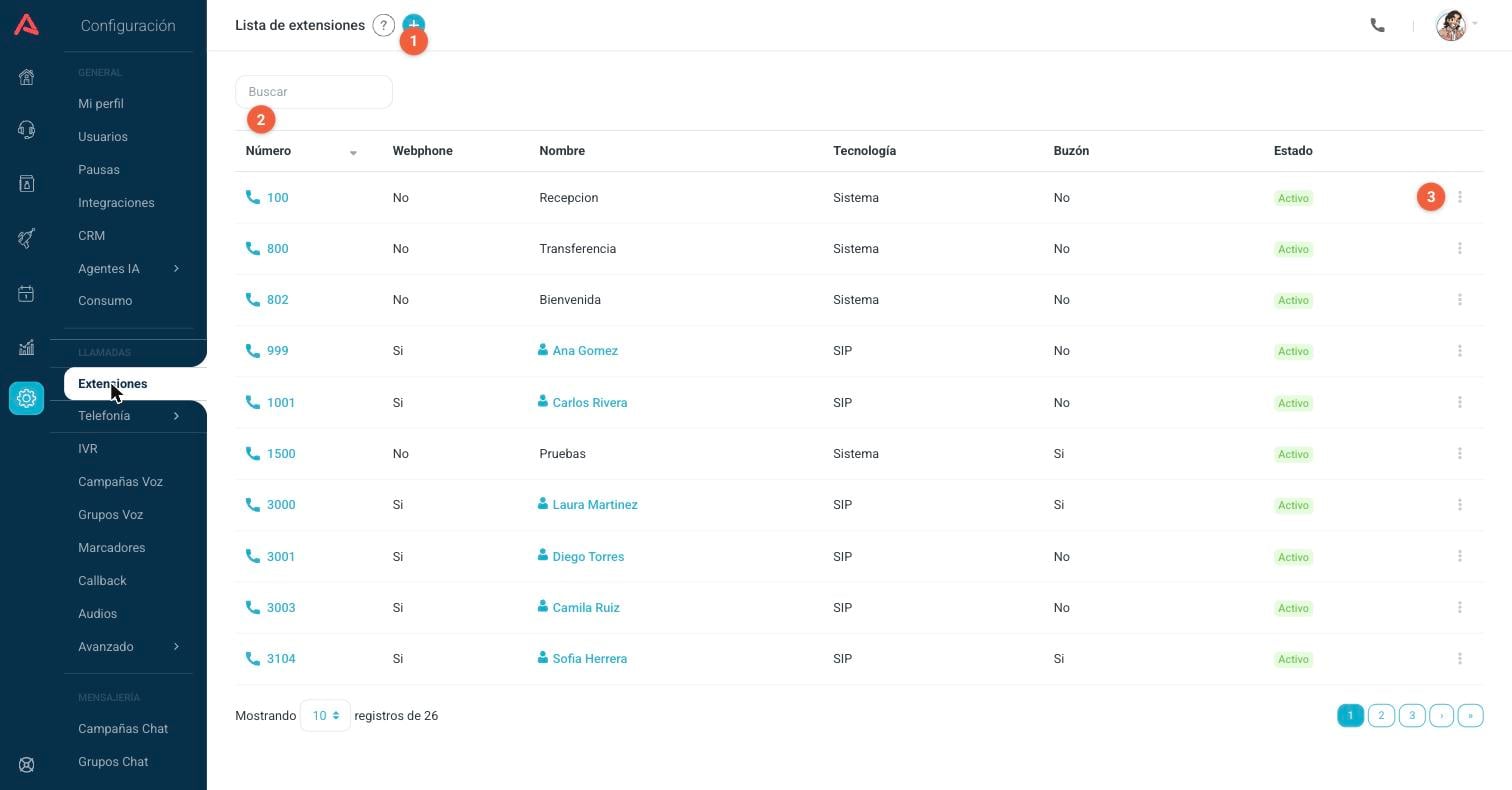
- 1 Create a new extension with the (+) button in the header.
- 2 Search for extensions by number or by name.
- 3 Open the more options menu (⋮) of any extension to edit it, delete it or deactivate it.
The list shows the main information of each extension:
- Number: the number you dial to reach the extension.
- Webphone: tells you whether the extension uses the phone built into the browser.
- Name: name of the extension. If it has an assigned user, it shows the name of that user.
- Technology: SIP for extensions with a device or a user, System for extensions that perform special functions.
- Voicemail: tells you whether the extension has voicemail turned on.
- Status: active or inactive.
Before you create extensions, create and set up the outgoing call categories in the Categories module. If you are going to create SIP extensions with an assigned user, create the users first with the "available for extension" option in the Users module.
Creating an extension
Press the (+) button in the header of the list and fill in the fields of the form. The mandatory fields are marked with an asterisk (*). Once you complete them the Save button turns on and the new extension appears in the list. You can always edit the extension after you create it.
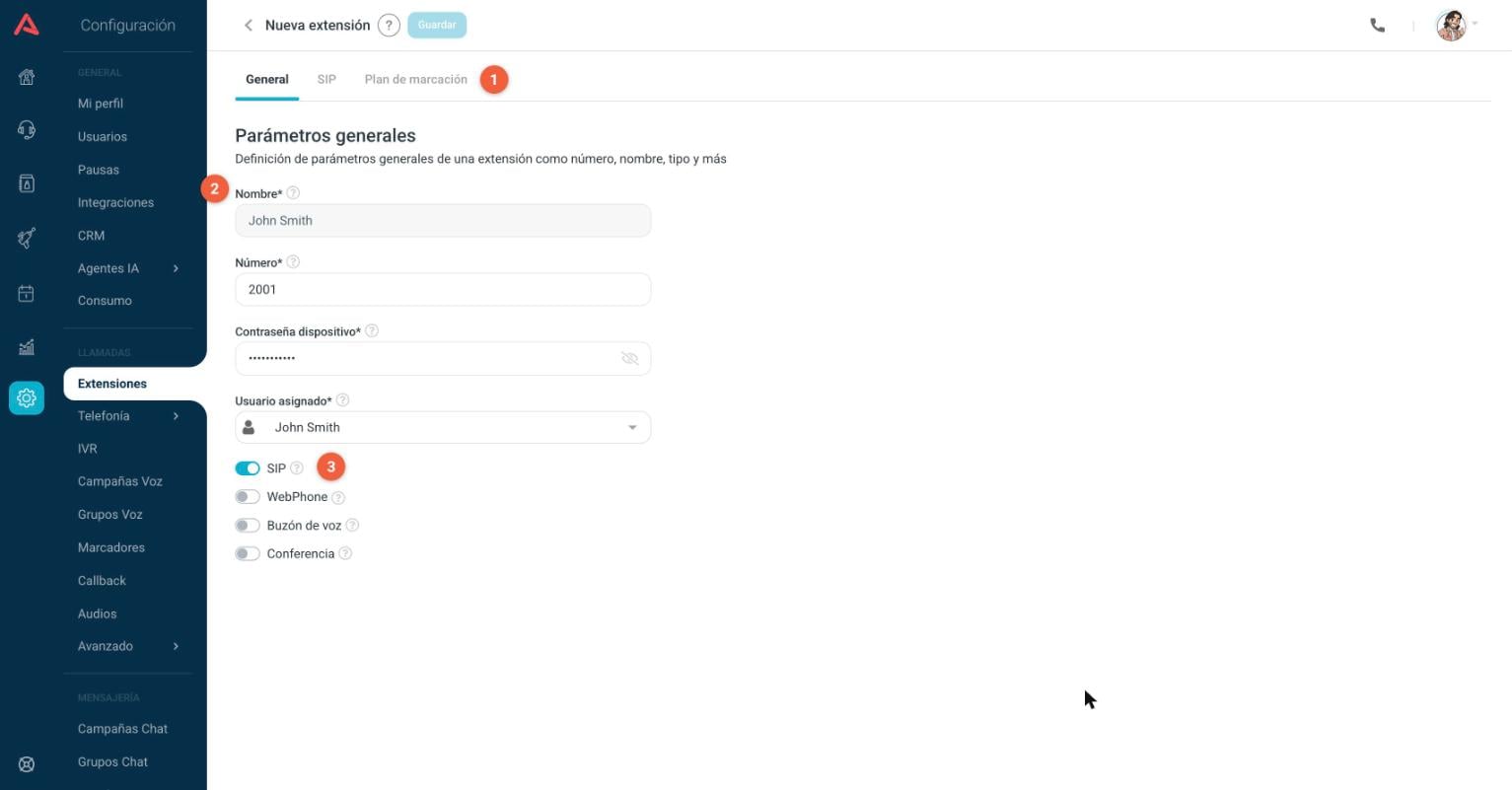
- 1 The configuration is organised in tabs: General, SIP and Dial Plan. The tabs turn on depending on the type of extension.
- 2 Fields that identify the extension.
- 3 Switches that turn on the functions of the extension.
General fields
- Name*
- Name that identifies the extension in the list. If the extension has an assigned user, the name is taken from the user automatically.
- Number*
- Custom and unique extension number, between 3 and 10 digits.
- Device Password*
- Password of the SIP account. It has to be between 8 and 15 characters, include at least one number and one letter, and it cannot be the extension number or that number reversed.
- Assigned User*
- Only SIP extensions can have an assigned user. Each user and each extension are assigned at most once. You can change the assigned user for another one that is available, with no extension of its own.
Switches
- SIP
- Turns the extension into a SIP extension. It enables the SIP tab with the extra parameters and the assigned user selector. If you leave it off, the extension is of the system type and the dial plan is configured by hand.
- WebPhone
- Enables the phone built into the browser for this extension.
- Voicemail
- Turns on the voicemail of the extension and shows its configuration section.
- Conference
- Allows conferences to be created from this SIP extension. When you turn it on you can set a conference password and allow the conference to be recorded from the user panel.
How many SIP extensions you can create depends on your plan. If you reach the limit, the platform tells you when you try to create a new one.
Voicemail
When you turn on the Voicemail switch in the General tab, the voicemail configuration section appears.
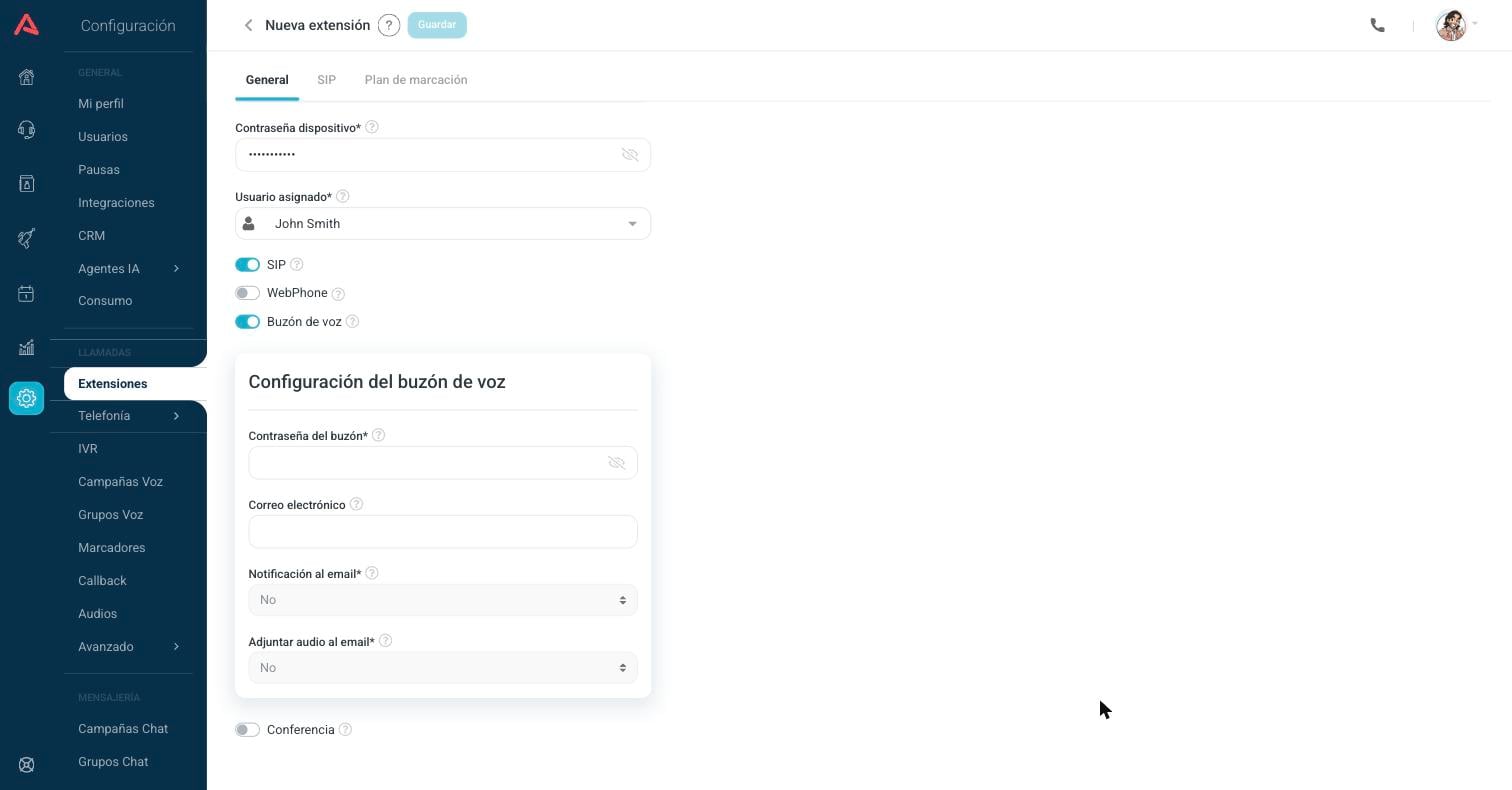
- Voicemail Password*
- Security password to get into the voicemail of the extension.
- Address where the notification is sent when a new message arrives in the voicemail.
- Email Notification*
- Turns the email notifications on or off when a new message arrives.
- Attach Audio to Email*
- Decides whether the notification email carries the audio file of the message or only announces the new message.
SIP tab
Available when the SIP switch is on. This is where you set up the telephone behaviour of the extension.
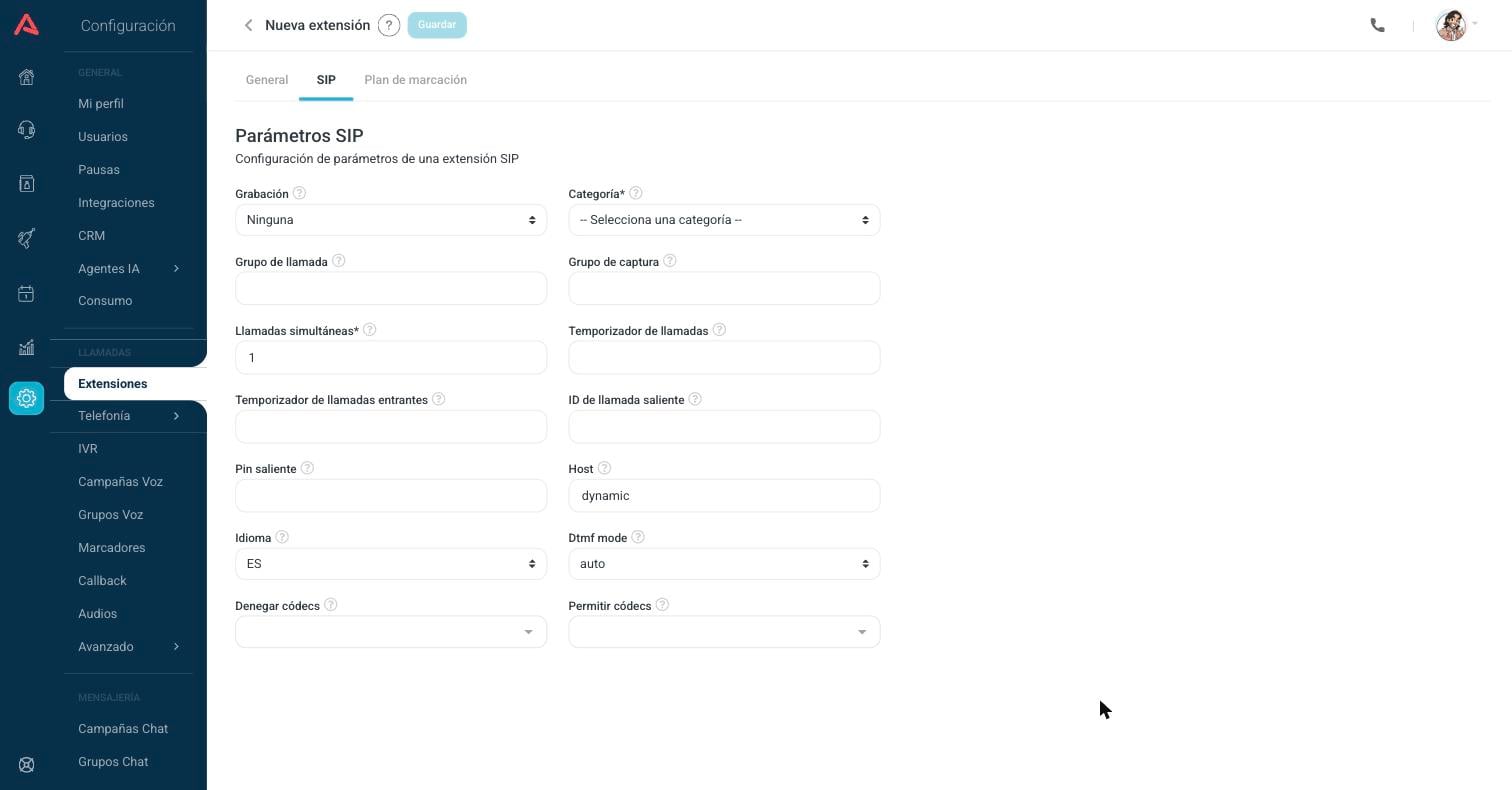
- Recording
- Type of calls that are recorded for this extension: all of them, incoming, outgoing or none.
- Category*
- Outgoing call category that decides where the extension is allowed to call. Categories are created in the Categories module.
- Call Group
- Call groups the extension belongs to, so it stays organised.
- Pickup Group
- Group of extensions identified with the same number, which lets you pick up a call ringing on any extension in the group, independent of the call group.
- Simultaneous Calls*
- How many calls at the same time the extension can have.
- Call Timer
- Time limit in minutes for outgoing calls. When it runs out, the call ends automatically. It does not apply to internal calls between extensions.
- In-Call Timer
- Time limit in minutes for incoming calls, with the same behaviour as the one above.
- Outgoing Caller ID
- Specific identifier for outgoing calls. Whether it is valid depends on the country and on the provider.
- Outgoing Secret
- Numeric key to make calls that need extra permissions. It is enabled in the outbound routes and dialled from the phone at the moment of the call.
- Host
- IP address of the SIP account. It is dynamic by default (dynamic); you can also set a static IP.
- Language
- Language of the audio messages of the extension.
- DTMF Mode
- Detection mode for the dialling tones, adjusted according to RFC2833.
- Deny Codecs / Permit Codecs
- Disables or enables specific audio codecs for this extension.
Dial Plan
The dial plan decides how the numbers dialled by the users are handled. It can only be created by hand on extensions of the system type, that is, extensions that are not SIP. On SIP extensions the plan is generated automatically.
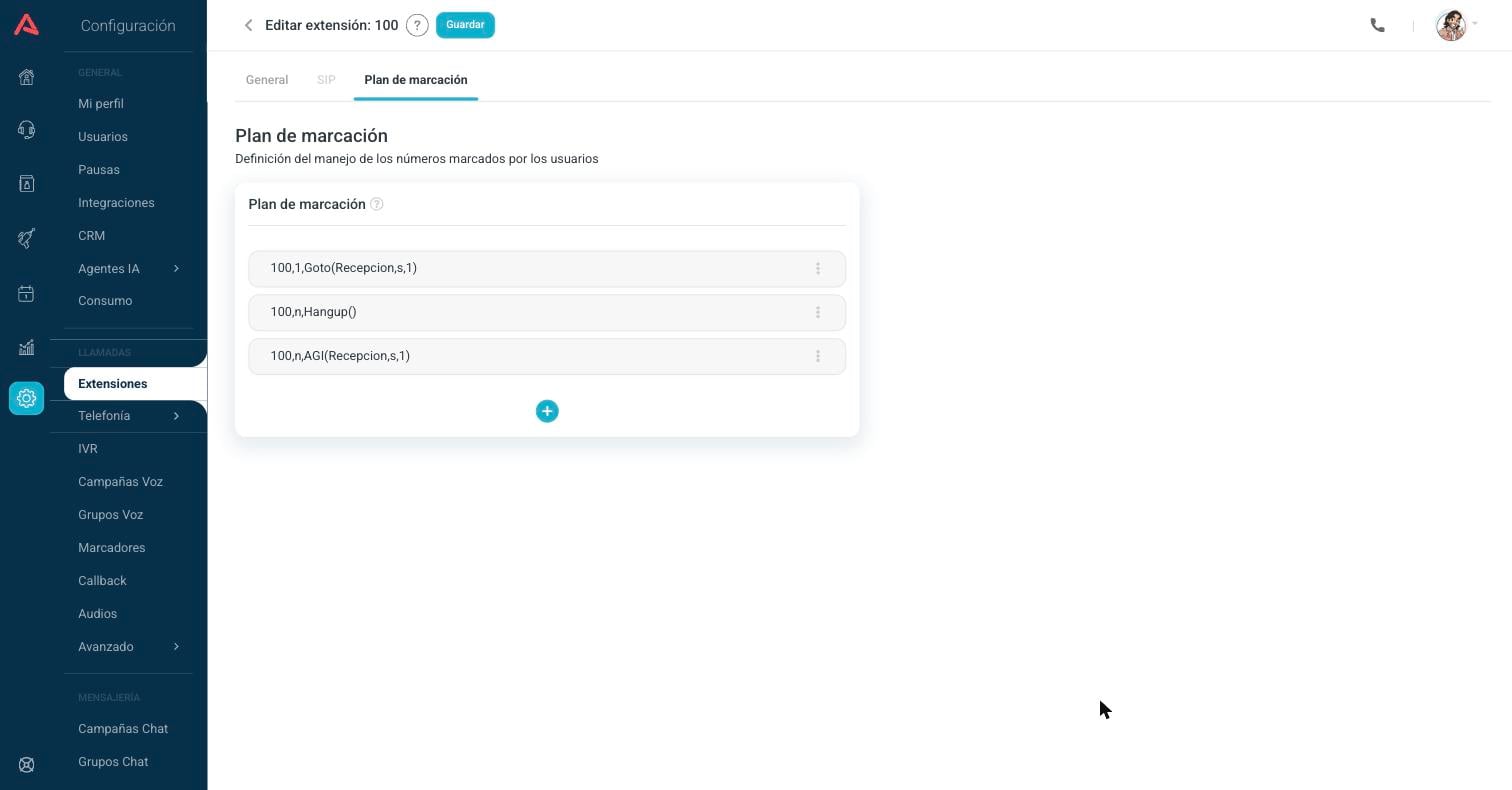
Each step of the plan is shown as a card with the format extension, priority and application. To add a step press the (+) button and fill in the form:
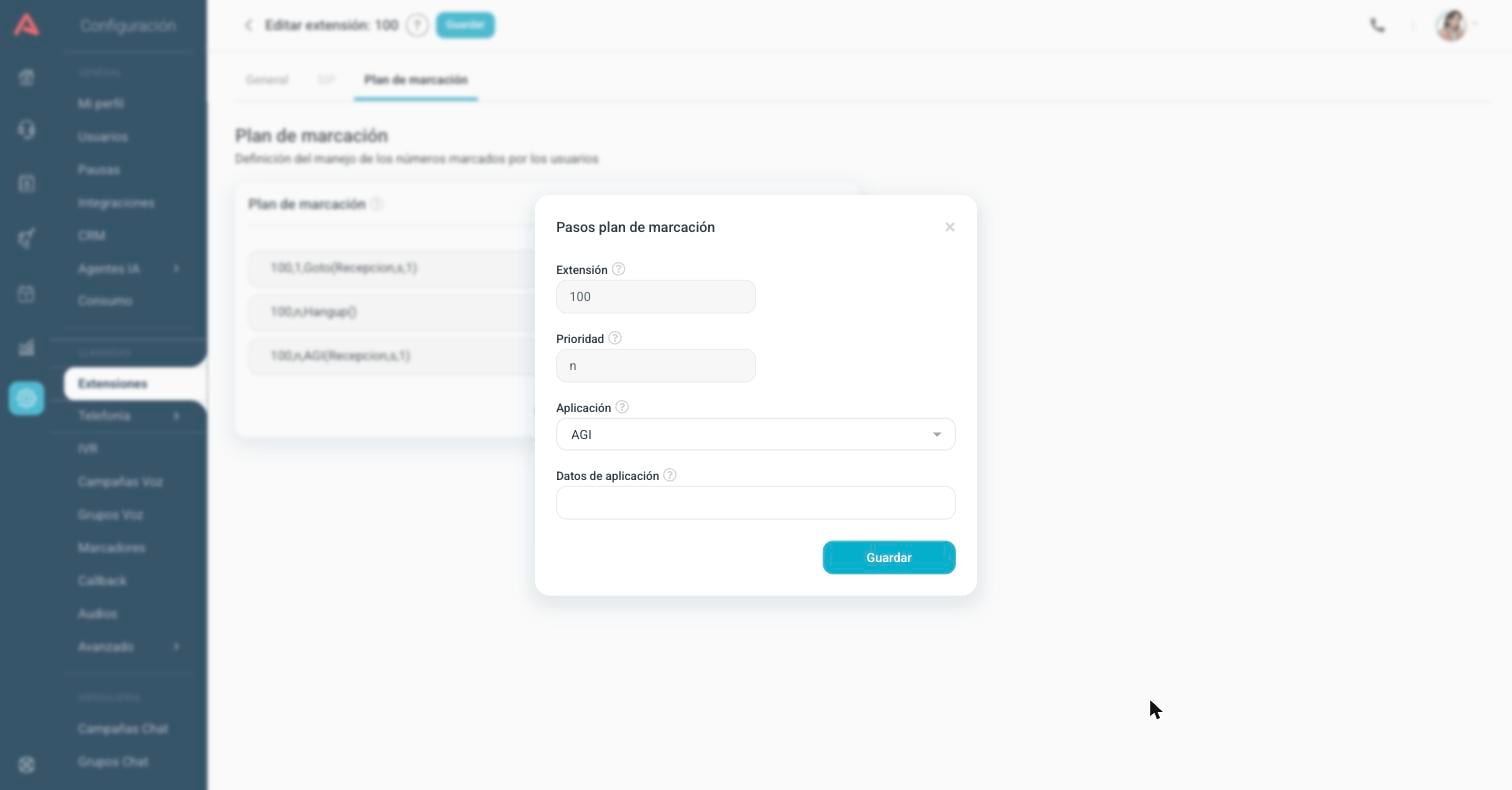
- Extension
- Extension number the dial plan belongs to. It cannot be modified.
- Priority
- Order in which the step runs. It is assigned automatically and you can change it by dragging and dropping the steps to reorder them.
- Application
- Instruction that runs in this step of the plan.
- Application Data
- Parameters that go with the selected application.
Only change the dial plan if you know what each application does. A badly configured step can leave the extension out of service.
Editing, deactivating or deleting
From the more options menu (⋮) to the right of each extension you can edit it, delete it, or deactivate it without deleting it.
When you edit an extension, the Save button stays off until you make some change. Once saved, the changes cannot be rolled back automatically; to go back to the previous state you have to change the fields again.