WFM
Building schedules and measuring how well your agents keep them
What WFM is
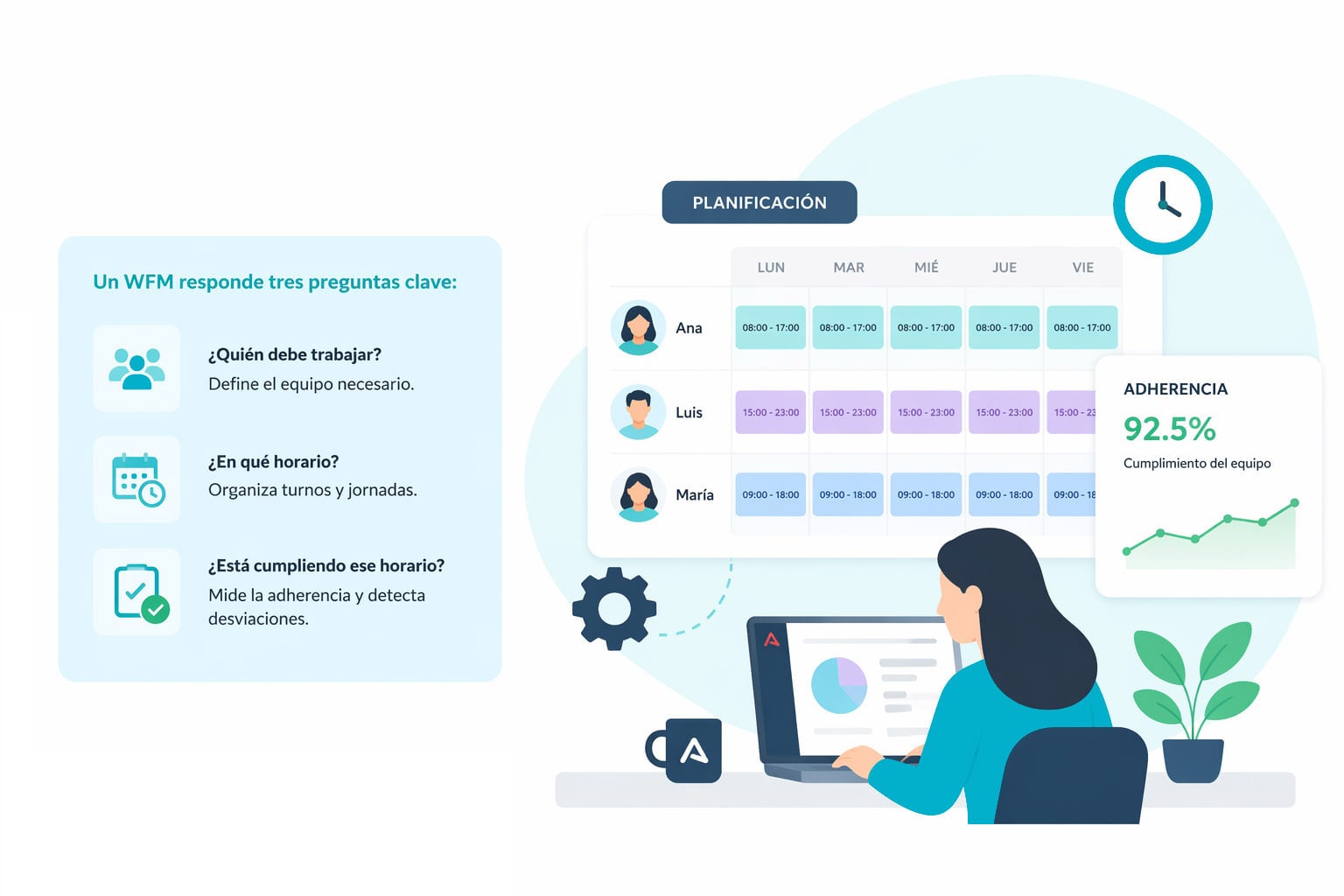
WFM stands for Workforce Management. It is the part of Audara for planning your agents' work and then checking whether the plan held.
It answers three questions: who should be working, on what schedule, and whether they are keeping to that schedule.
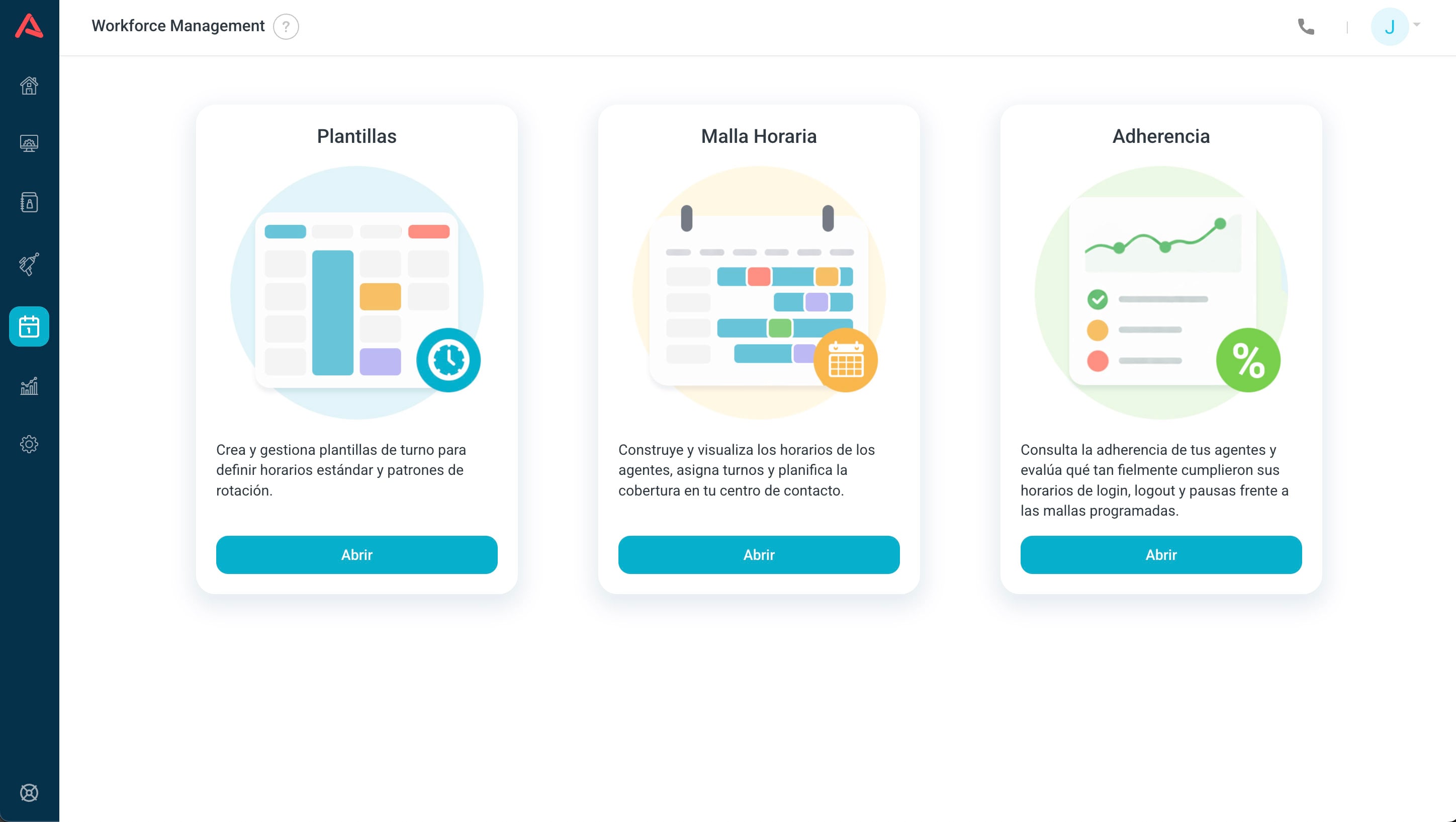
That is why the module has three cards, and why you go through them in order:
- Templates
- What a shift looks like. Defined once and reused.
- Schedule
- Who works which shift each day, and publishing it to them.
- Adherence
- How close what happened came to what was planned.
What adherence is
Adherence measures how faithfully an agent kept to the schedule they were given. It is not whether they worked, but how much the real day matches the planned one: when they logged in against when they were due, when they logged out, and how much time they spent on break against how much they were allowed.
An operation can have flawless schedules on paper and fall apart entirely in execution. Adherence is what measures that gap.
How it all links up
Before the detail it is worth seeing the whole path, because each piece depends on the one before it.
You define the shifts your operation runs as templates. With those templates you build the schedule for each day, giving every agent their shift or their day off. When the schedule is ready you publish it, and that is when agents see it. And the next day adherence compares that published schedule against what each of them actually did.
Saving is not publishing. When you save, the schedule is written down but no agent sees it; it is still your draft. Publishing is what sends it to them. By default changes stay saved and unpublished, and the list tells you which days have changes pending.
You can publish the same schedule several times. Each publish replaces what the agent was seeing, so fixing an already published shift means publishing again.
Shift templates
A template is the shape of a working day: when it starts, when it ends and where the breaks fall. Everything else in the module depends on these existing.
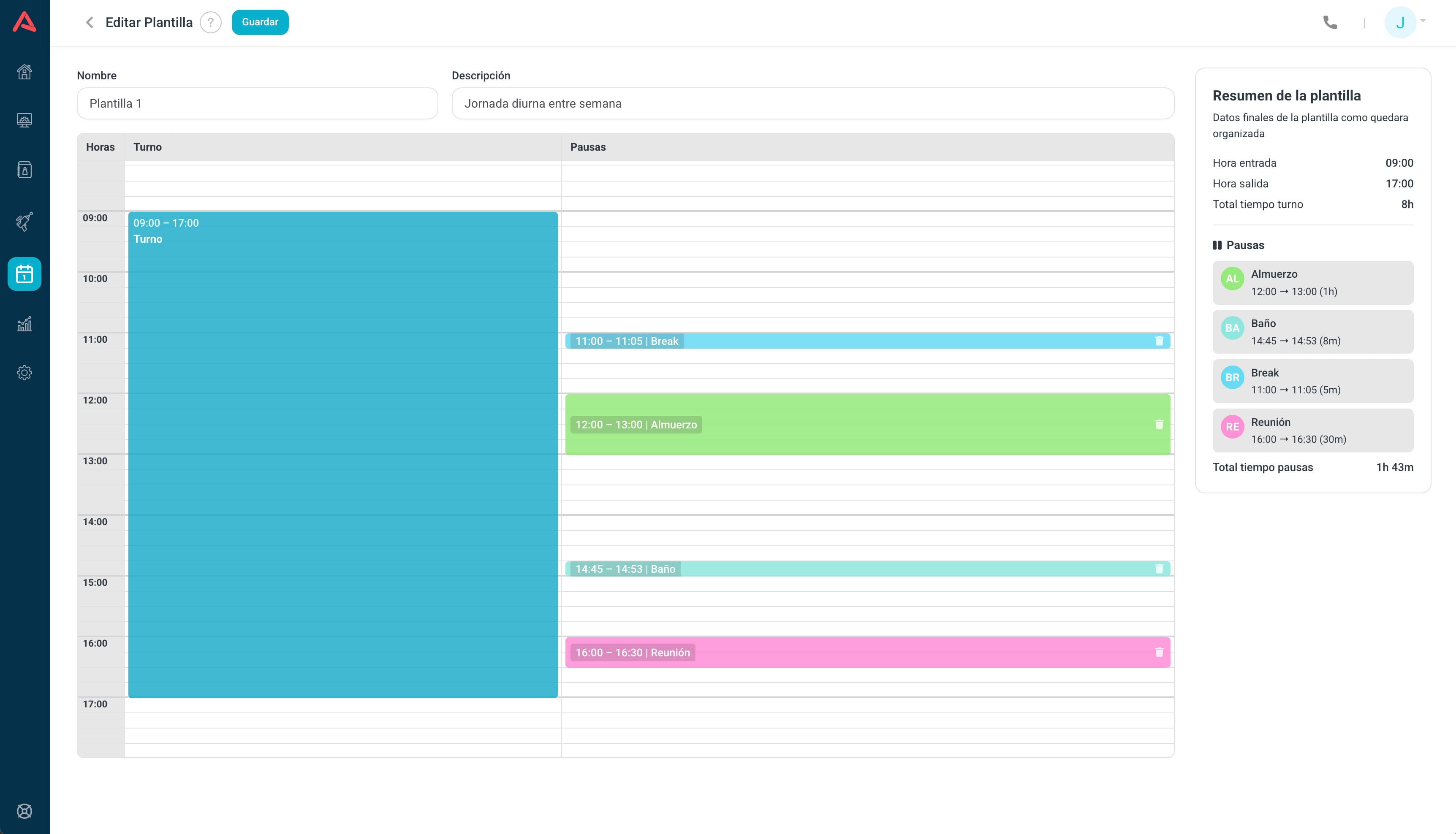
The usual thing is to keep a handful and reuse them: day shift, night shift, extended hours, weekends.
Building a template
The template is drawn on a grid of hours with two rows, Shift and Breaks, and you fill it in by clicking on them.
The shift first: Set Shift Schedule opens and you enter the Start time and the End time. Both are required, and the end has to come after the start.
Then the breaks, with Add Break. Each one asks for a Break type and a Start time, and the system shows you when it Ends at, because the length comes with the type.
Break types are not created here: they come from the Pauses module, with their duration and their colour. If the selector tells you no types are available, it means you have not created any pauses yet.
Two breaks cannot overlap: stack one on top of another and the form says so and refuses to add it.
At the bottom sits the template summary with the start time, the end time, the shift total, the breaks and the total break time. It is the quick check that the shift adds up.
The schedule
The schedule is where planning turns concrete: which agent works which shift, day by day.
The week
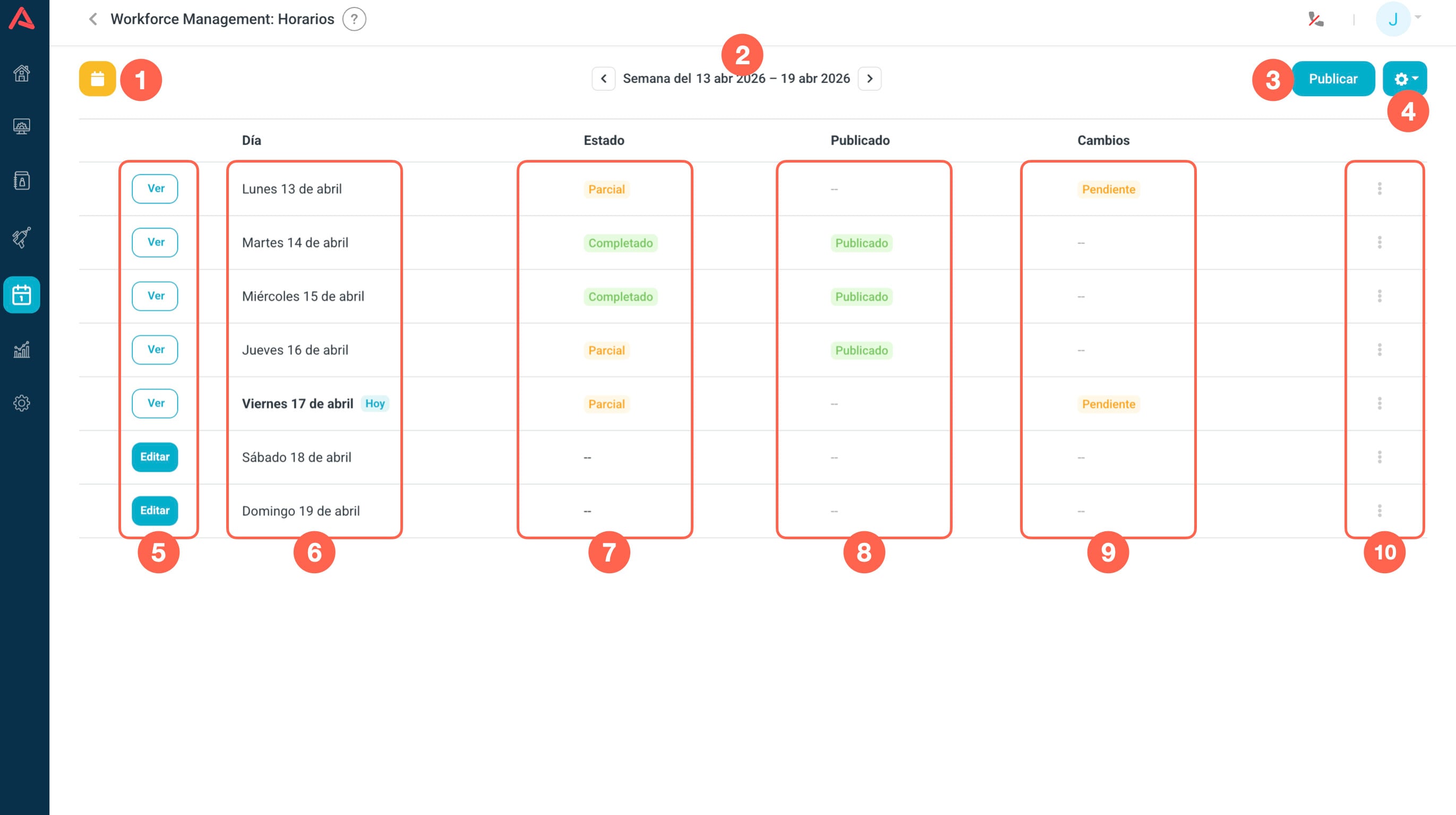
Each day gets its row, with the day highlighted if it is Today, and three indicators worth reading together:
- Status
- Pending if there is nothing, Partial if only some agents have a shift, Complete if they all do.
- Published
- Whether the agents have seen it.
- Changes
- Whether there are saved changes that have not been published yet.
A day can be published and have pending changes at the same time: that means your agents are looking at an earlier version than the one you have saved.
From here you move between weeks, jump to any date with the schedule calendar, and publish the whole week at once.
Copy and paste
When schedules repeat, this is what saves the work: you can copy one day's schedule and paste it onto another, or copy and paste a whole week.
If the destination already had a schedule, the system asks before overwriting it. That warning is worth reading: pasting over replaces, it does not merge.
Schedules cannot be created for today or for past dates. Planning always runs from tomorrow onwards. If a schedule for today already existed you can open it, but if you never created one, today is already too late. This is what forces you to plan at least a day ahead.
The day
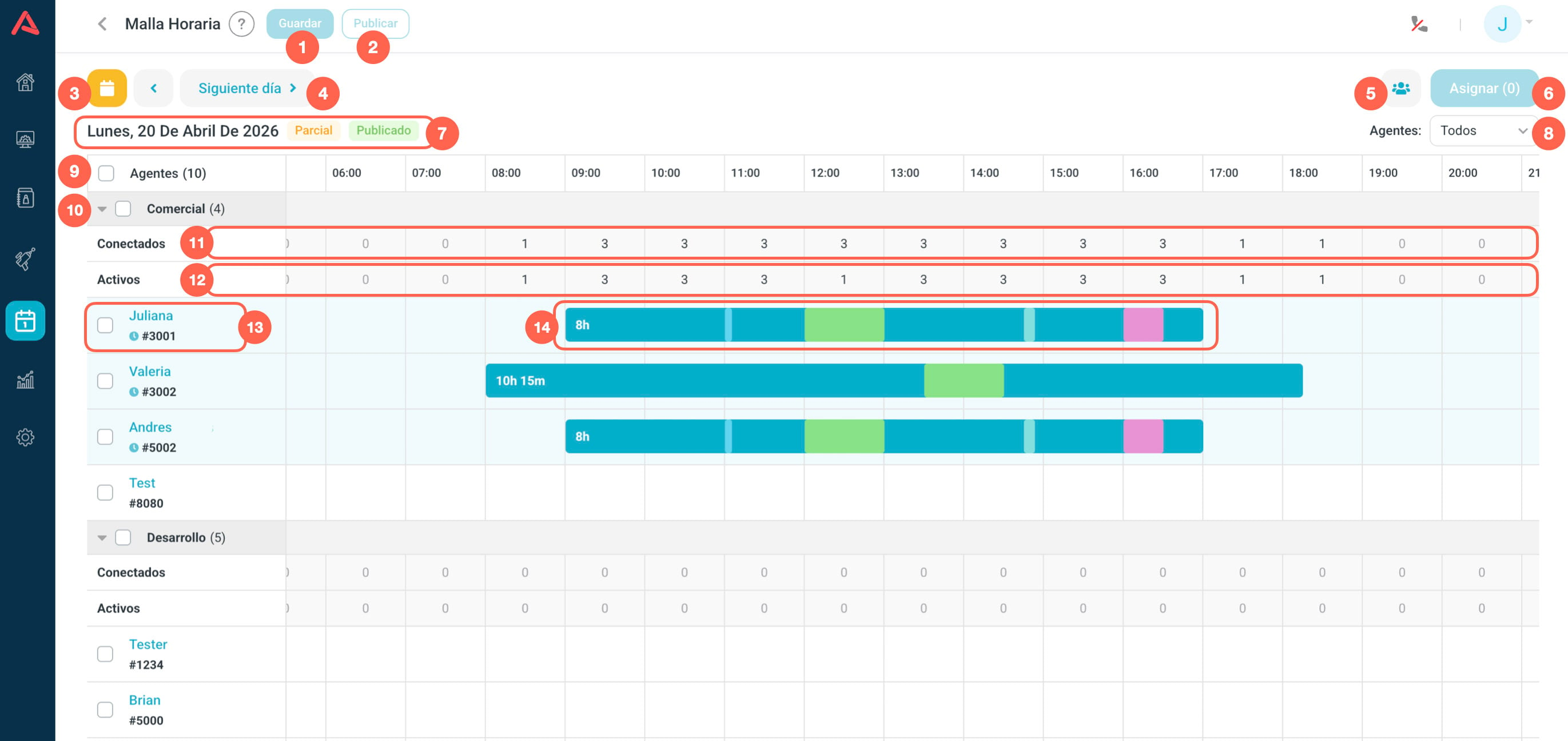
This is where the operation gets built. On the left is the agent list, with a search box, the option to group by department, and three selection shortcuts: all, none, and Select unassigned, which is the one you actually reach for once you are halfway through.
With several agents selected, the Assign button tells you how many you have and gives them all the same shift at once.
On the right, each agent's shift is drawn across the hours, with the breaks in their own colours. Hover over one and you get the exact times and the type of each break.
Connected and Active
Below the schedule there are two rows that are the most useful thing on this screen:
- Connected
- How many agents will be on shift at each hour.
- Active
- How many will actually be available, once the ones on break are taken out.
The gap between the two is what tells you whether the breaks are well spread. Four agents connected with two of them at lunch at the same time is two active, and at that hour your coverage is half of what it looks like.
Assigning a shift
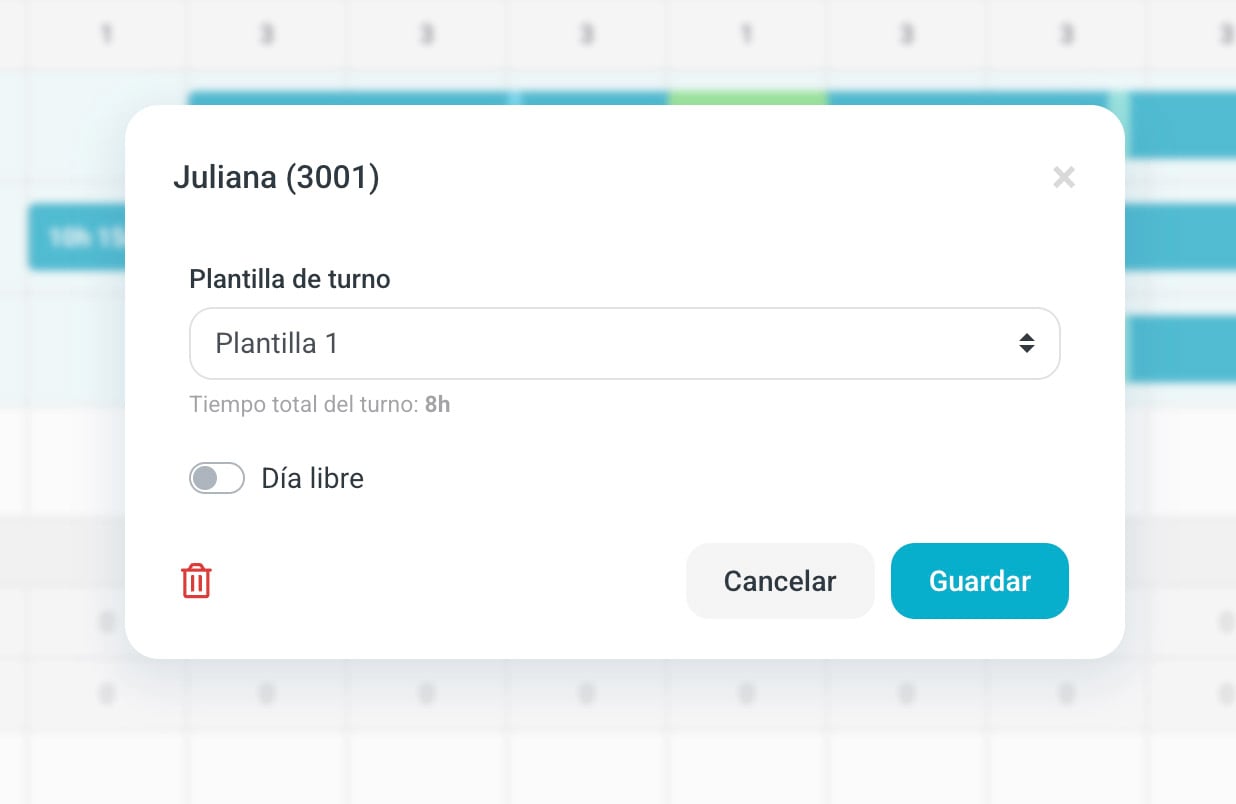
The window asks for the Agent and the Shift Template, and shows you the total shift time you are handing out.
The other option is to mark a Day off, and then it asks for the reason: Day off, Vacation, Sick leave or Other. Marking it is not the same as leaving the agent unassigned: unassigned is a hole in the plan, a day off is a decision.
If you leave the screen with unsaved changes, Audara warns you before letting you go. If you choose to continue, those changes are lost.
Measuring adherence
The adherence report lives under the Productivity reports, and compares the published schedule against what each agent actually did.
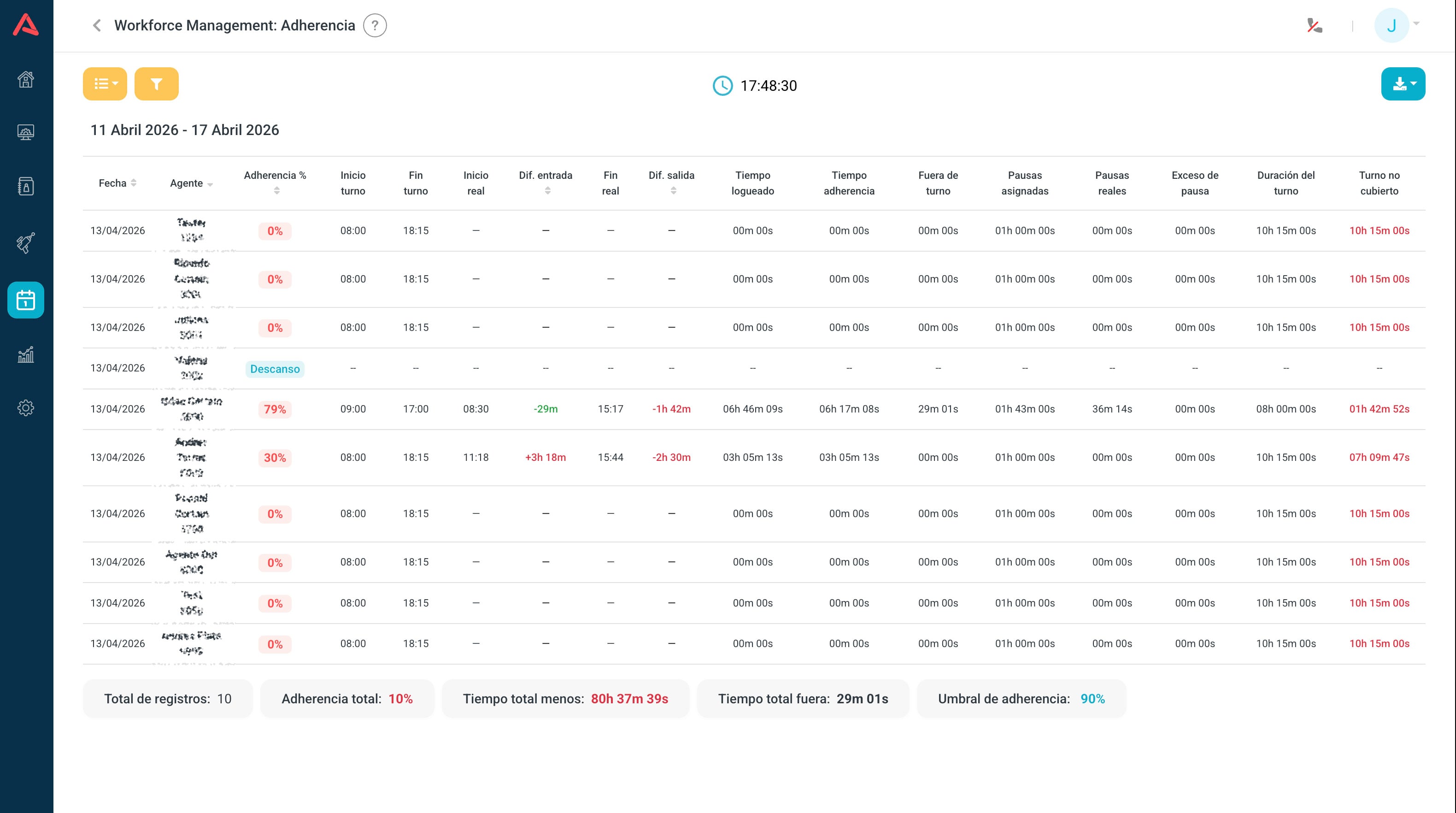
The report starts empty and asks you to define a filter to begin. You filter by Date and by Agents.
The threshold
Below the table sits the Threshold, which starts at 90%. Percentages at or above it come out green and those below come out red, so the table audits itself at a glance.
The threshold is yours and only for right now: it is not saved. Every time you open the report it goes back to 90%, and whatever you set is not visible to anyone else. If your target is a different number, keep that in mind when comparing with what a colleague reports.
Next to the threshold are the totals for the period: Total adherence, Total missed, Outside shift and Total records.
The columns
| Column | What it tells you |
|---|---|
| Date | The day the row belongs to |
| Agent | The agent's name and number |
| Adherence % | What share of the shift they spent where they were meant to be |
| Shift Start | The time they were due in |
| Shift End | The time they were due out |
| Actual Start | The time they logged in |
| Start Diff | How early or late they were coming in |
| Actual End | The time they logged out |
| End Diff | How early or late they were going out |
| Total Logged In | How long they were connected in total |
| Adherence Time | How much of that time fell inside their shift |
| Outside Shift | How long they were connected outside their hours |
| Assigned Pauses | How much break time they were entitled to |
| Real Pauses | How much break time they took |
| Pause Exceeded | How far over their assigned break time they went |
| Shift Duration | How long the working day was meant to be |
| Missed Shift | How long they should have been connected and were not |
| Note | A comment you can leave on that row |
The Note column is what turns the report into a conversation: it is where the reason a day went off-script gets written down, and unlike the threshold, a note is saved and everyone sees it.
The graph
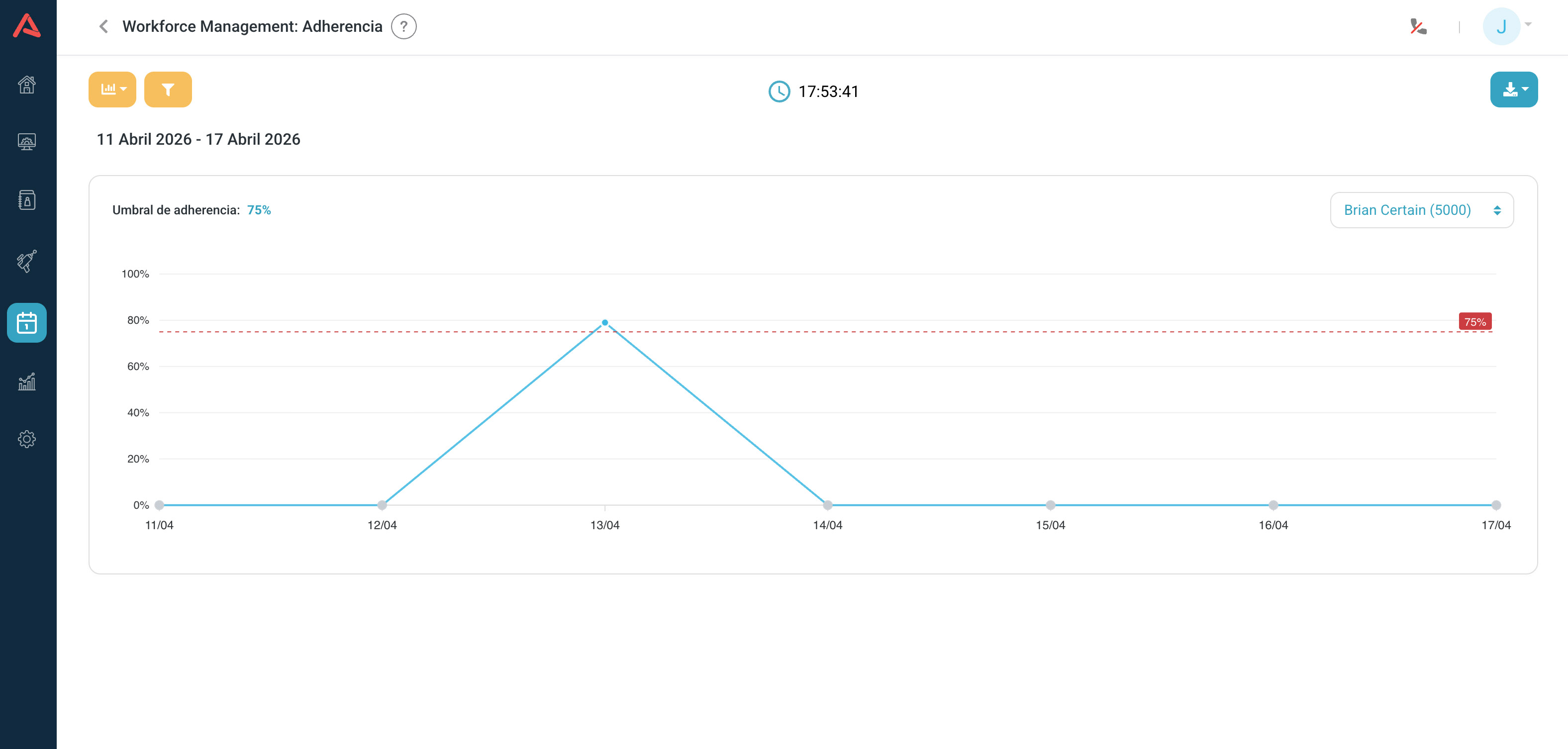
The yellow button on the left switches to the graph view, which shows one agent's adherence day by day against the threshold line. You pick the agent from its own selector, and if they have no data in the period the graph tells you so.
Why any of this matters
Low adherence is not a discipline problem but a service one: if people are not there when the schedule says they will be, calls pile up and wait times climb, even when the sizing was done right.
It works the other way too. A consistently high Outside Shift means somebody is working hours nobody planned, and that needs looking at as well.
What the agent sees
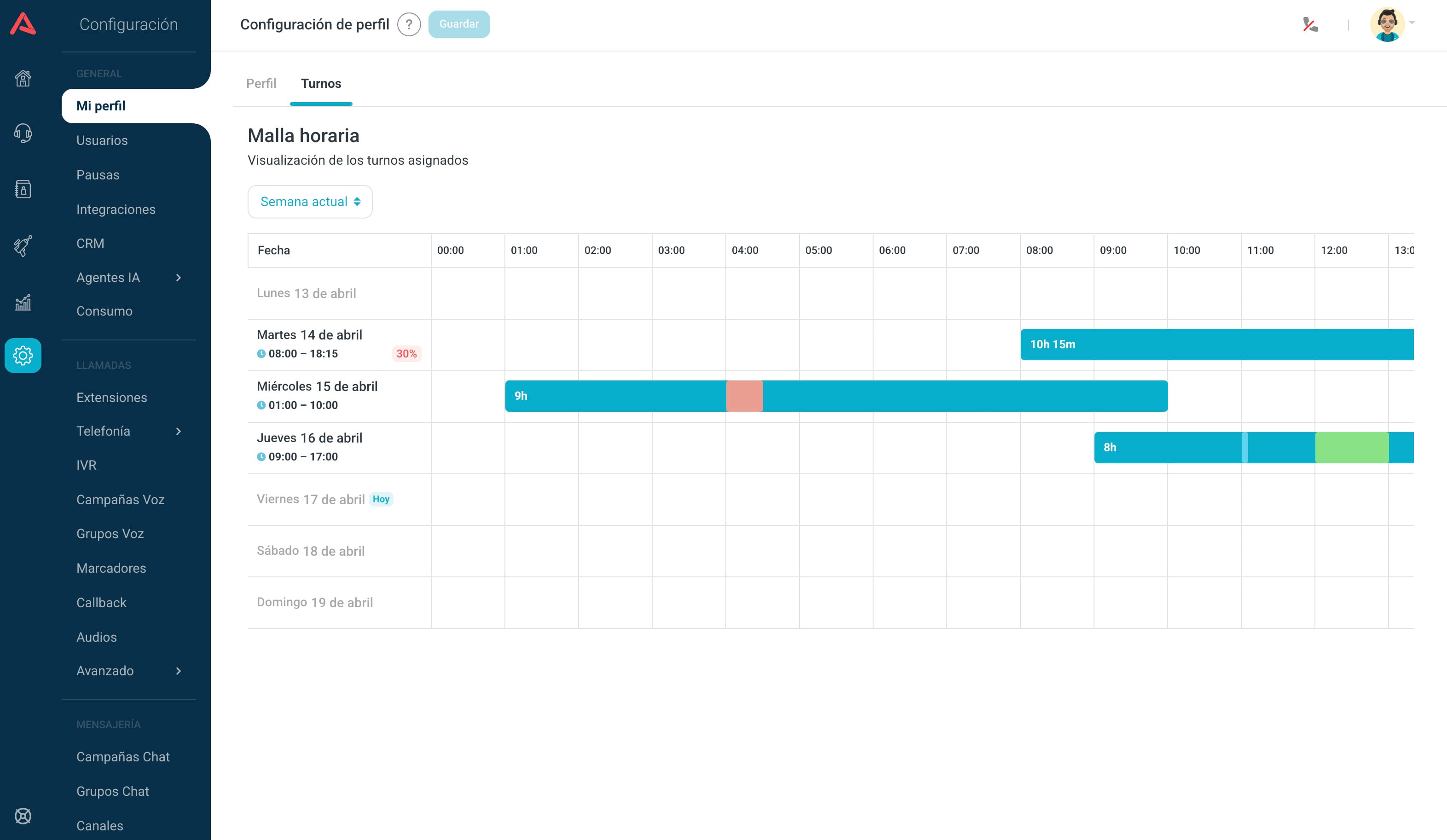
A published schedule shows up on its own in the agent's profile, with their shifts for the coming days and the history of past ones. From the same place they can see their own adherence.
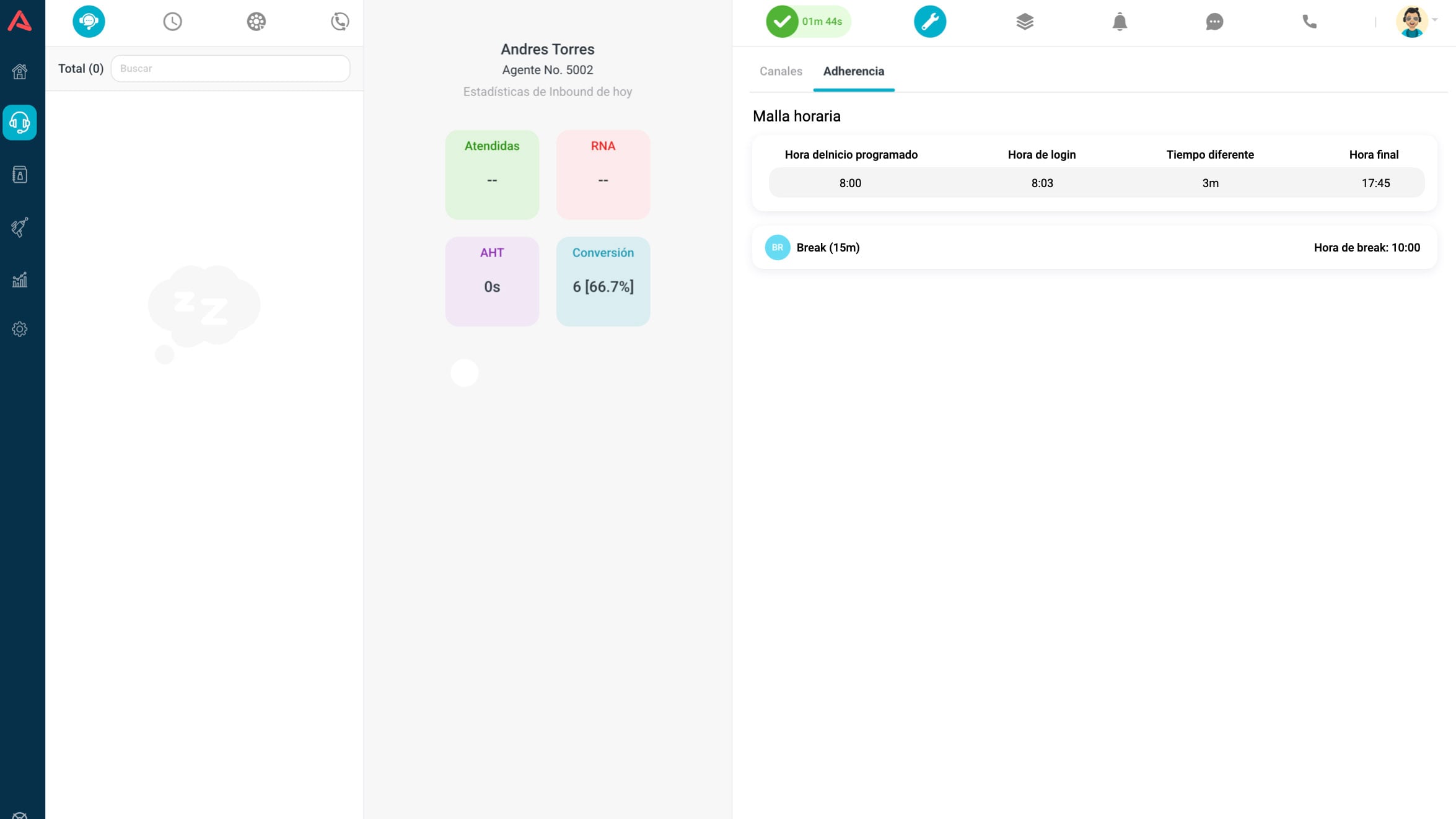
On the agent panel
Without leaving the panel, the agent has today's shift in view: what time each break is and what time their day ends.
Because all of this refreshes on publish, adjusting an already published schedule for a future date is safe: agents see the new version next time they look.