Agent Pauses
Stepping away without losing track of productivity
The pause list
A pause is each of the reasons an agent stops taking interactions without logging out: lunch, a break, a meeting, training. You manage them under Setup > Pauses.
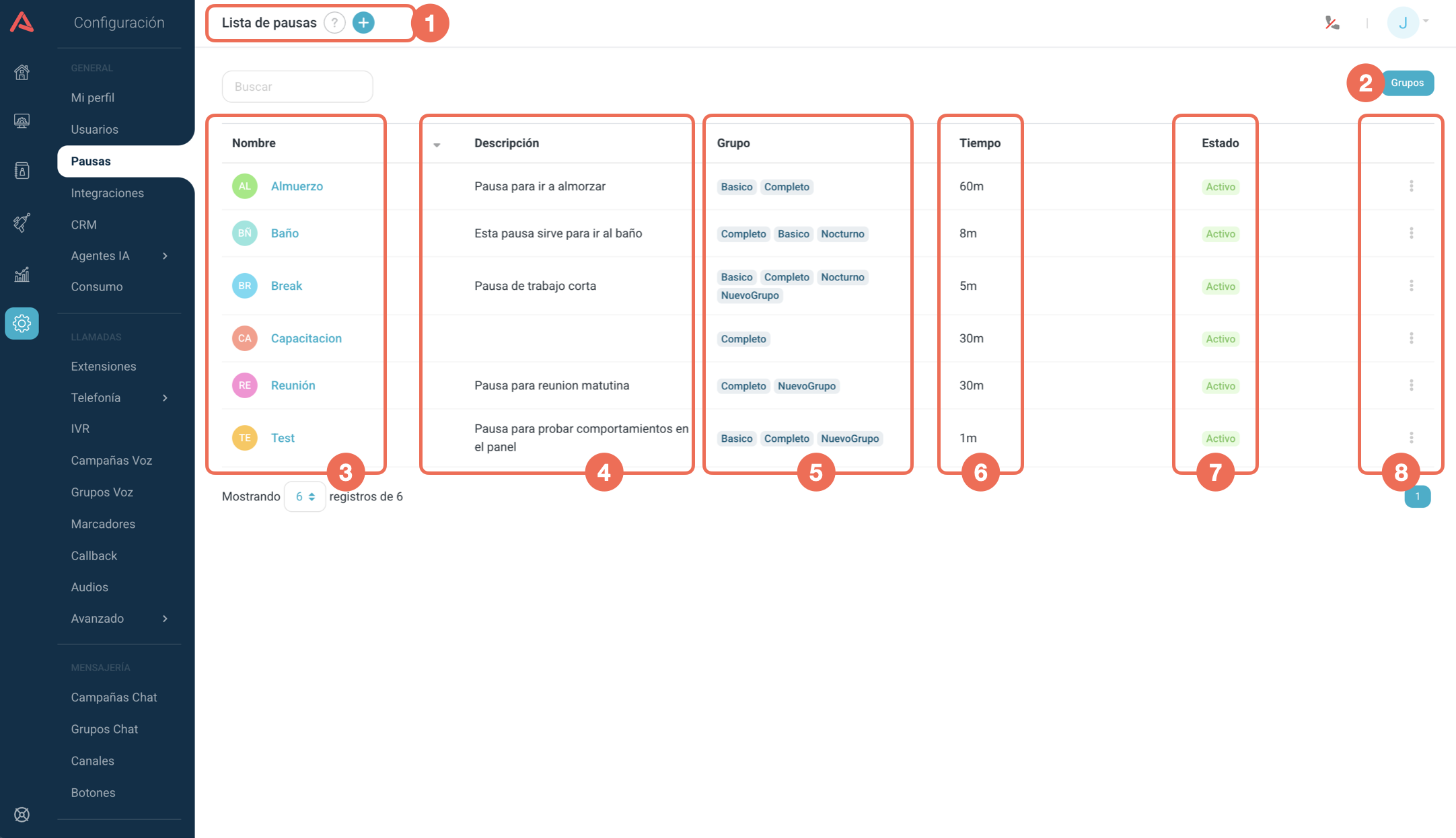
The table has five columns:
- Name
- How the agent sees it, with its icon beside it.
- Description
- What this pause is for.
- Group
- Which groups it belongs to.
- Time
- The expected duration, in minutes, with an m after it.
- Status
- Active or Inactive, meaning whether agents can pick it.
Above the table sit the (+) button that creates a pause and the Groups button, which is where groups are managed. The three-dot menu on each row edits it, deletes it, or switches it on and off.
Deactivate rather than delete
An Inactive pause disappears from the agent's options but still exists. That is what you want when a pause falls out of use: if it was referenced elsewhere, deleting it leaves holes, and deactivating hides it without breaking anything.
On top of that, pause reports still need the name to explain the past. A deleted pause leaves history nobody can read.
Creating a pause
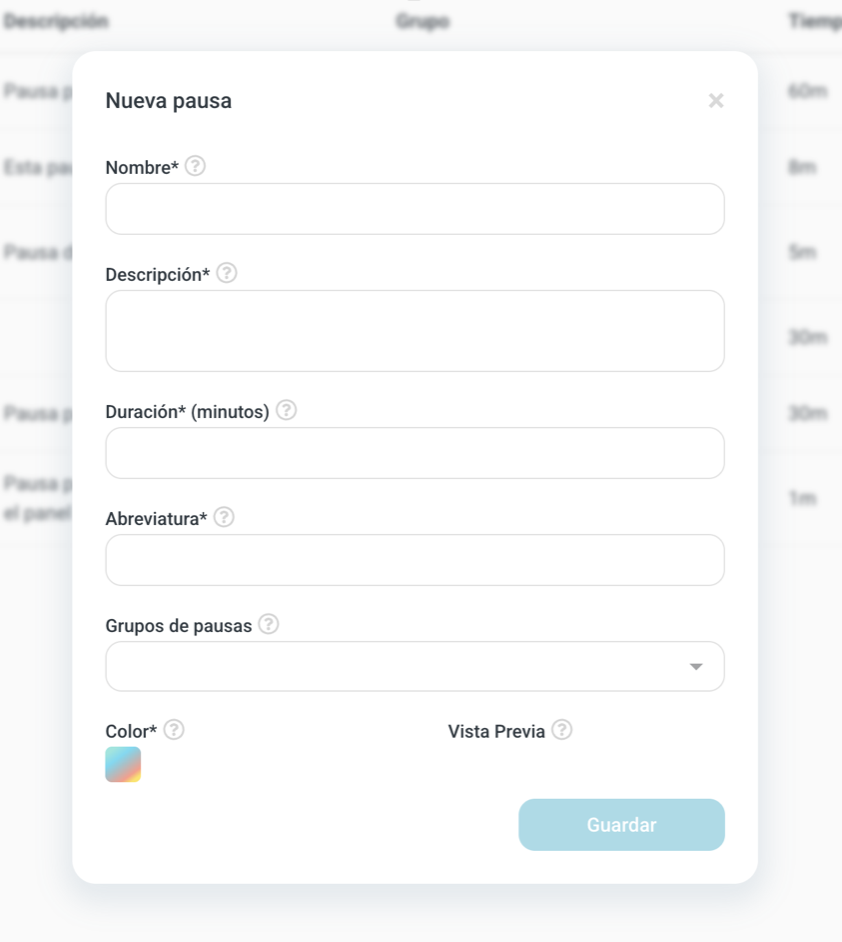
- Name
- What the agent sees, and also what shows up on the panels and in the reports. Three characters minimum, and it cannot be repeated.
- Description
- A short line on what it is for. It is required.
- Duration (minutes)
- How long it is meant to last.
- Abbreviation
- The two letters that go inside the icon.
- Color
- The icon background. As you pick it the form shows you a Preview of how it will look.
- Pause Groups
- Which existing groups this pause joins. It is the only optional field, but without a group the pause never reaches an agent.
Duration does not end the pause. When the time is up and the agent is still paused, what happens is that the supervisor gets an alarm. The pause runs on until the agent ends it, so this field defines when something counts as too long, not when it stops.
Editing a pause
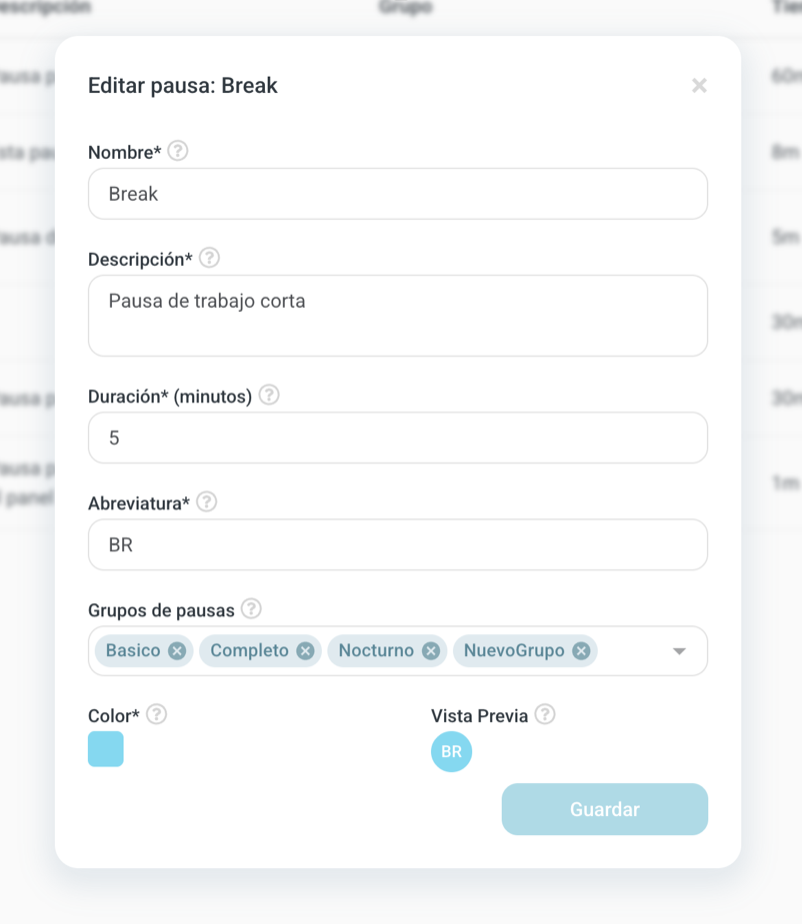
All of a pause's fields can be changed after it is created, on one condition: no agent who has that pause available may be logged in at the time. If one is, the system will not let you save.
That is why pause changes happen outside operating hours. If your contact centre never stops, the way through is to create the new pause, move it into the group and deactivate the old one, which you can do while everyone is working.
Pause groups
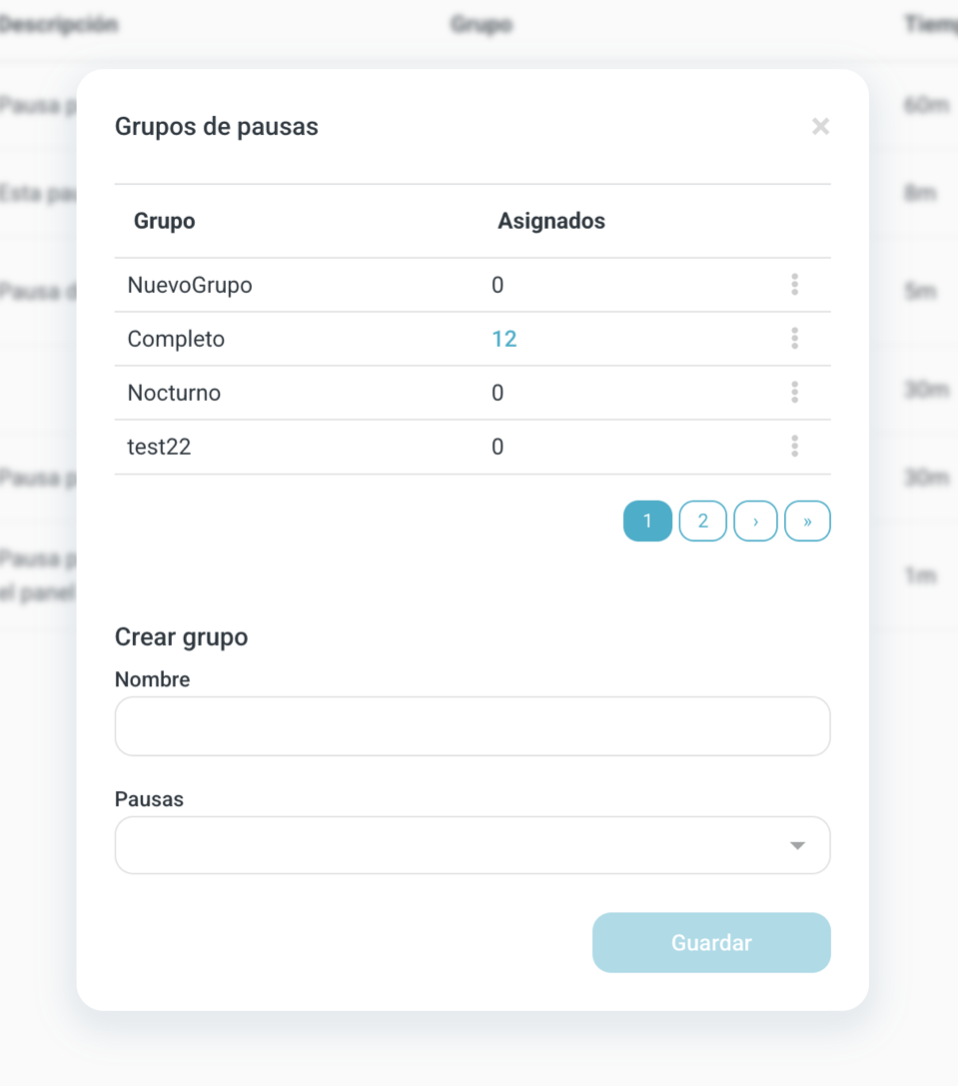
Groups exist for a practical reason. With 50 agents and 10 pauses, assigning pause by pause to person by person is 500 assignments. With groups it is 50: you build the bundle once and hand it to each agent.
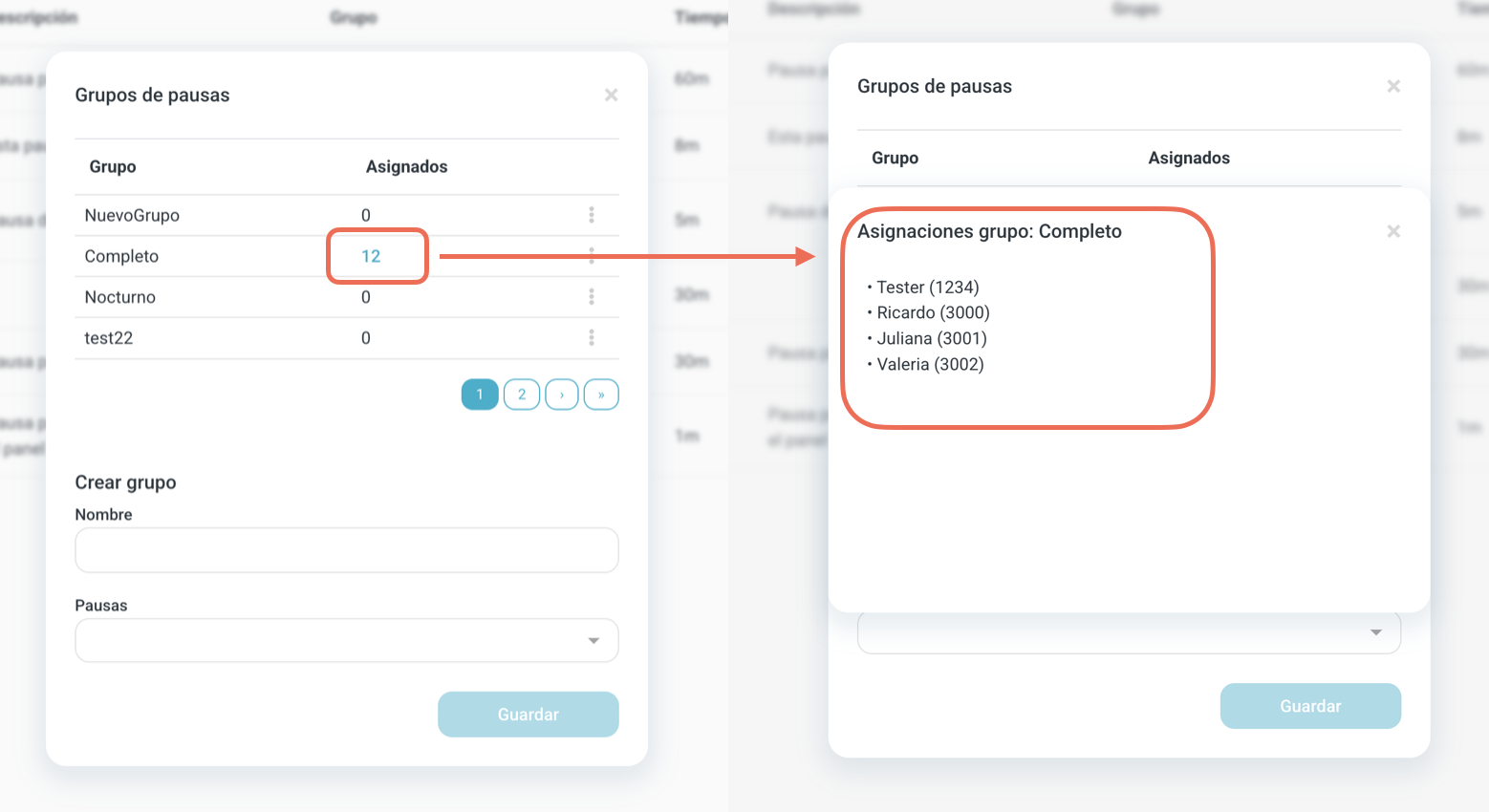
In the Groups window you make one with Create Group, name it and pick its pauses from a search box that takes several at a time.
Who has each group
The Assigned column shows how many agents were given that group. Clicking the number opens their names and their extensions, or the notice that the group is not assigned to any agent.
How a pause reaches an agent
Always through a group. There is no way to hand someone a loose pause: the pause joins a group, and the group is assigned to the agent on the agent role tab of their user.
That is where the build order comes from: pauses first, then the group, then the user.
What the system will not let you do
You cannot delete or edit a pause group that is assigned to any agent. Unlink it from all of them first, then touch it.
Notice that the rule for a group and the rule for a pause are not the same. A pause is locked while an agent who has it available is logged in, so with the floor closed you can edit it. A group is locked by being assigned, no matter who is logged in, so closing the floor does not unlock it.
And an agent cannot be left with no pause group. If you want to take away the one they have, assign them another one first and delete the previous group afterwards.