Using a CRM
Searching, filtering and working the contacts and businesses of a CRM
A look at the module
The Audara CRM is the database of the people and the businesses your operation talks to. Every call, every chat and every campaign leans on it: the bot looks the customer up there before greeting them, the dialer pulls out of there who to call, and the agent sees the full record while working. You will find it in the side menu, under CRM.
A CRM keeps two kinds of record, and the difference matters because they are not used the same way:
- Contacts
- People. It is what gets looked up when a call or a chat comes in, what a dialer dials and what a campaign reaches. A contact has phones, an email, a history of interactions and notes.
- Businesses
- Companies. They are there to group contacts: a hardware store with six buyers is one business with six contacts hanging off it. A business is not called and does not receive campaigns, it is looked at.
This article is about daily use: searching, filtering, opening a record, writing to somebody and exporting. To create a CRM and decide what fields it has, see the article on creating a CRM, which is where the structure that here only gets filled in is built.
The fields you see on each record are defined by whoever created the CRM, so two CRMs in the same account can look very different. The captures in this article use an example CRM with a name, a last name, three phones, an email and a few fields of its own.
Which CRMs you see and what you can do
Access to the CRM has two layers, and they are resolved separately: first which CRMs appear in your list, and then what you can do inside each one.
Which ones appear depends on your role:
- Admin
- Sees the CRMs assigned to them on their user. If none were restricted, they see them all.
- Agent and supervisor
- CRMs are not assigned to them one by one. They see the CRMs connected to their work: the ones of their inbound campaigns, the ones of their dialers and the ones of their chat groups. Changing an agent's campaigns changes their list of CRMs without anybody touching the CRM.
And what you can do comes from five independent permissions: see, create, edit, download and delete. For an admin they come from their user; for an agent or a supervisor they come from the CRM itself, which carries a block of permissions per role. That is why two agents can see the same CRM and only one of them be able to export it.
The agents' see permission also decides whether the CRM appears in the list: a CRM connected to an agent's campaign but with the view turned off for the Agent role does not show up for them anywhere.
The CRM list
The first screen is the list of the CRMs you have access to, one per card.
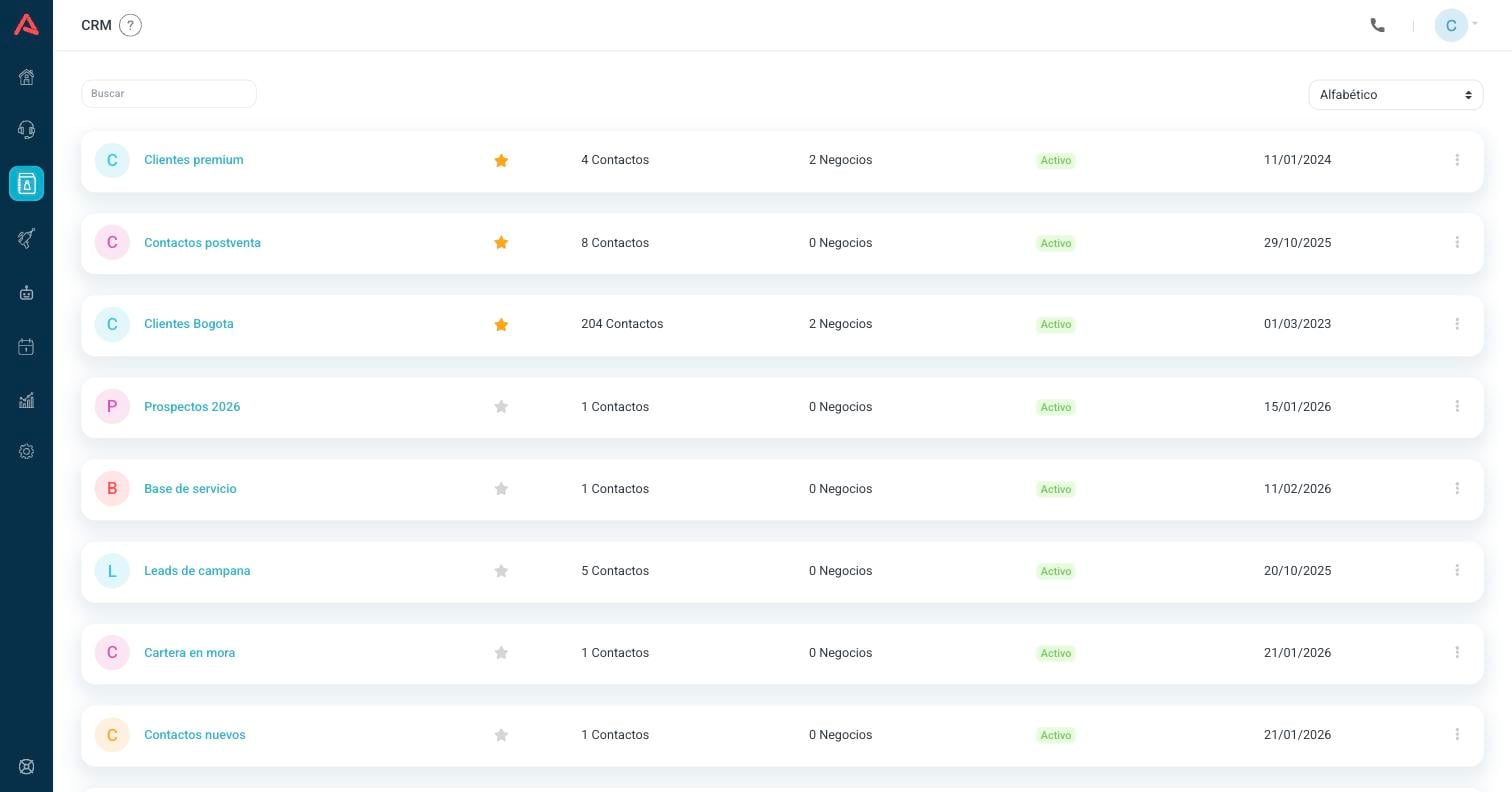
Each card shows the initial of the CRM, its name, the favourite star, how many Contacts and how many Businesses it has, its status and the date it was last updated.
- Search
- Filters by CRM name.
- Alphabetic
- The order of the list. You have Alphabetic, Only favorites and Most recent.
- The star
- Marks the CRM as a favourite. The favourite is yours, not the account's: each user marks their own and nobody else sees them. It is the way to keep at the top the two or three CRMs you work with every day when you have fifty.
- Active / Inactive
- An inactive CRM stays in the list and can be looked at, but the modules that had it connected are not going to use it.
- Importing
- The CRM is loading a file right now. It is a temporary state: when the import finishes it goes back to Active.
If the CRM syncs with an outside service, instead of the coloured initial you will see the logo of that service, the HubSpot one for example.
Press the name to go in.
The record list
On entering a CRM you see its table of contacts. It is the screen where most of the work happens.
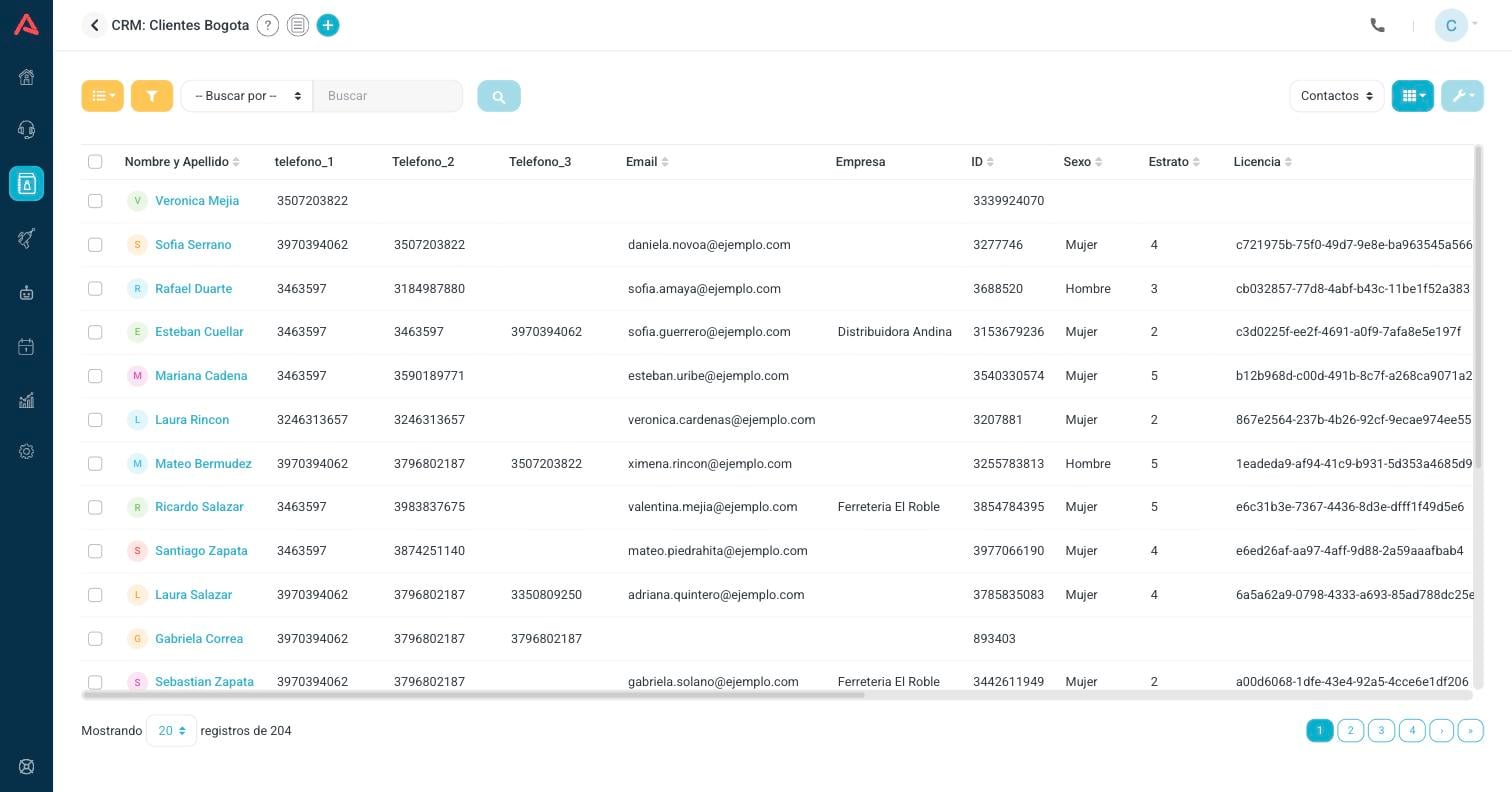
- 1 Go back to the CRM list with the arrow in the header.
- 2 Switch between the List view and the Dashboard one.
- 3 Open the segmentation filters.
- 4 Search inside a column: pick the field, write the value and press the magnifying glass.
- 5 Switch between Contacts and Businesses.
- 6 Pick which columns show.
- 7 Open the actions on the records you have selected.
The first column assembles the full name, and the key (🔑) on the record marks which field is the key field of the CRM, the one that identifies each contact and cannot be repeated. The other columns are the fields that CRM has. Press the header of a column to sort by it.
At the bottom you pick how many records you see per page, between 10, 20 and 30, and you move between pages. The total on the left is the result of the search or the filter you have on, not always the size of the CRM.
The columns that show
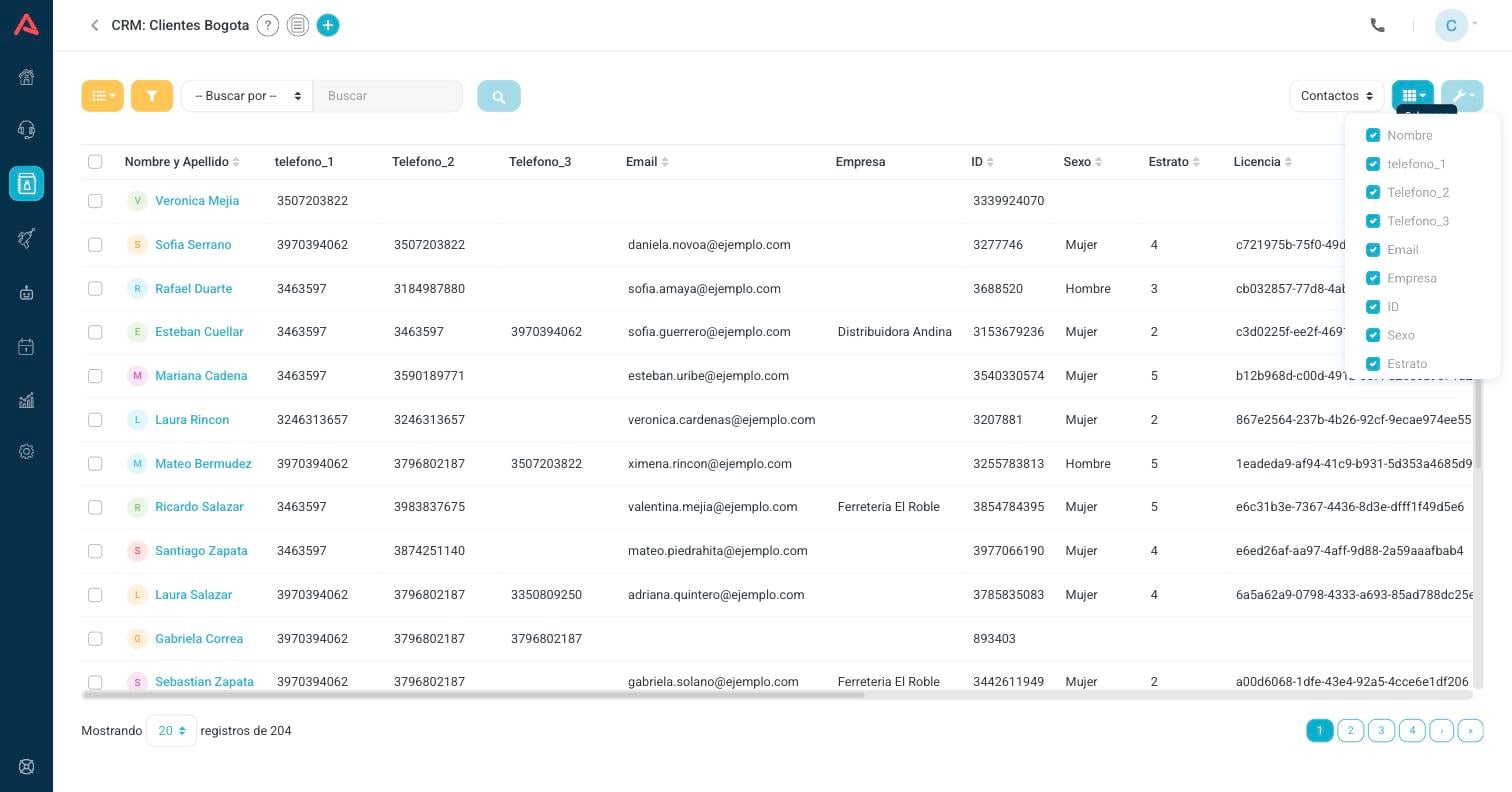
A CRM with twenty fields does not fit on the screen, so from this menu you turn off the columns you are not using. On top of the CRM fields, the list carries three columns of Audara's own:
- Status
- It only appears if the CRM is marked as a CRM registration, which is the option that uses it to authenticate users in a chat campaign. It is the column that lets you activate and deactivate a contact.
- Last contacted
- When the last interaction with that person was, over any channel.
- Modified date
- When the record was last edited.
What you turn off stays off: the selection is saved per user, per CRM and per list. Contacts and Businesses keep separate accounts, so turning a column off in Contacts does not touch the Businesses view, and what you sort out for yourself does not change anybody else's screen.
The Name and Modified date columns cannot be turned off.
Filtering contacts
The search by column is there to find one person. To work with a group (the ones from a given city, the ones who did not answer the campaign, the ones with no email) there are the filters.
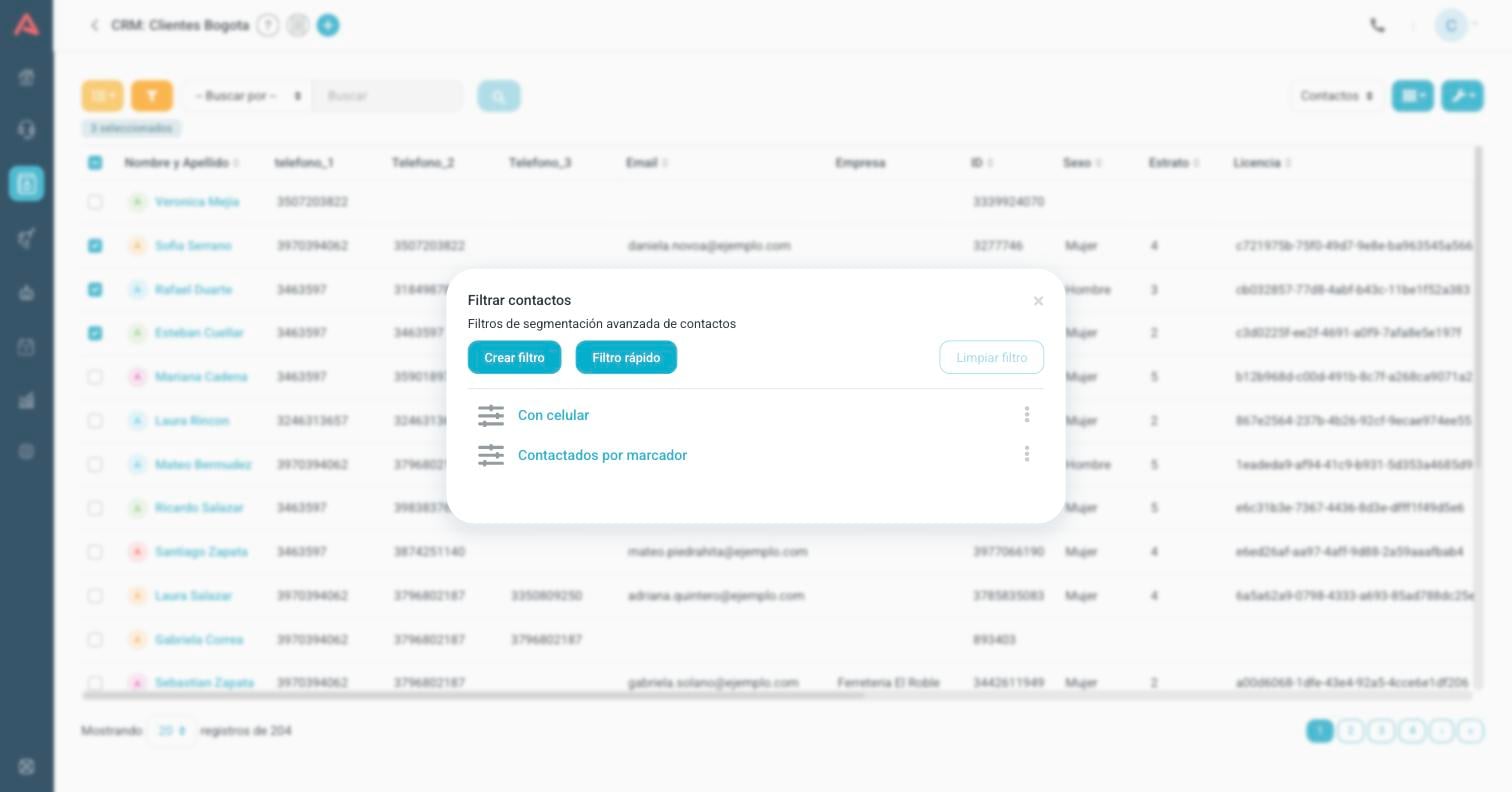
The window has two ways in and one list:
- Quick filter
- Builds a filter and applies it right away, without saving it. It is for a one-off query.
- Create filter
- Builds the same filter but gives it a name and a description and leaves it saved in the list, ready to be applied with one click next time.
- The list below
- The filters already saved on that CRM. Press one to apply it; the more options menu (⋮) of each one edits it or deletes it.
- Clear filter
- Takes off whichever filter is applied and gives back the complete list.
Saved filters belong to the CRM, not to you: anybody who enters that CRM sees them and uses them, and anybody with permission can edit or delete them. Give them names that work for the team, not just for you.
How a filter is built
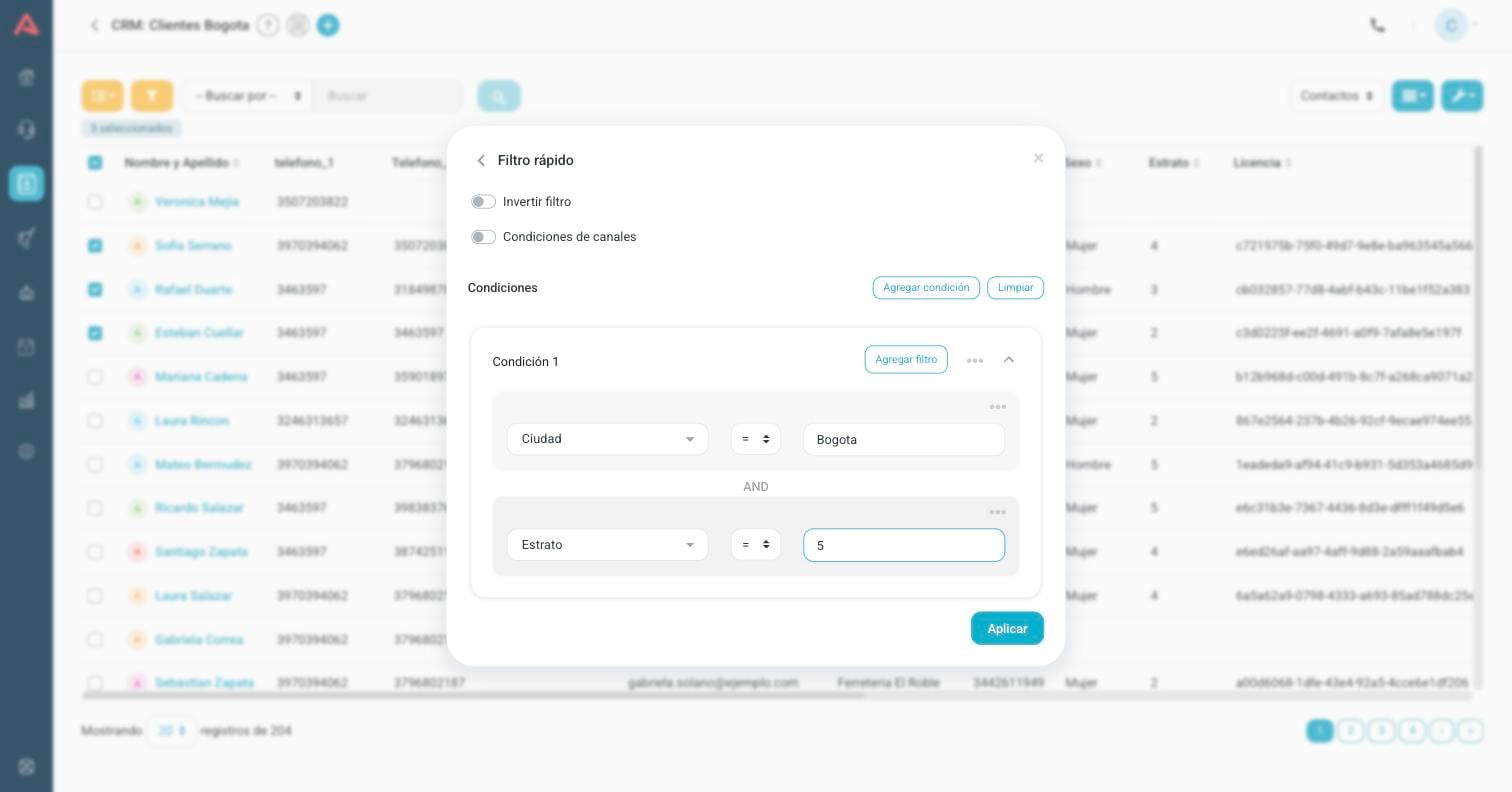
A filter is built out of conditions, and each condition out of up to three filters. The combining rule is the one you see on the screen:
- Inside a condition: AND
- Every filter has to be met. City = Bogota and Bracket = 5 returns only whoever meets both.
- Between conditions: OR
- It is enough for one to be met. That is how you ask for "the ones from Bogotá in bracket 5, or the ones from Medellín in bracket 4" with two conditions.
- Invert filter
- Returns exactly the opposite: every contact that does not meet it. It is the short way of asking for "the ones with no email" or "the ones who did not answer".
The comparator depends on the type of field. On text you have =, <> (different) and C (contains); on numbers > and < are added. You can add up to three conditions, with up to three filters each.
Filtering by what happened in a campaign
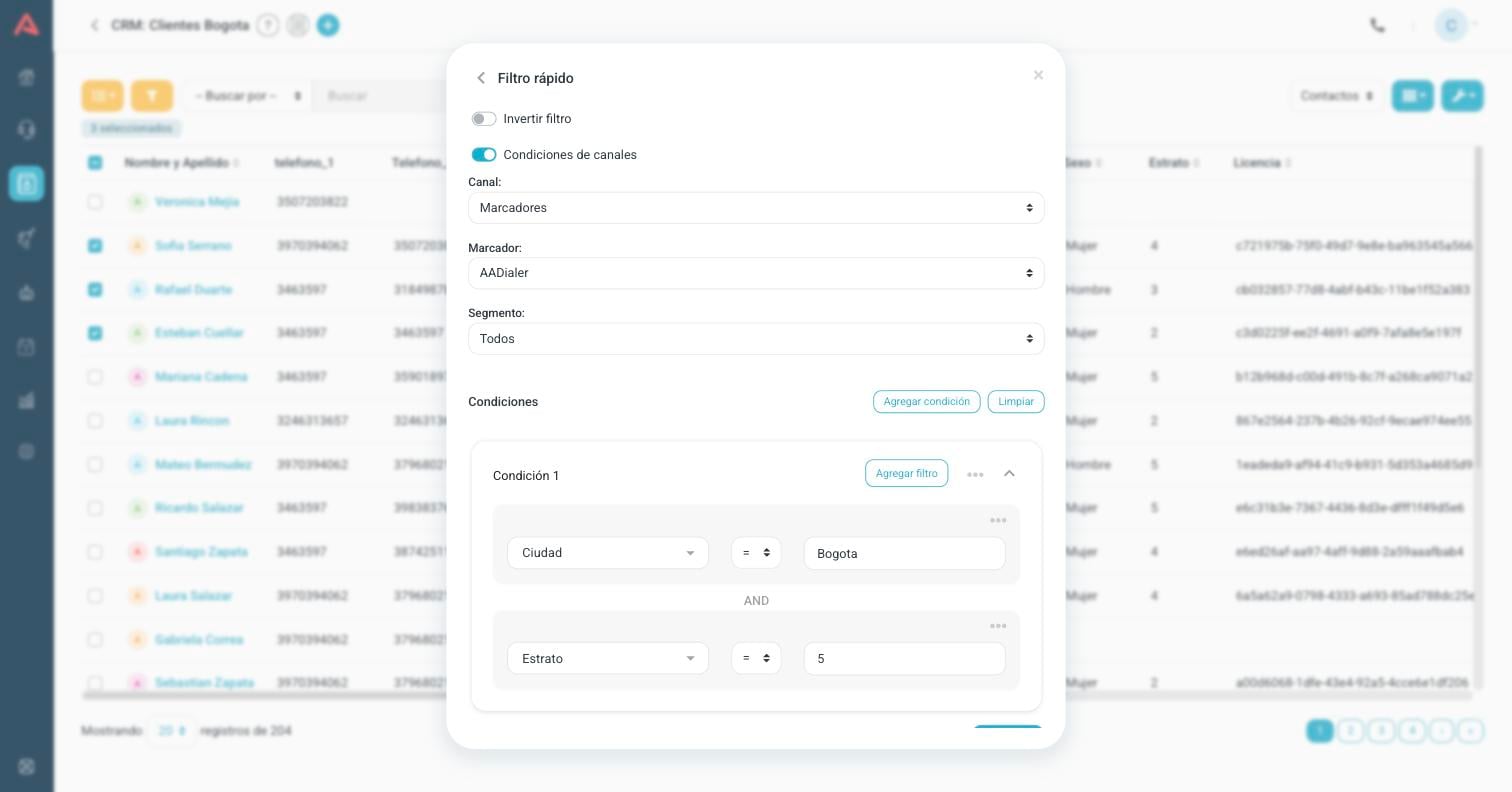
The Channel conditions switch is the part you do not guess. On top of filtering by the fields of the contact, it lets you filter by what happened to that contact in an outgoing campaign. You pick the channel (today, Dialers), the dialer and optionally a segment, and with that new fields to filter by appear:
- Contacted
- Whether the contact has already been dialled in that campaign.
- Call result
- The typing the agent left.
- Typed
- Whether the call ended up typed or not.
- Detection
- Whether a person answered, an answering machine, or it failed. The name changes depending on the type of dialer.
- Failed dial
- Whether the call attempt got out.
If you also pick a segment, the typings of that segment are added.
This is what is good for building the second round of a campaign. A filter of Contacted = No over yesterday's dialer, saved with a name, is the list of who is still owed a call, and it stays there to be applied again tomorrow.
The record of a contact
Press the name of a contact in the list to open their record.
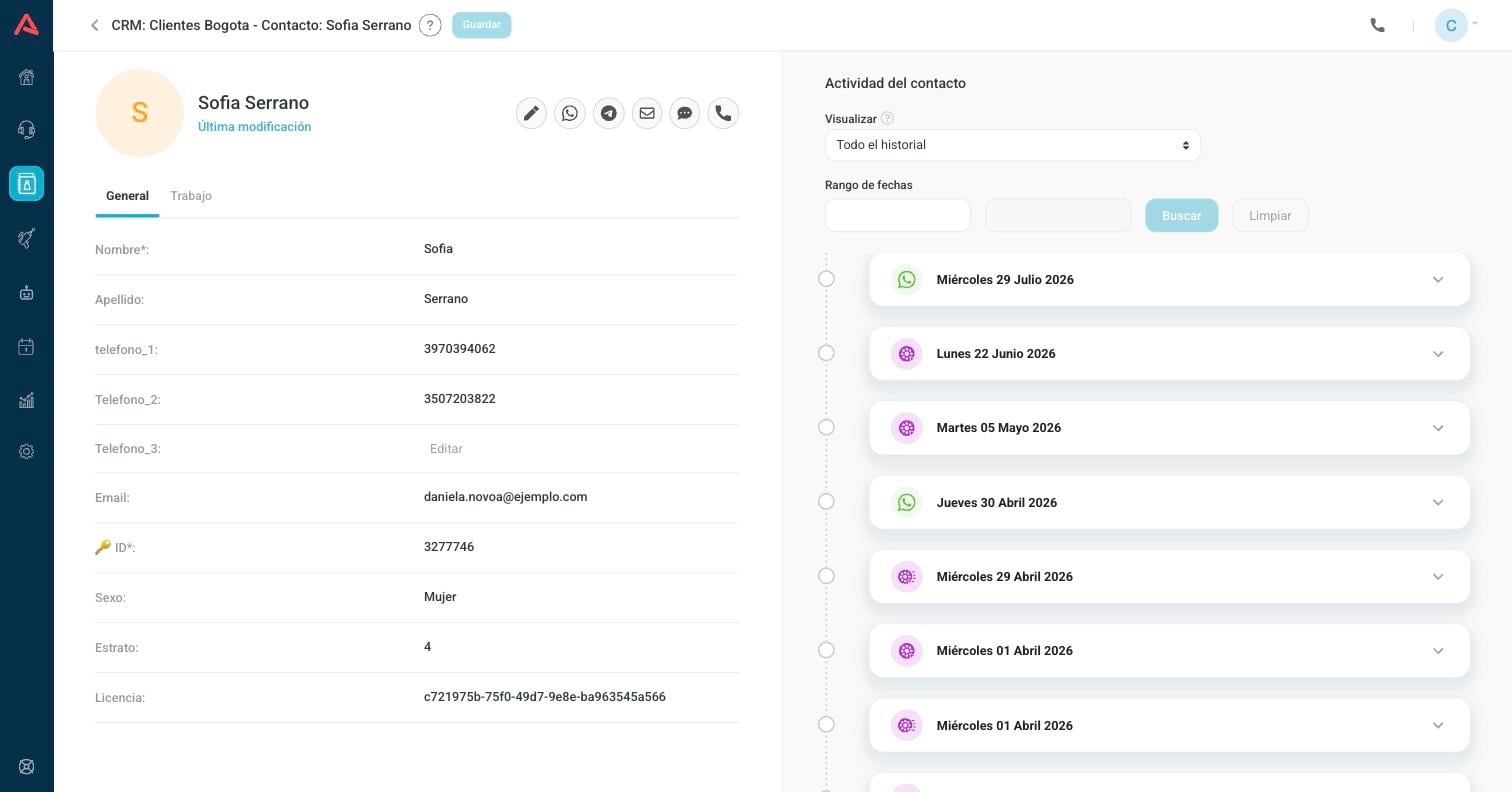
The screen splits in two: on the left the data, on the right what has happened with that person.
The fields come grouped into the tabs the CRM has defined (in the example, General and Work). A field with an asterisk (*) is required, and the one with the key (🔑) is the key field. To edit, press the value, write it and press Save at the top. Empty fields show the word Edit in grey; that is not data, it is the invitation to fill them in.
Under the name, Last Modified is a button: open it and it tells you who created the record, when, who modified it last and when.
Creating a contact or a business
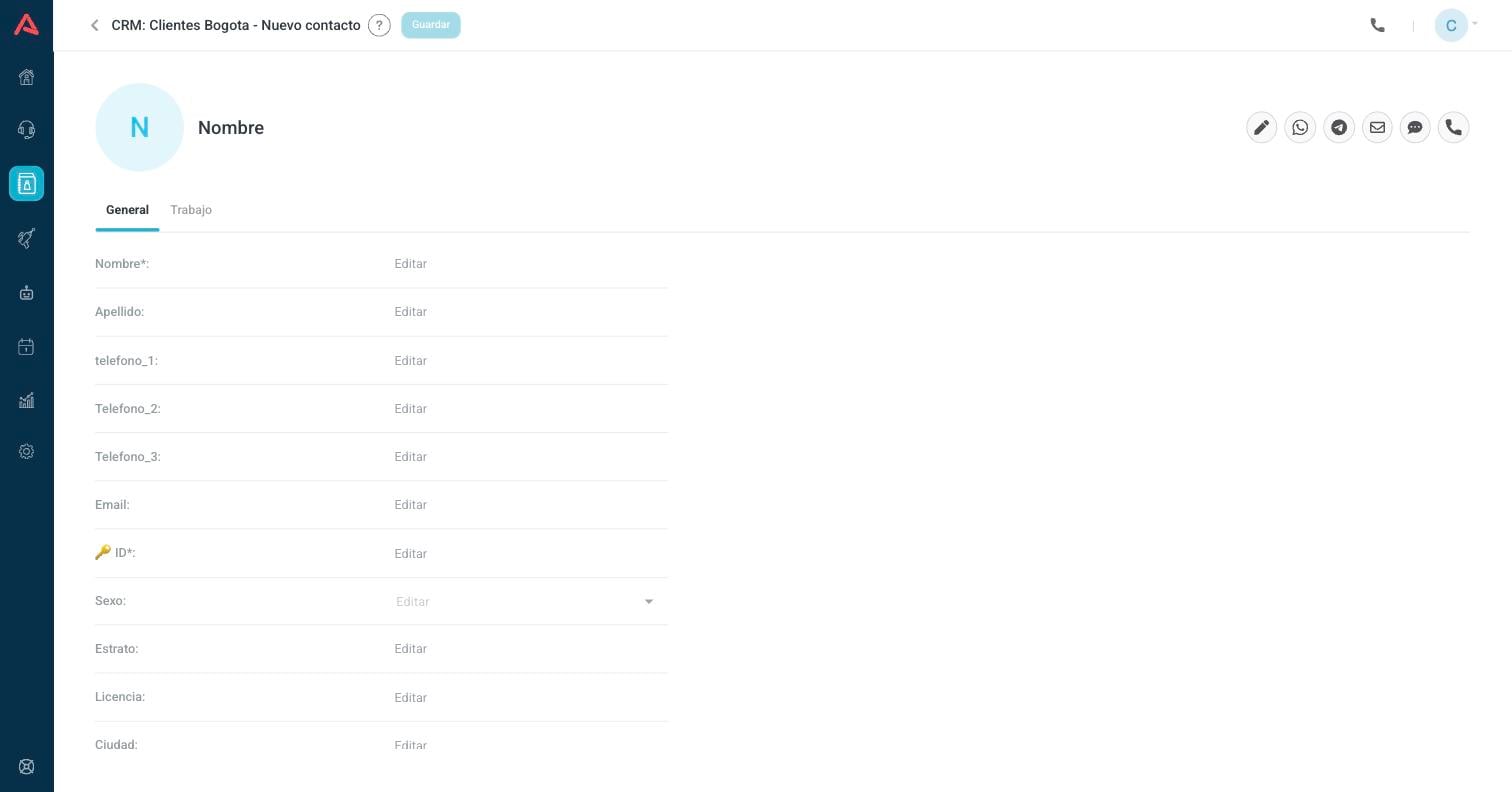
The (+) button in the header opens a menu with Contact and Business. Both open the same form you already know, empty. Fill in at least the required fields and the key field, and press Save.
The key field cannot be repeated within the CRM. If you try to save with a key that already exists, saving fails and Audara warns you that that key is already in use. It is on purpose: it is what stops the same person from getting in three times through three different channels.
The activity of the contact
The right-hand column of the record is the complete history of that person with your operation, in order, from the most recent event to the oldest. Incoming and outgoing calls land there, chats from every channel, the messages you sent them from the record, the notes and the modifications of the record.
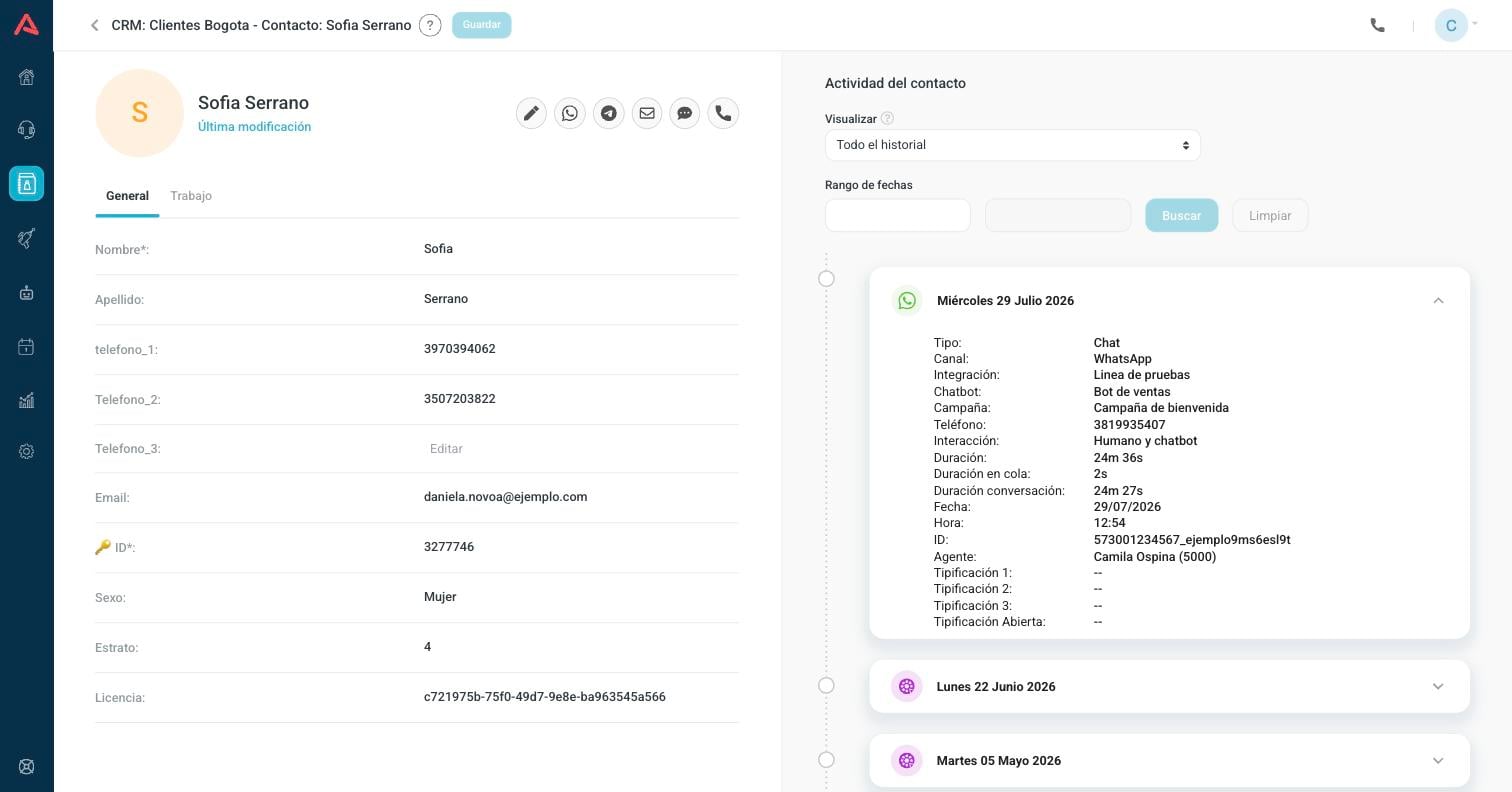
Each card carries the icon of the channel and the date. Press it to open it and see the detail: the channel, the integration it came in through, the bot and the campaign that handled it, the duration, the agent and the typings.
- Visualize
- Lets you see one kind of event at a time. You have all history, inbound calls, outbound calls, WhatsApp, WebChat, modifications, notes, the outgoing sends of each channel and the calls made from the CRM.
- Date range
- Narrows the history down to two dates. Clear gives it back in full.
The history hangs off the contact, not off the person. If the same customer is loaded into two different CRMs, each record has its own history and neither one shows the other's.
Writing to them or calling them from the record
The icons next to the name are the actions on that contact. Everything you do from there is recorded in their activity.
- Notes (pencil)
- Leaves a written note in the history of the contact, with the option of attaching a file to it. It is there for what does not fit in a field: an agreement, a commitment, the reason for a return.
- Sends a WhatsApp message from one of your approved templates.
- Telegram
- Sends a message over Telegram. The button only appears if your plan has the channel enabled.
- Sends an email from one of your email integrations.
- SMS
- Sends a text message.
- Call
- Opens the list of the phones the contact has and calls the one you pick. It needs the webphone active on your user; without it, the icon stays off and the notice tells you so.
Businesses and their contacts
The selector from Contacts to Businesses, at the top right, changes the table to the one of companies.
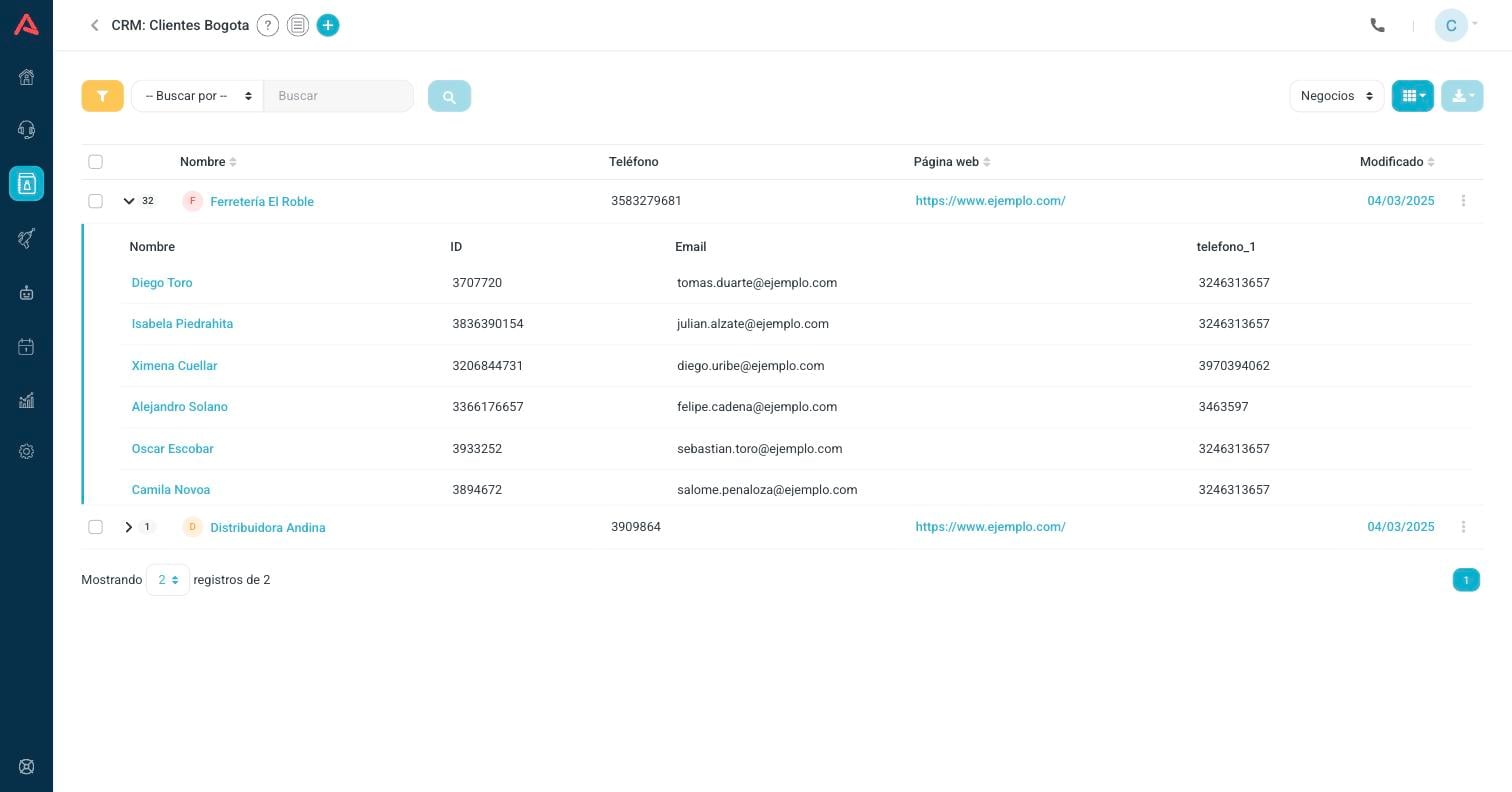
The number next to each row is how many contacts that business has. The arrow opens a panel under the row with those contacts, without taking you out of the list; press the name of the business to go into its record.
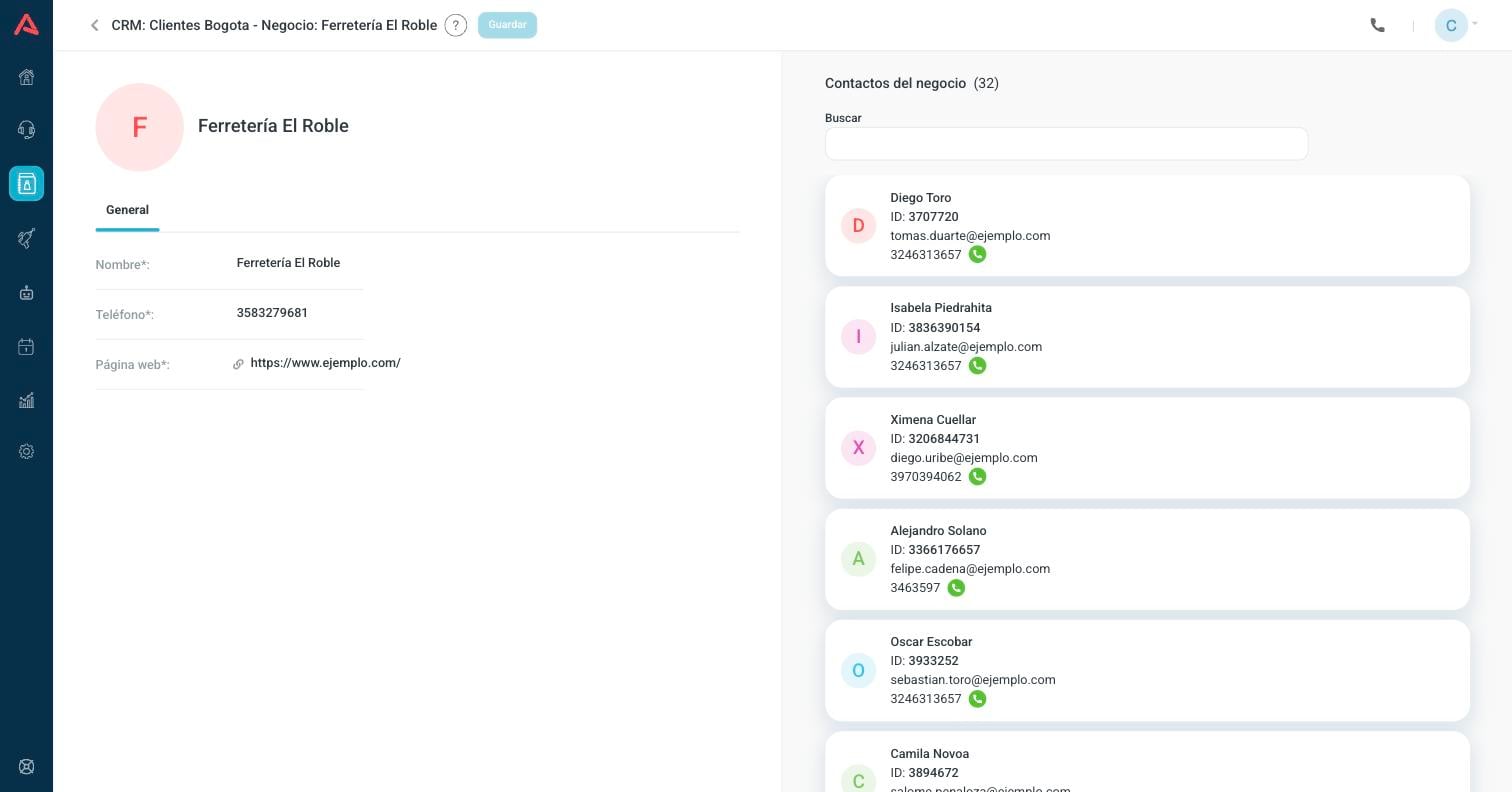
The record of the business has its fields on the left and, where a contact's record shows the activity, the list of its contacts as cards. The search box at the top filters those cards, and each one leads to the record of the contact. If the contact has a phone and you have the webphone active, the green button calls them without leaving the screen.
Businesses have no dashboard and no bulk editing: their toolbar only offers downloading the CSV. They are a record to look at, not to operate on.
Working with several contacts at once
Tick the boxes of the rows you are interested in, or the one in the header to tick the whole page. A counter appears with how many you have selected and the spanner in the toolbar lights up.
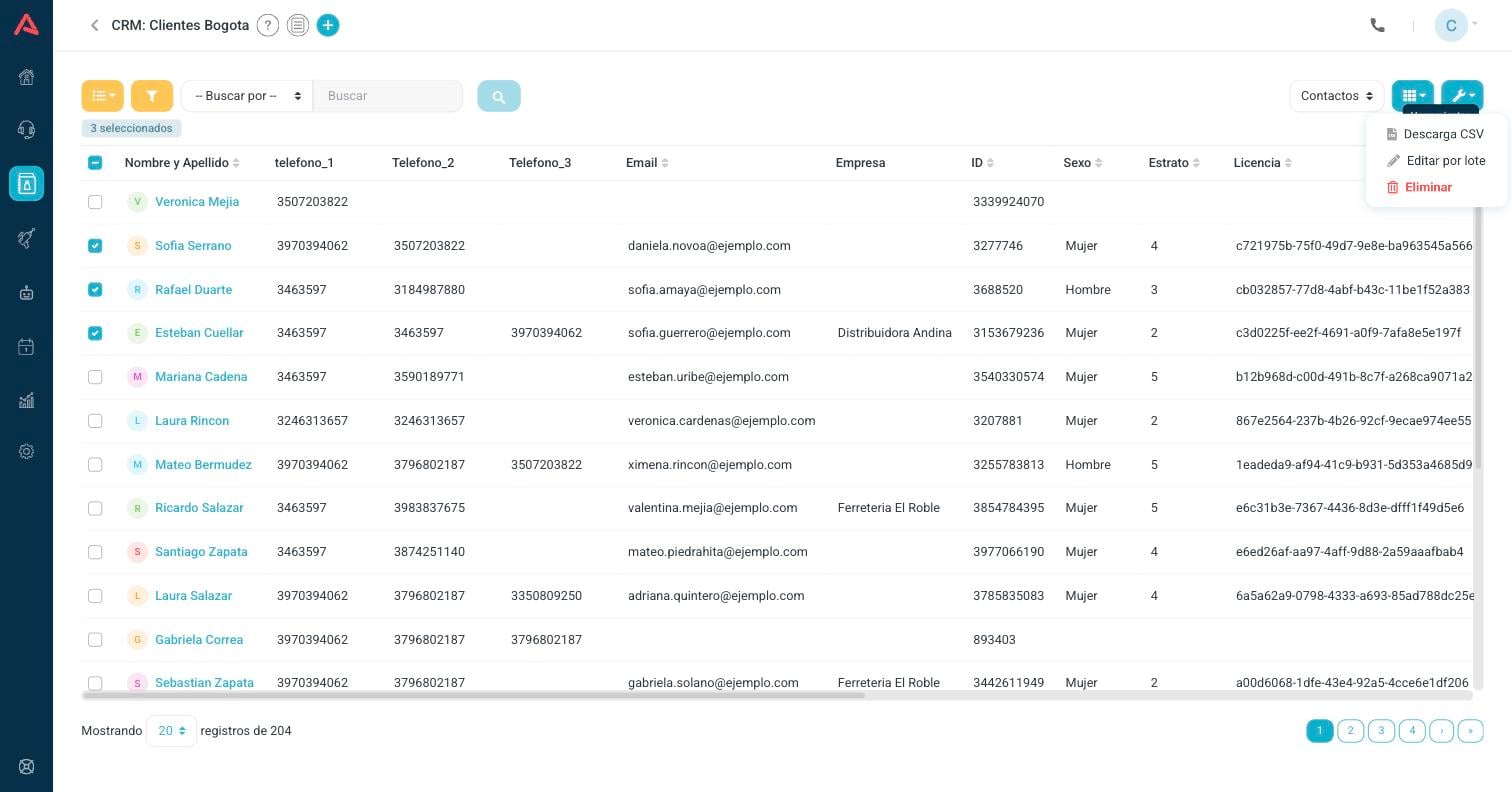
- CSV Download
- Pulls the selected contacts down to a CSV file, respecting the filter and the order you have on.
- Bulk edit
- Puts the same value into one field on every selected contact.
- Delete
- Erases the selected contacts.
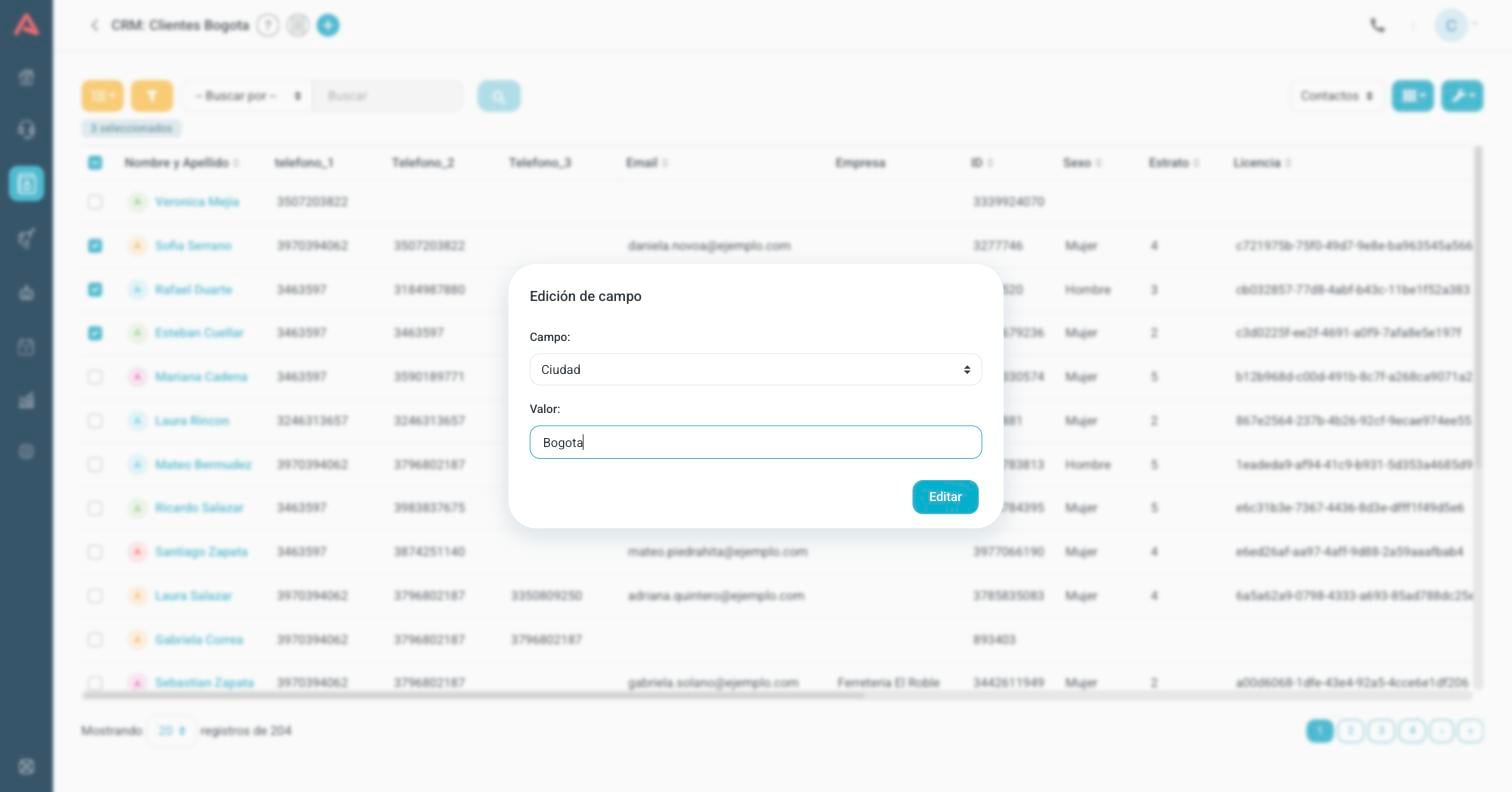
Bulk editing picks a field, puts a value into it and applies it to every selected one. It is what is good for fixing in one go an import that brought the city in wrong, or for marking a whole batch with the same tag.
Bulk editing replaces whatever value was there; it does not add to it and it does not complete it. And neither the bulk edit nor the deletion can be undone. Before applying it, check the counter of selected ones: if you ticked the header, it is every one on the page.
The dashboard
The first button of the toolbar switches between List and Dashboard. The dashboard answers at a glance how much the CRM moved over a period.
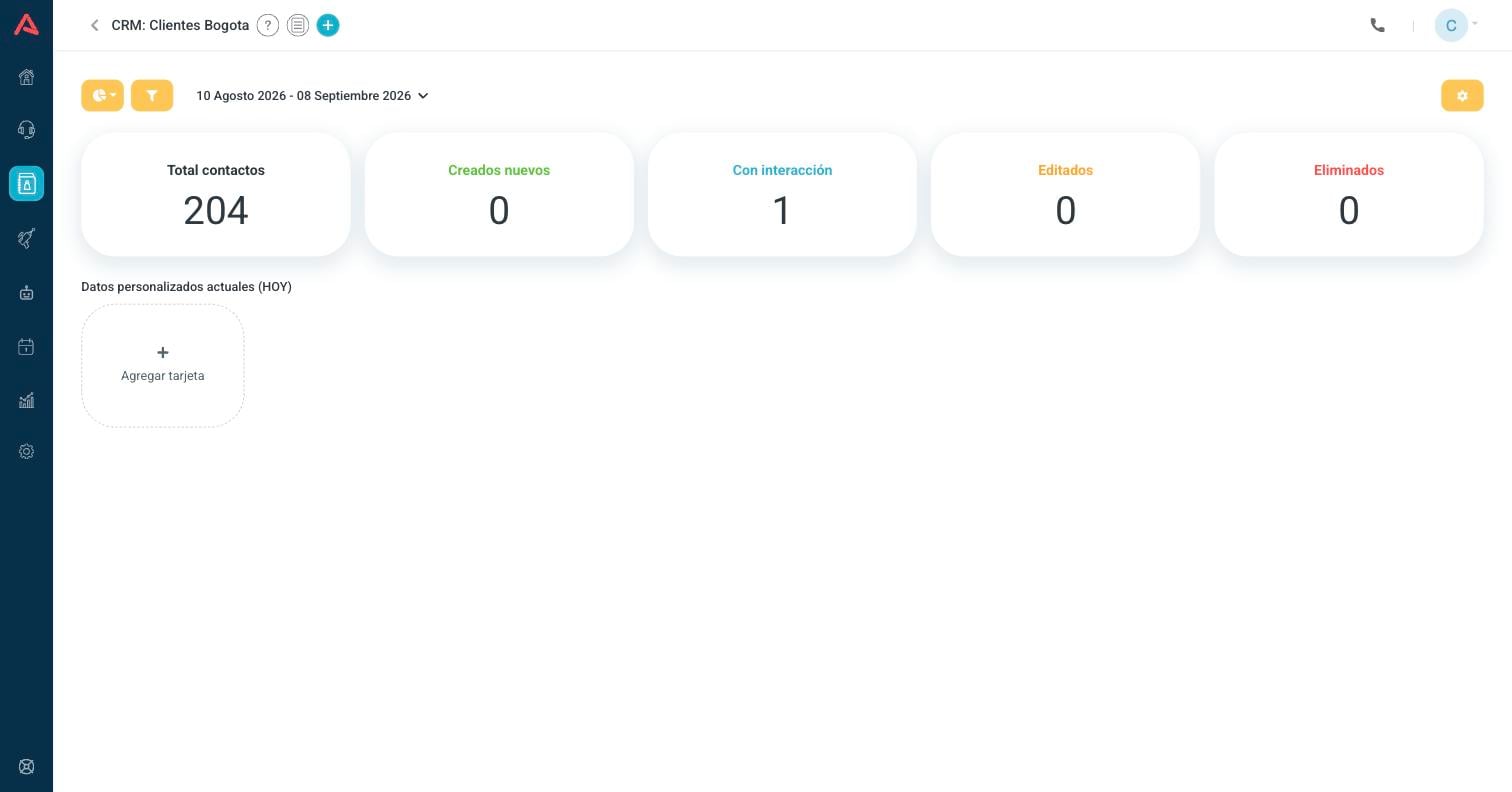
At the top you pick the period: today, yesterday, the last 7, 15 or 30 days, or a range you set yourself. The five totals are calculated from that:
- Total contacts
- How many contacts the CRM has today. This one does not depend on the period.
- Newly created
- How many came in within the period.
- With interaction
- How many were talked to, over any channel, within the period.
- Edited
- How many records were modified within the period.
- Deleted
- How many were erased within the period.
Your own cards
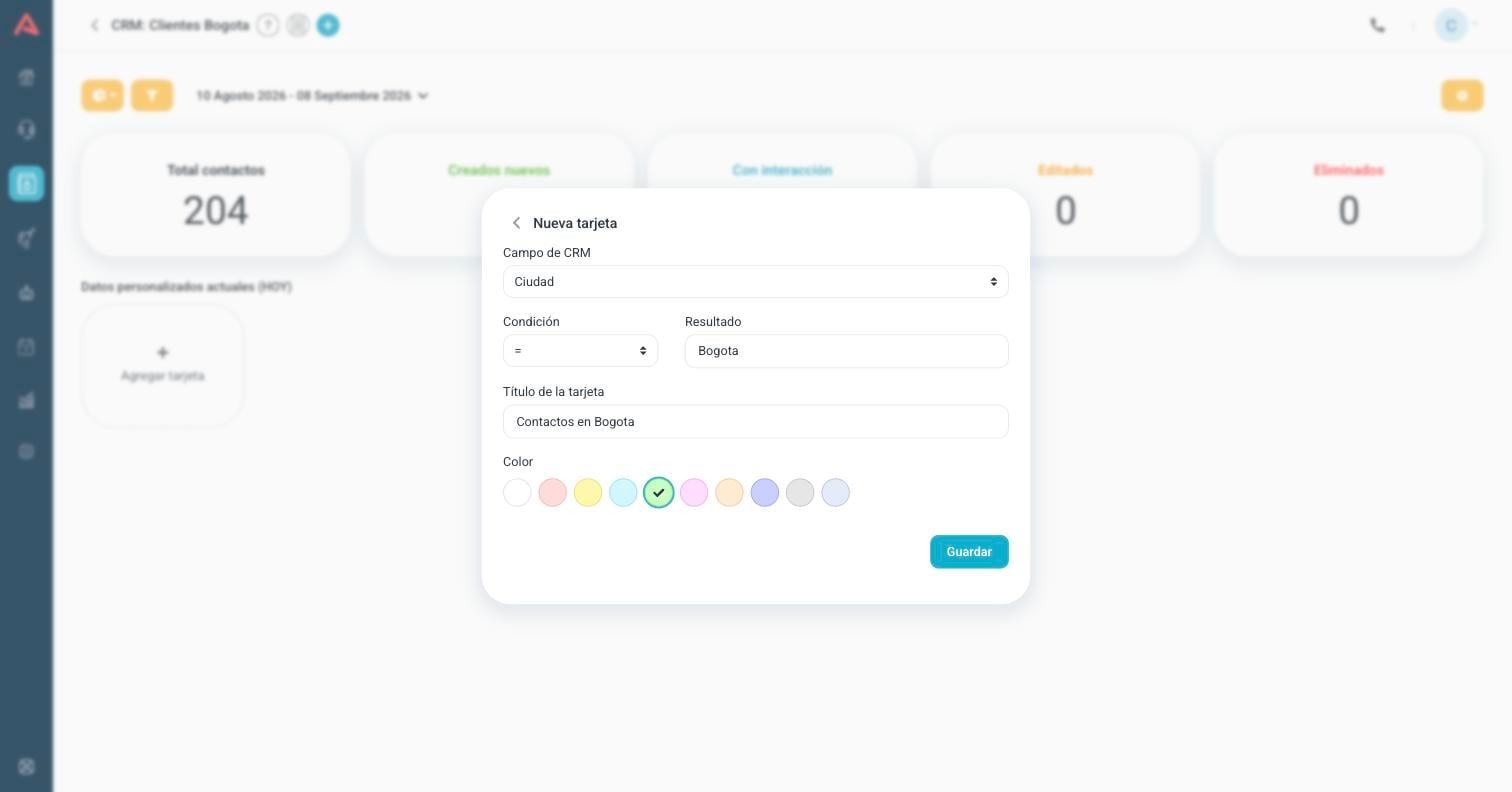
Below the totals you can add cards of your own. Each one counts how many contacts hold a certain value in a certain field: how many are from Bogotá, how many ended up in bracket 5, how many have no email. You pick the field, the condition, the value to compare against, the title it is going to show under and a colour.
The cards count the present, not the period. They answer "how many contacts hold this value today", which is the useful question next to a report of what moved. That is why the title of that row says TODAY even if you have another range set above.
The change history
The list icon, next to the question mark in the header, opens the change history of the whole CRM.
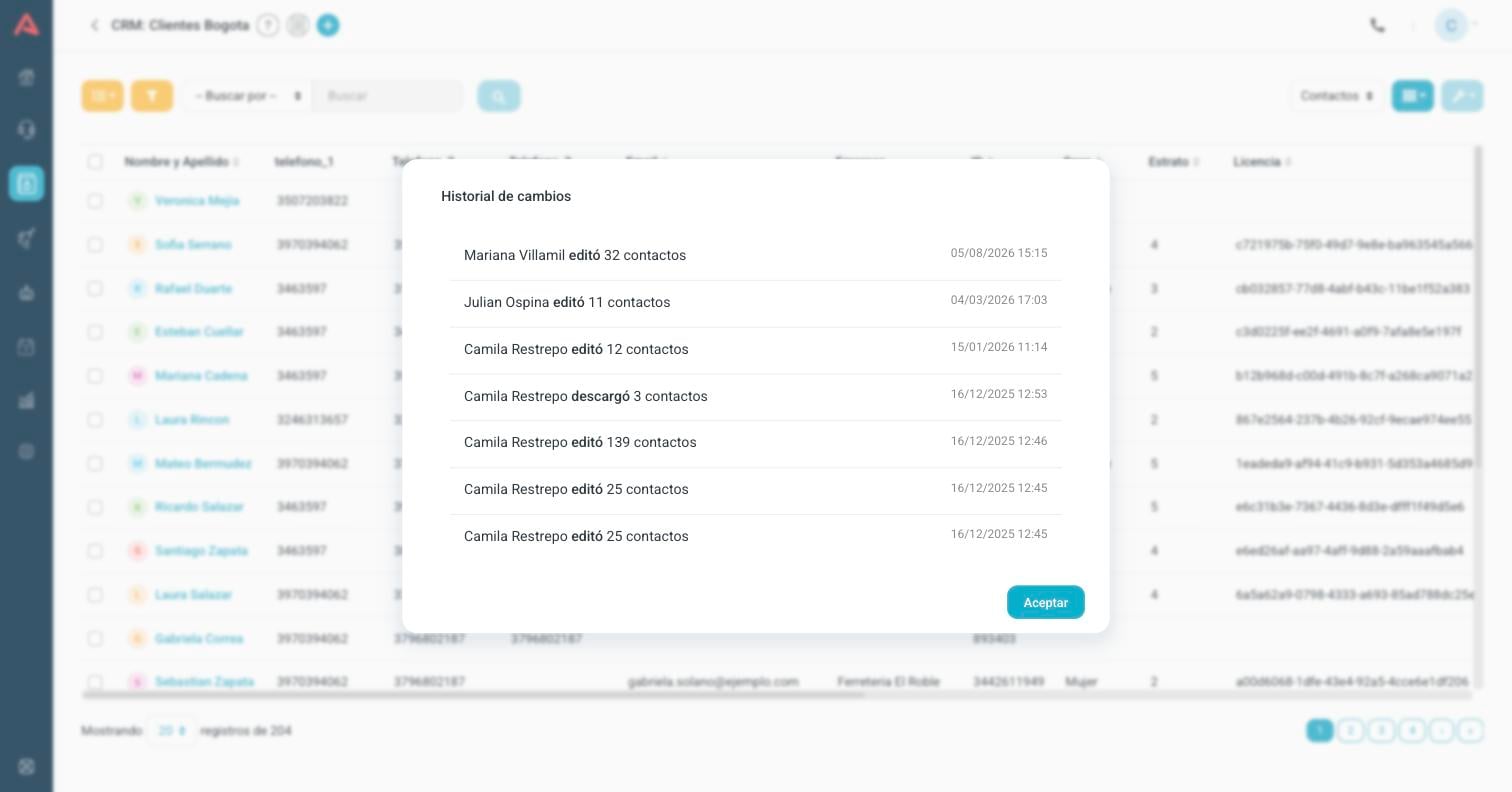
It is the log of the bulk actions: who bulk edited and how many contacts, who deleted, who downloaded a CSV and who downloaded a file attached to a contact. Each line says the user, the action, how many records it touched and when.
This history is the one that answers "why did half the base end up with the city set to Bogotá?" or "who walked off with the customer list?". Downloads are always recorded, including the ones by Audara support users. The changes to one particular contact do not show here, they show in the activity of their record.