Smart Functions
The tools an AI agent can run
What this module is for
An AI agent, left to itself, only holds a conversation. Smart functions are the tools you hand it so it can also do things: take a value out of the conversation, move the user to another point in the flow, ask a specialised assistant or call an outside service. The model decides when to call each function by reading the description you write; that is why that description is the most important part of the setup.
The module is under Setup > AI Agents > Functions.
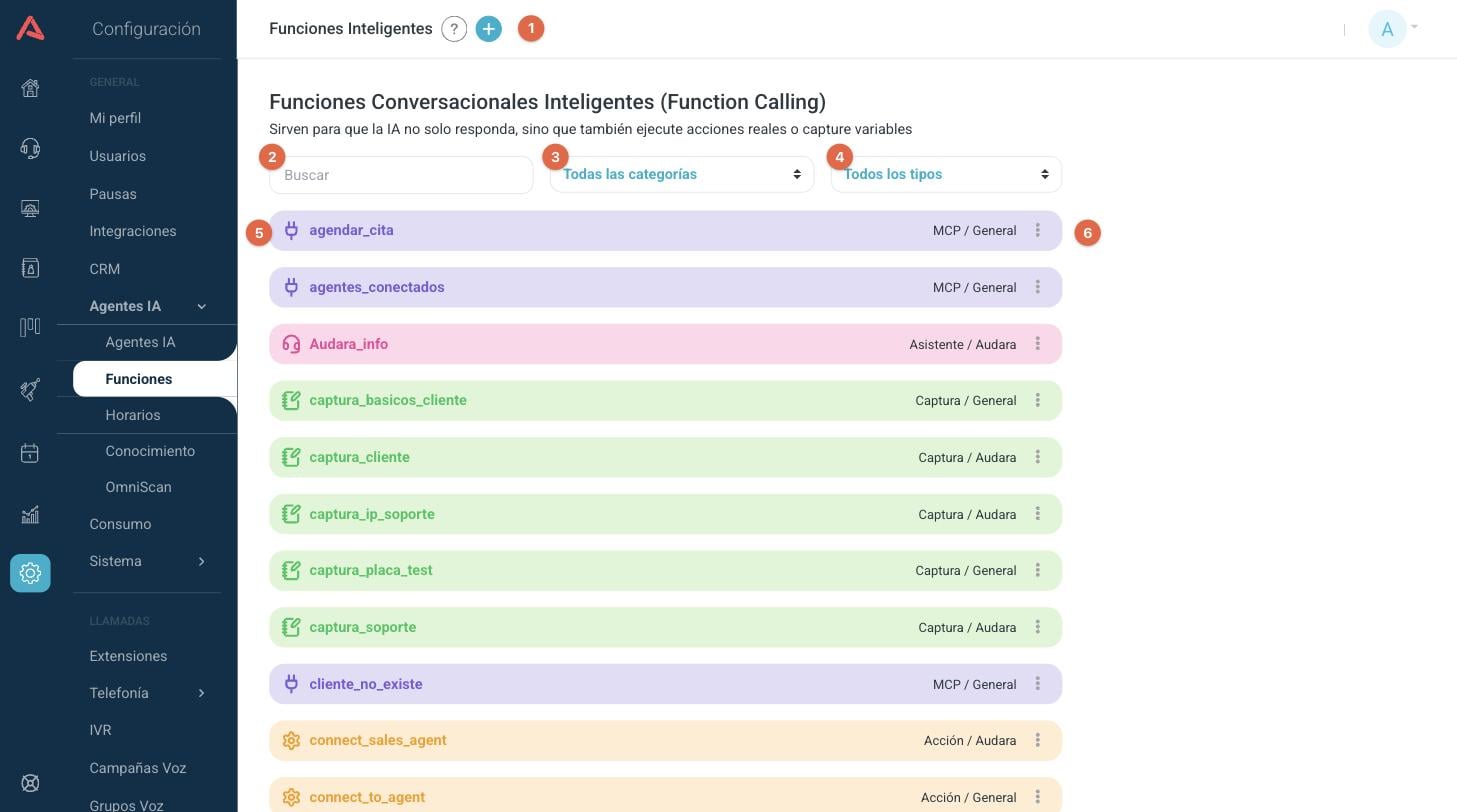
- 1 Create a new function with the (+) button in the header.
- 2 Search for a function by name.
- 3 Filter by category.
- 4 Filter by type.
- 5 Each row carries the icon and the colour of its type. Click the name to open the function.
- 6 The more options menu (⋮) on each row lets you edit or delete it.
To the right of each name you will see Type / Category, which is how the module organises itself once you have a lot of functions.
The types of function
The type defines what happens when the model calls the function. It is chosen when you create it and each one has its own colour in the list.
- Action
- It neither receives nor returns data: it is there for the bot to signal that something happened. It is the one you use to move the conversation along, for instance passing to a human adviser, going to another step in the flow or ending the chat. What happens next is defined in the agent's flow.
- Capture
- It asks the model for specific values out of the conversation (an ID number, a date, a branch) and stores them in chat variables to be used further on.
- Assistant
- It passes the person's question to an OpenAI assistant you have already configured, and returns its answer to the bot to pass on.
- MCP
- It offers the bot one or several tools from an MCP server connected under Integrations, with the parameters that server declares.
- Knowledge
- It looks the answer up in a knowledge base of yours and hands the bot back the fragments that most resemble what the person asked.
Smart functions do not replace the agent's prompt: they go alongside it. The prompt says how the bot behaves; the functions say what it can do.
If a function of type Response shows up in your list, it is from an earlier version. That type is no longer offered when creating functions and the model never calls it, so you can delete it without affecting anything.
Creating a function
Press the (+) button in the header of the list. The required fields are marked with an asterisk (*).
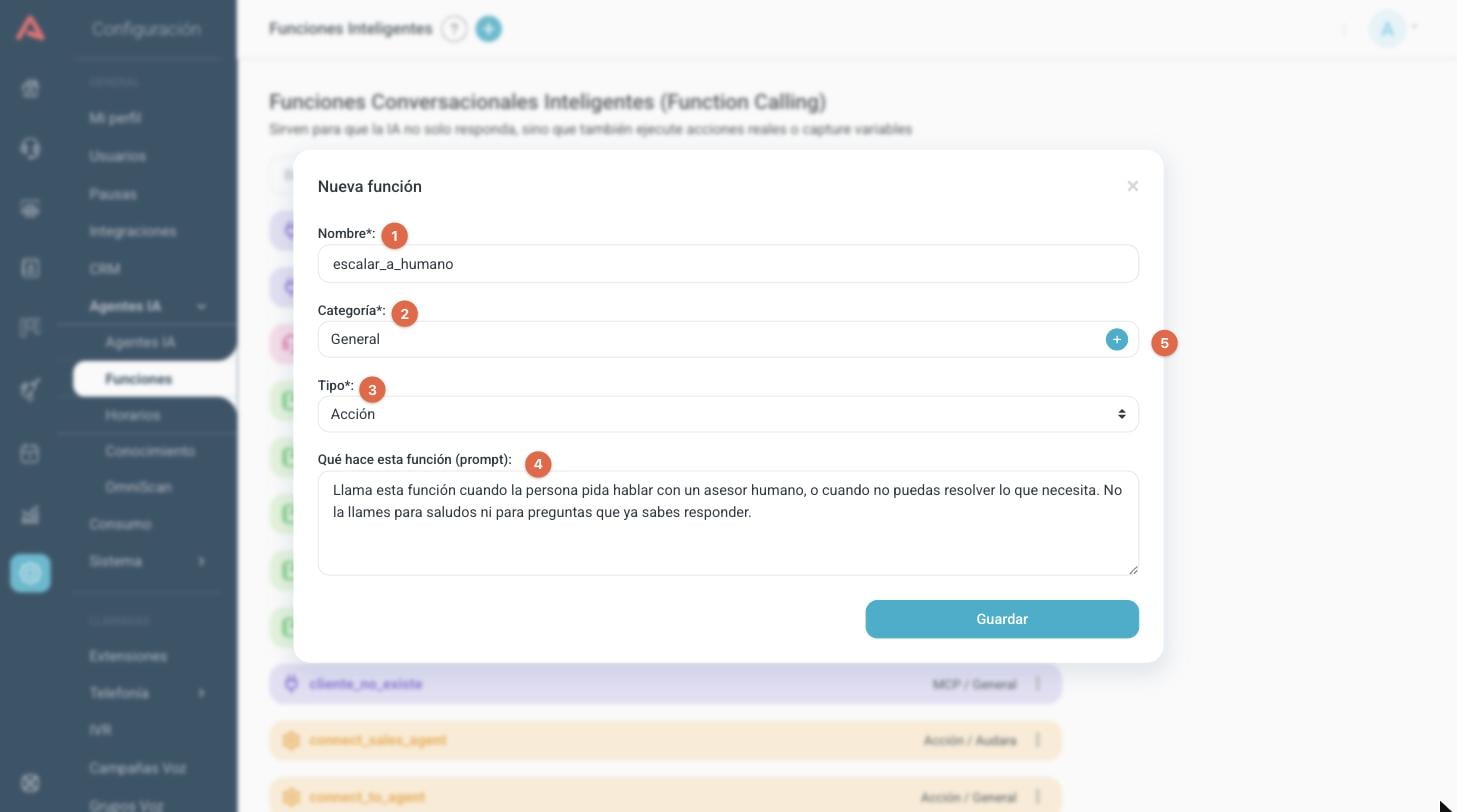
- 1 The name the bot will know the function by.
- 2 The category it belongs to.
- 3 The type of function. Depending on what you pick, the fields belonging to that type appear underneath.
- 4 The description the model reads in order to decide when to call it.
- 5 Create a new category without leaving the form.
- Name*
- It only takes letters, numbers and underscores, with no spaces and no accents: it is the technical name the model calls the function by. It cannot be repeated; if the name already exists, the form tells you. Pick names that read on their own, like
book_appointmentorescalate_to_human. - Category*
- It is there to organise the list. It does not change how the function behaves.
- Type*
- What the function does when the bot calls it. See The types of function.
- What does this function do (prompt)
- The description the model reads. See How to write the prompt. MCP functions do not have this field, because there each tool carries its own description.
Categories
Categories group the functions so they can be filtered. They are managed from the (+) button next to the Category field.
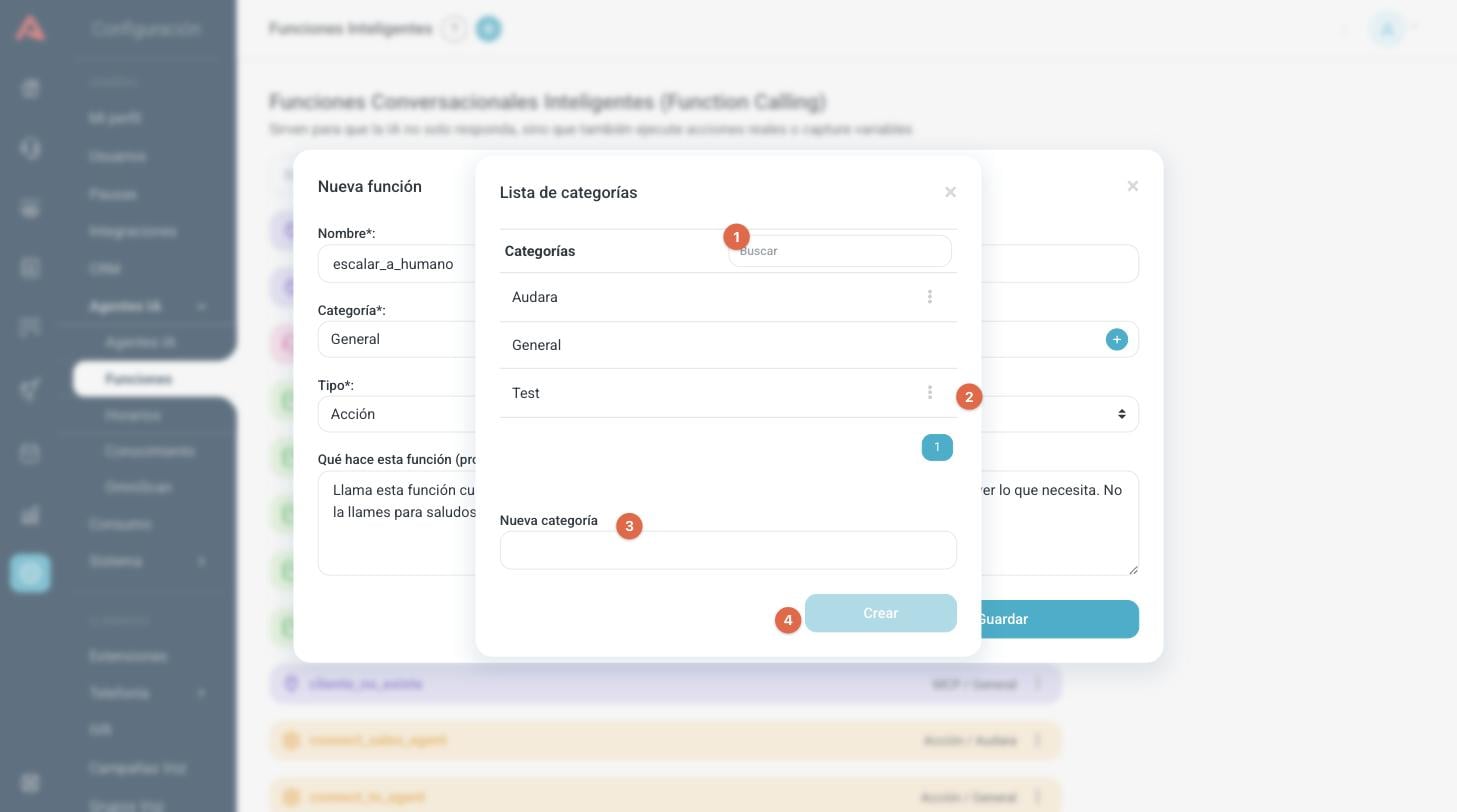
- 1 Search for a category by name.
- 2 The (⋮) menu of each category lets you rename or delete it.
- 3 Write the name of the new category.
- 4 Create it.
The system's default category has no (⋮) menu: it cannot be renamed or deleted, because it is the one assigned to every new function.
How to write the prompt
The What does this function do (prompt) field is not an internal note: it is the text the model reads, together with the text of every other function, to decide which one to call on each turn. If the bot does not call a function when it should, or calls it too often, this text is the first thing to fix.
- Write when to call it, not what it does inside: "Call this function when the person asks to speak to a human adviser".
- Say when not to call it as well. A single sentence of exclusion prevents most of the unnecessary calls.
- If the function needs data, ask for it to be confirmed first: "Confirm the details with the person before calling it".
- One function per intent. Two functions with similar descriptions get mixed up with each other.
Capture functions
A capture function tells the model what values to pull out of the conversation. Picking the Capture type brings up the Capture Fields section.
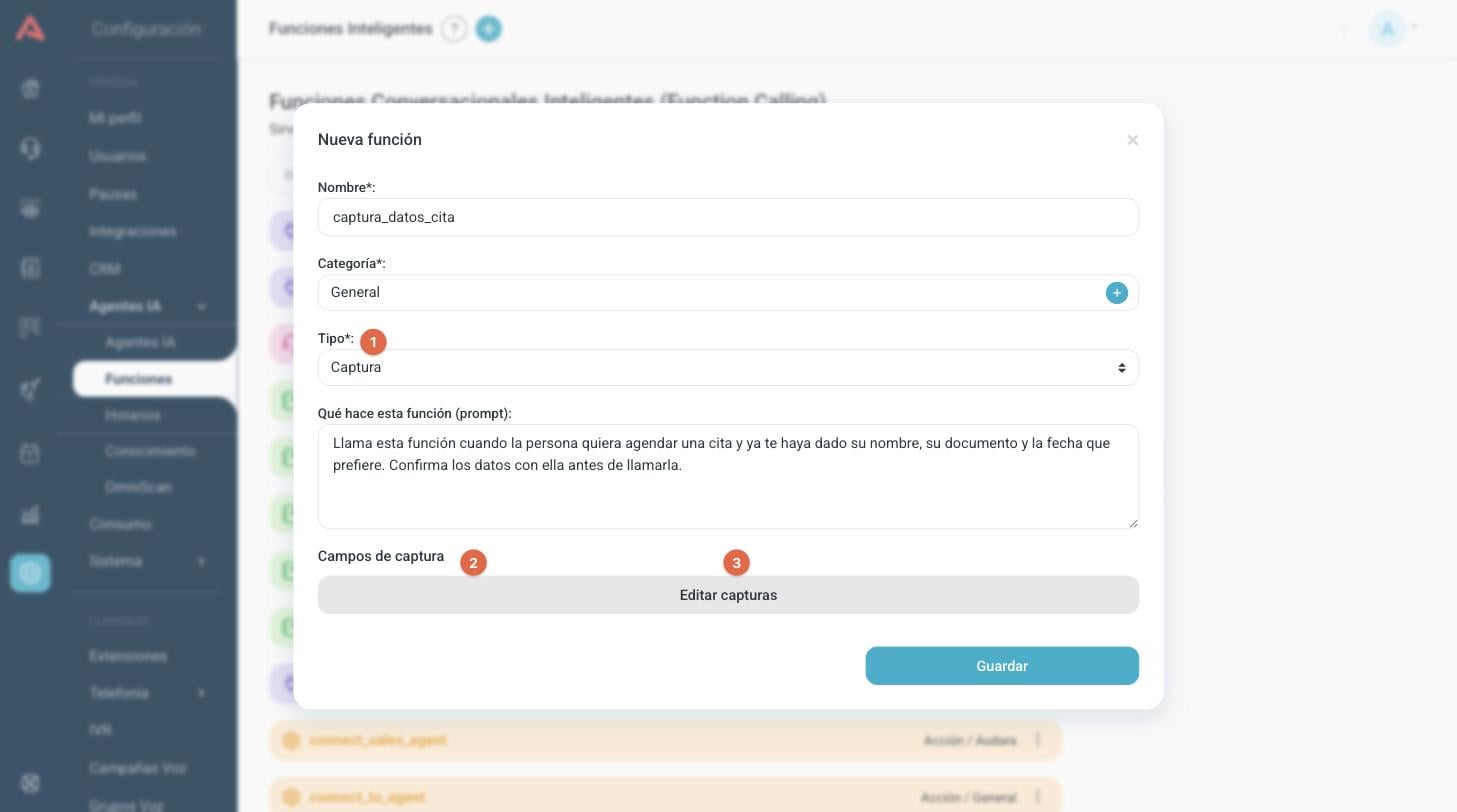
- 1 The Capture type.
- 2 The fields you have already defined are listed here.
- 3 Open the field editor with Edit Captures.
Each field is configured separately:
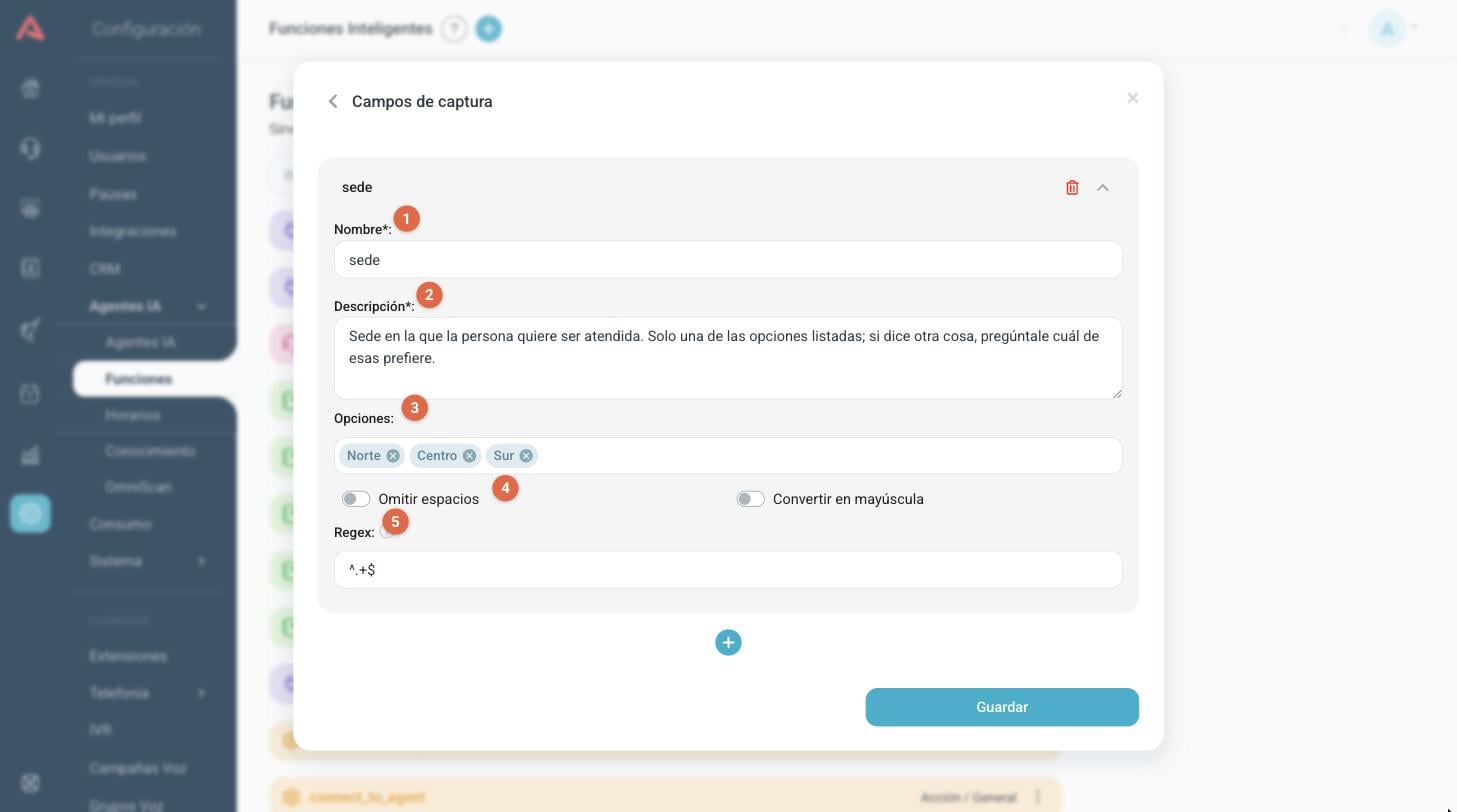
- 1 The name of the value.
- 2 The description of the value for the model.
- 3 The values allowed, if the field can only take certain ones.
- 4 Cleaning up the value before storing it.
- 5 The regular expression the value is validated against.
- Name*
- The name of the value, with the same rules as the name of the function: letters, numbers and underscores. It cannot be repeated within the same function.
- Description*
- What this value is, in words the model can follow. It is what it reads in order to know what to pull out of the conversation.
- Options
- A closed list of valid values. If you fill it in, the model can only answer with one of those values. Useful for branches, service types or the category of a case.
- Remove spaces
- Asks the model to hand the value over without spaces. Useful for ID numbers or plates.
- Capitalize
- Asks the model to hand the value over in capitals.
- Regex
- The regular expression the value is validated against. It comes with
^.+$, which only requires it not to be empty. Change it when the value has a fixed format, for instance^[0-9]{6,12}$for an ID number.
Every capture field is asked of the model as required and stored as text. The value of each field is connected to a chat variable in the agent's flow, not here: that is done on the Smart Function node, in the Variable field.
Assistant functions
An assistant function passes the person's question to an OpenAI assistant you have already created, and hands the answer back to the bot to pass on in its own words. It is there to keep a subject that needs its own knowledge, like a product catalogue, separate, without loading all of it into the agent's prompt.
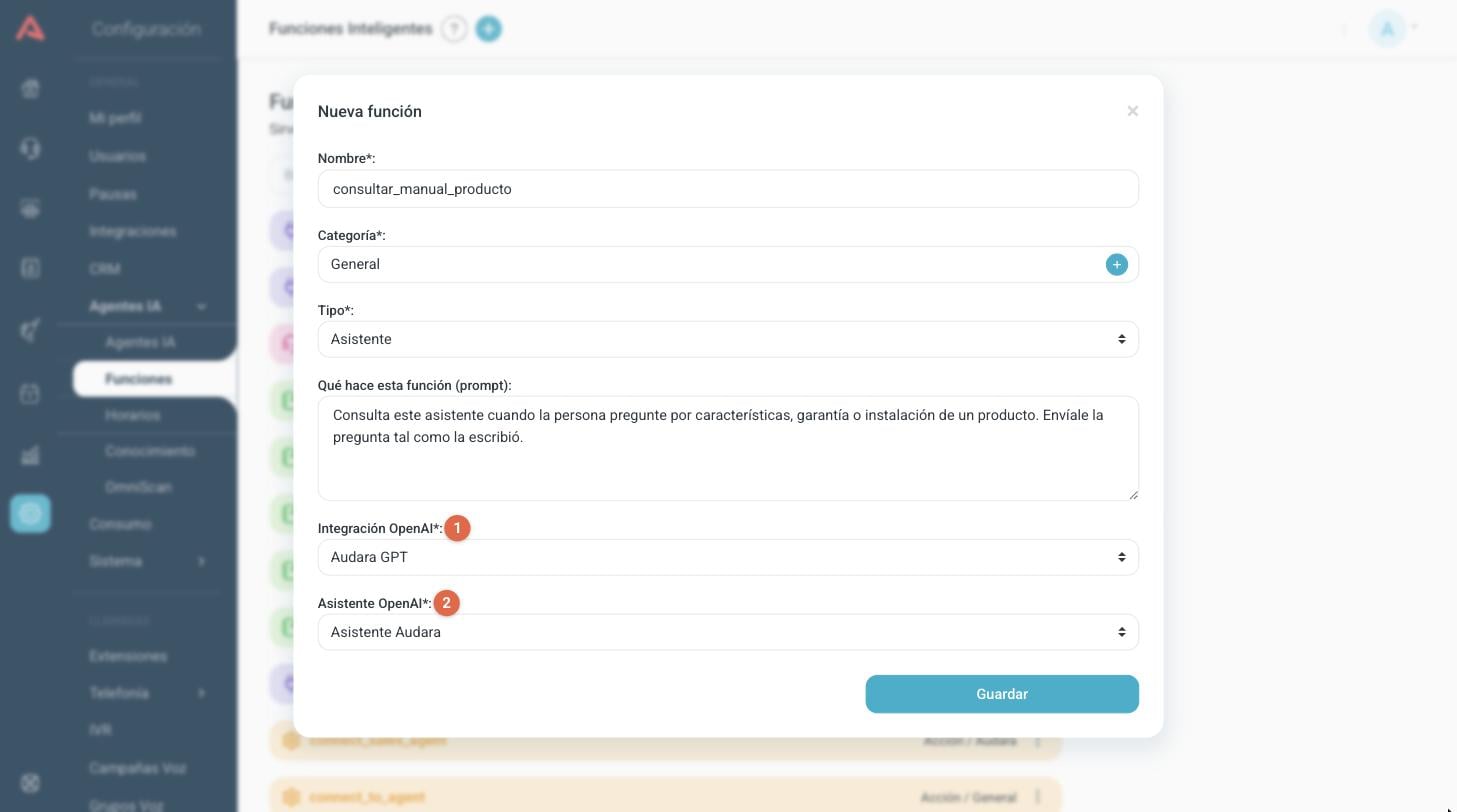
- 1 The OpenAI integration that will be used.
- 2 The assistant on that account the query will go to.
- OpenAI Integration*
- The OpenAI integration configured under Integrations. Picking it loads the assistants on that account.
- OpenAI Assistant*
- The assistant that will answer. It receives the question exactly as the person wrote it.
MCP functions
An MCP function hands the bot tools from an MCP server you have connected under Integrations > MCP. A single function can carry several tools, and they all run on the same step of the flow.
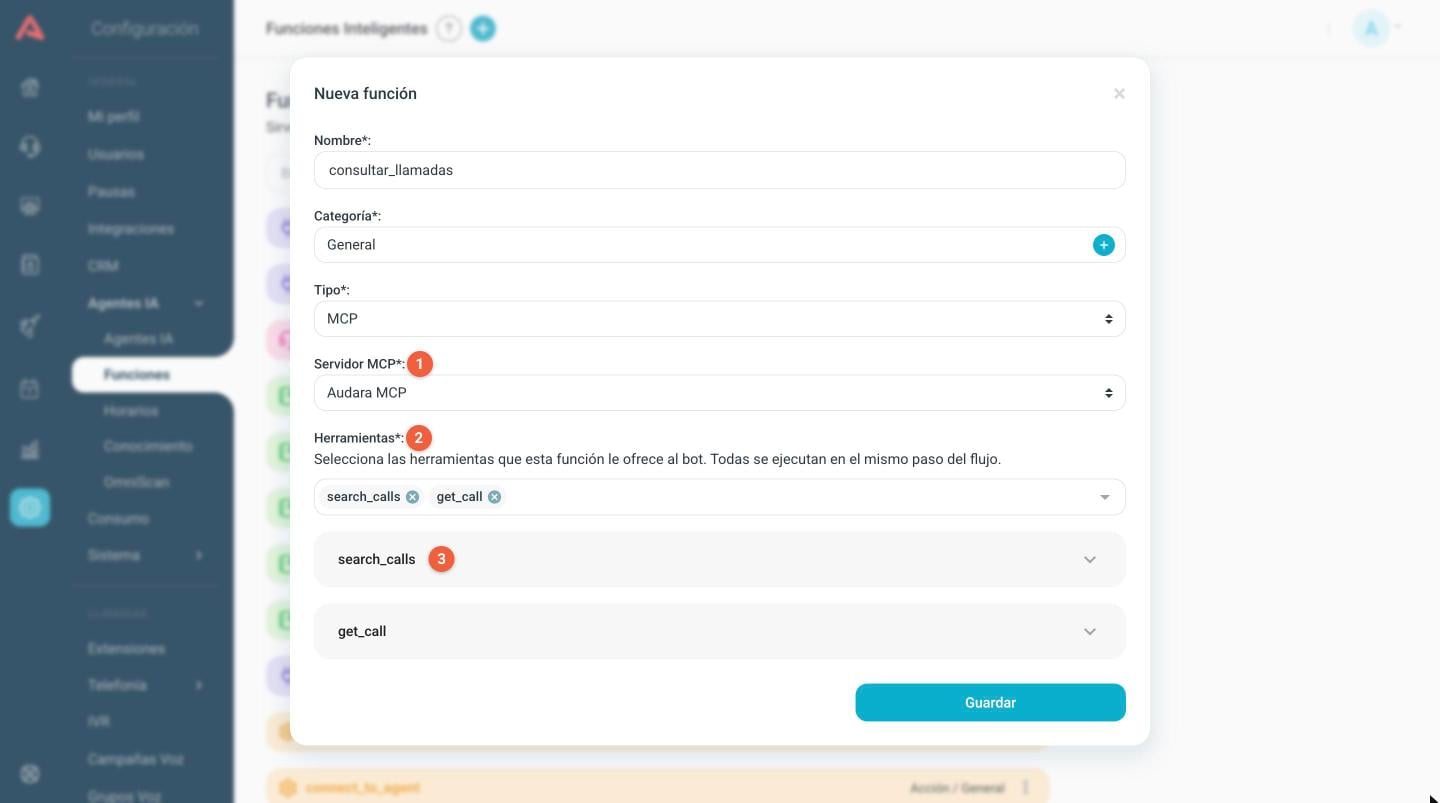
- 1 The MCP server the tools are taken from.
- 2 The tools selected. They are added by searching for them by name and removed with the (x) on each tag.
- 3 Each selected tool has a panel of its own, which opens with the arrow.
Inside a tool's panel:
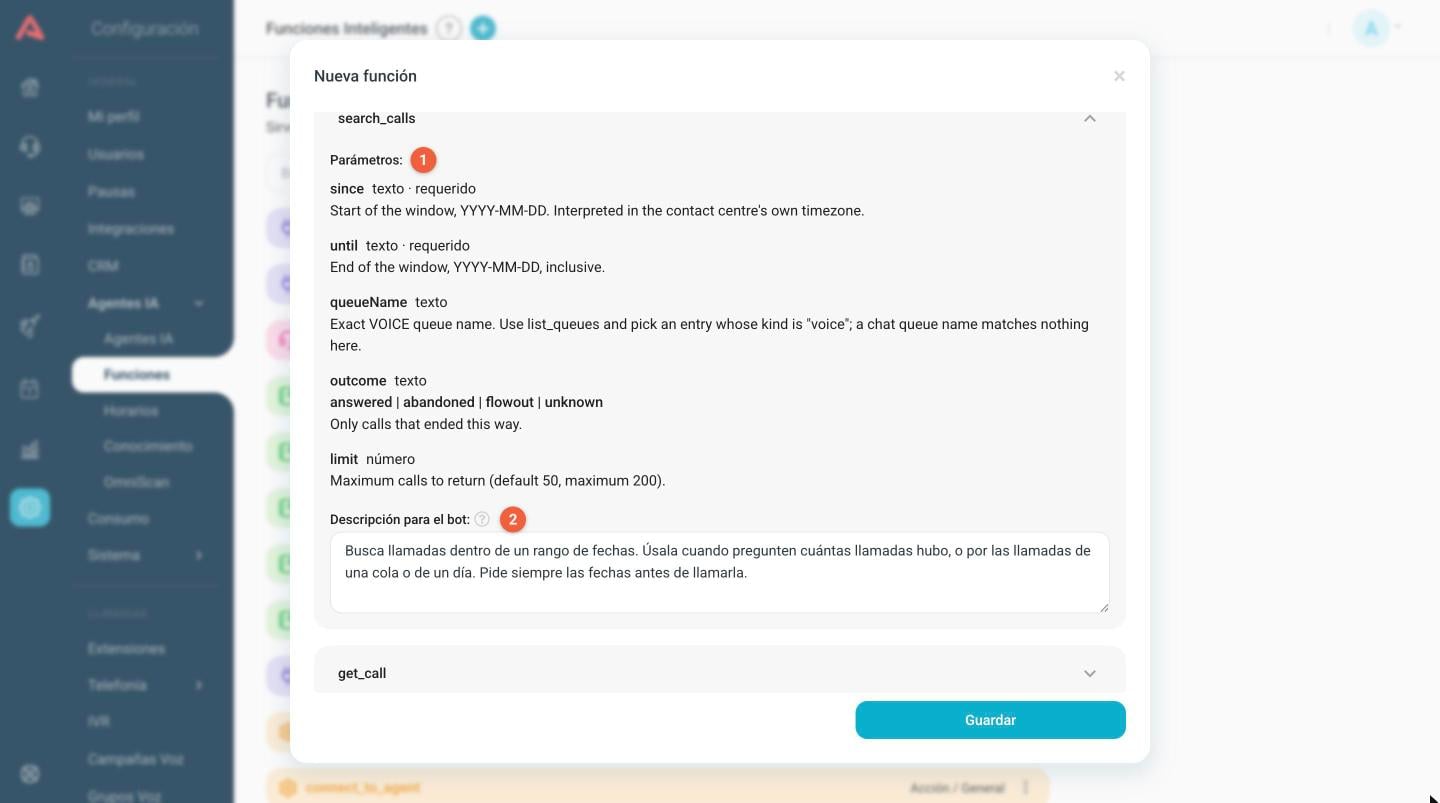
- 1 The parameters the model will have to fill in when calling the tool, with their type and whether they are required.
- 2 The description the bot reads in order to decide when to call it.
- MCP server*
- The server configured under Integrations. If you change it, the tool selection is cleared, because those names belonged to the previous server.
- Tools*
- The tools this function offers the bot. If the server has no tools loaded, they have to be loaded first from Integrations > MCP.
- Parameters
- They are declared by the MCP server and are not edited here. Their description comes from the server, so it may be in another language.
- Description for the bot
- It comes filled in with the server's description, written for some other assistant. Rewrite it in your own words and with your own rules if the bot is not calling the tool when it should.
If the server stops offering a tool you already had selected, it stays in the list marked as unavailable instead of disappearing. Remove it from the selection or load the server's tools again: while it is there, the bot still sees it and fails when calling it.
Knowledge functions
A knowledge function connects the bot to one of your bases under Setup > AI Agents > Knowledge. When the model calls it, the function searches that base and hands it back the fragments that most resemble the question; the bot builds its answer out of those. It is how the bot answers about your manuals, your policies or your frequent questions without you having to put all of that into the prompt.
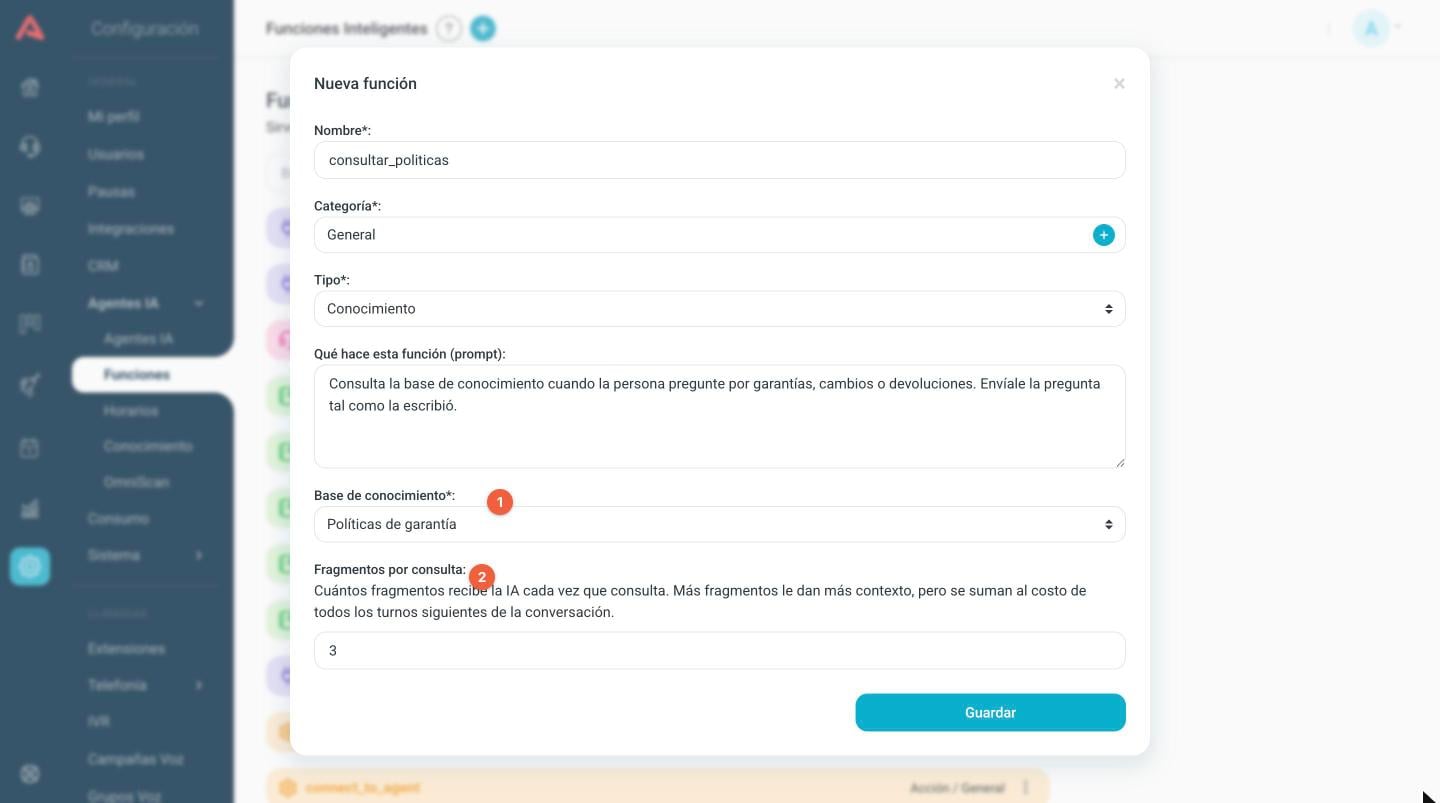
- 1 The base that will be searched.
- 2 How many fragments the AI receives on each query.
- Knowledge base*
- Only the bases with AI search turned on appear. If the list comes out empty, create one under Knowledge first; if the option is blocked for you there, write to support.
- Fragments per query
- How many pieces of the base the model receives each time it searches. They come set at 3. More fragments give it more context, but they stay in the conversation and add to the cost of every later turn, so only raise it if you notice it is short of information to answer with.
In the function's prompt, tell the bot to pass the question on exactly as the person wrote it. The search works better with the original words than with a summary.
How they are used in an AI agent
Creating a function does not put it to work. A function exists for the bot only once you assign it to the Smart Agent node of an AI agent, under AI Agents.
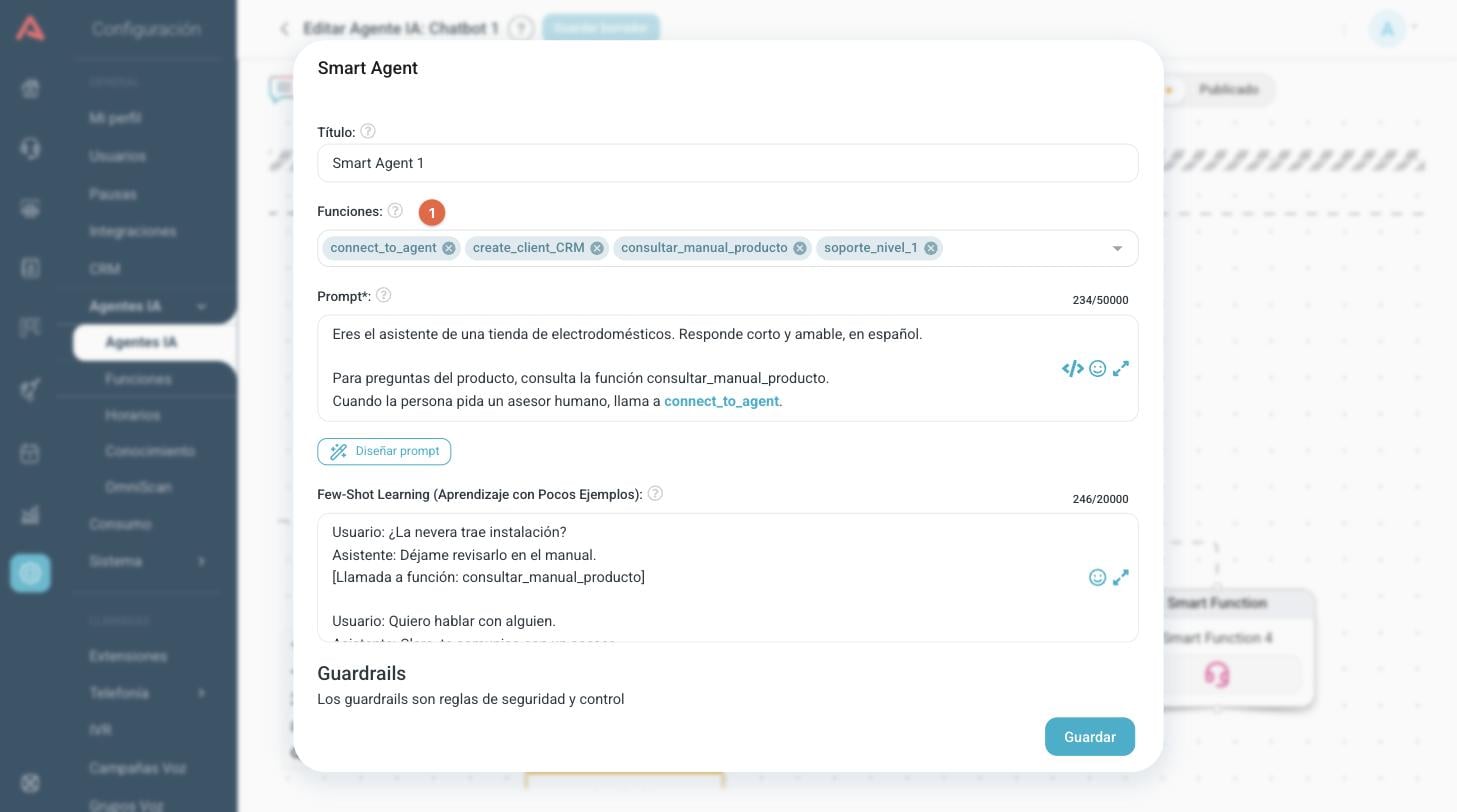
- 1 Functions: the ones this agent can call. They are the only ones the model sees.
For each function you assign, the flow draws a Smart Function node underneath the Smart Agent. That node is the path the conversation takes when the model calls that function, and from there you carry on building the flow as normal.
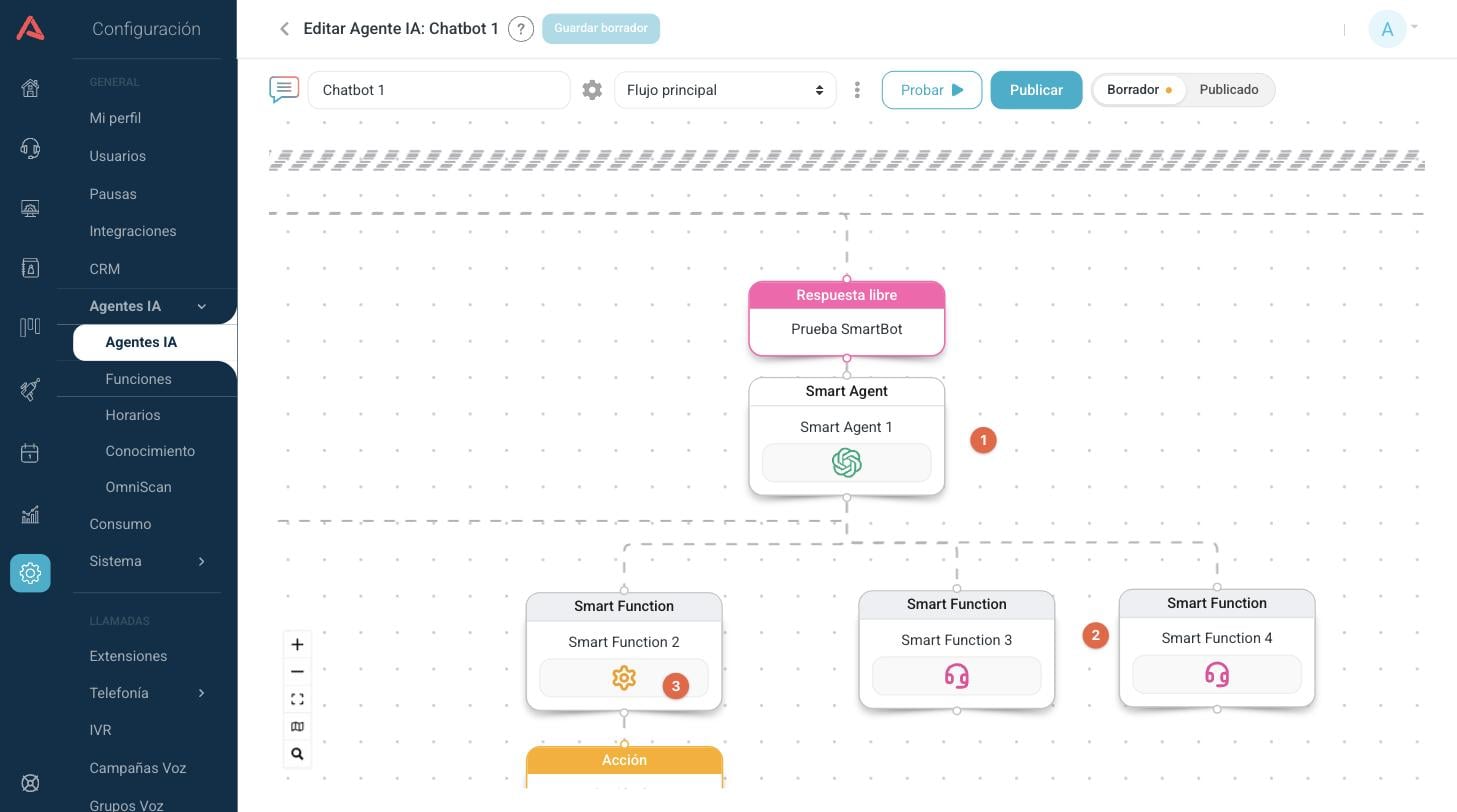
- 1 The Smart Agent node, with all its functions hanging off it.
- 2 One Smart Function node per assigned function.
- 3 The node's icon is the one for the function's type, in that type's colour, so you can tell at a glance what that step does. A node you have not yet picked a function for shows none.
Opening a Smart Function node is where you configure how that function behaves inside this agent:
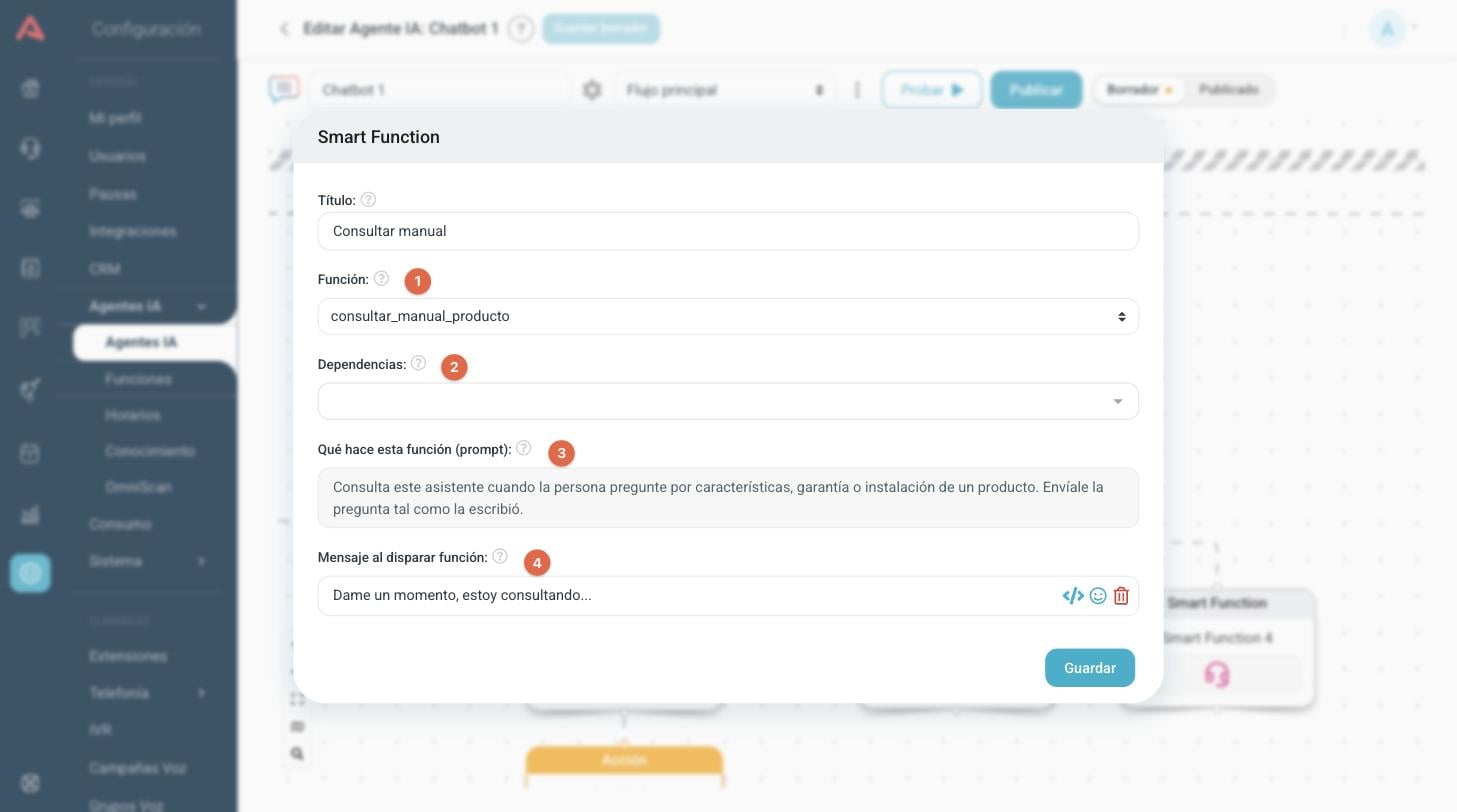
- 1 The function this node corresponds to, out of the ones assigned to the Smart Agent.
- 2 Other functions that must have been called before this one.
- 3 The description of the function, read only. It is edited in the Functions module.
- 4 The message the bot sends while the function runs.
If the function is of type Capture, this node also shows each capture field with a Variable field: that is where you write which chat variable the value is stored in. A switch also appears for asking the model to confirm the data with the person before calling the function.
The same functions serve chat agents and voice agents alike. An agent can only call the functions assigned to it on its Smart Agent node.
Editing or deleting a function
Click the name of the function to open it, or use the (⋮) menu on its row. Bear in mind that the same function can be assigned to several AI agents: changing its description changes the behaviour of all of them. If you delete a function an agent is using, check that flow before publishing it.